

Quick answer: The cpu vs gpu for video editing question has a split verdict. In Premiere Pro, the CPU does more of the work: timeline responsiveness, encoding, and exports, especially on Intel chips with Quick Sync. In DaVinci Resolve, the GPU does more: color grading, effects, and AI tools all run on the graphics card. Buy for your software first, then balance the other component.
Ask ten editors the cpu vs gpu for video editing question and you will get ten confident, contradictory answers. The truth is less exciting and more useful: neither component wins outright. The winner depends on which software you edit in, what footage you shoot, and which part of the job (cutting, grading, or exporting) eats most of your time.
This guide maps exactly where the CPU wins and where the GPU wins in the two most popular editors, Premiere Pro and DaVinci Resolve. Then it turns that map into buying decisions: three balanced build tiers with specific CPU and GPU pairings for budget, mid-range, and high-end editors. No filler, no invented benchmarks, just what the hardware actually does.
Match the Chip to the Software
Here is the one-sentence version: Premiere Pro is CPU-first with GPU help, and DaVinci Resolve is GPU-first with CPU help.
Premiere Pro spreads its work across both chips, but the CPU carries timeline responsiveness, most effects that are not GPU-accelerated, and a large share of every export. Adobe hands final exports to Adobe Media Encoder, which also leans on the CPU for most codecs. The GPU accelerates specific things: Lumetri color, warp stabilizer, blurs, scaling, and hardware encoding through NVENC on NVIDIA cards.
DaVinci Resolve flips the balance. Blackmagic designed Resolve so that nearly all image processing runs on the GPU: the color page, Resolve FX, noise reduction, and the AI tools in the DaVinci Neural Engine. The CPU still matters for playing back files, running Fusion (which favors single-core speed), and decoding codecs the GPU cannot handle, but a mid-range CPU paired with a strong GPU will outperform a monster CPU paired with a weak GPU in Resolve.
Puget Systems, which benchmarks editing hardware more thoroughly than anyone in the industry, regularly shows this split in its test results. Its workstation testing for Premiere Pro consistently rewards Intel CPUs with Quick Sync on H.264 and HEVC footage, while its Resolve testing shows graphics card choice moving the needle far more than the CPU once you pass a reasonable baseline. You can see how they configure real editing machines on their Premiere Pro workstation recommendations.
This is also why the CPU vs GPU question plays out differently than the gaming version of it. In games, the GPU almost always decides frame rates (we break that split down in our guide to CPU-intensive vs GPU-intensive games). In editing, your software picks the winner, so the first buying decision is not “CPU or GPU” but “Premiere or Resolve.”
Where the CPU Wins Premiere Pro Territory
If Premiere Pro is your home base, the processor is the heart of the machine. These are the jobs where CPU muscle shows up every single day.
Timeline Responsiveness, Scrubbing, and Playback
The feel of editing, how smoothly the playhead moves, how fast clips scrub, how quickly the timeline responds after a cut, is mostly CPU work. Premiere Pro wants strong single-core speed for interface responsiveness and plenty of cores for background rendering and multicam work. An 8-core chip is a sensible floor in 2026; 12 to 16 cores is the sweet spot for serious 4K timelines.
This is also where codecs matter more than core counts. Footage from mirrorless cameras and phones is usually H.264 or HEVC in a LongGOP wrapper, which is brutally expensive to decode. A 20-core CPU can still stutter on 10-bit 4:2:2 H.264 if nothing in the system has a hardware decoder for it. That brings us to the CPU feature that changes everything for Premiere editors.
Encoding, Decoding, and Exports
Exporting is the most CPU-bound part of a Premiere workflow for most codecs. Software encoding (x264, x265, ProRes on the CPU) scales with core count, which is why 16-core chips chew through export queues. Hardware encoding through NVENC or Quick Sync is much faster but trades a little quality and control, so many editors use hardware encoding for drafts and client previews, then software encoding for final delivery.
Decoding is the hidden CPU tax. Every frame you preview has to be decoded before anything else happens, and LongGOP H.264 and HEVC force the decoder to reconstruct each frame from surrounding frames. Without hardware decode acceleration, this work lands entirely on the CPU, and timeline performance collapses even on expensive chips.
Intel’s Secret Weapon for H.264 and HEVC
Quick Sync is the hardware media engine built into the integrated GPU of Intel processors, and for Premiere Pro editors who shoot H.264 or HEVC (which is most of you), it is the single most impactful CPU feature you can buy. It decodes those codecs in dedicated hardware instead of burning CPU cores, and Puget Systems testing has measured Intel leads of 10 to 30 percent over AMD in general Premiere work, stretching to nearly double the performance on HEVC footage. In 2026 testing with an RTX 5080, every Intel CPU tested beat every Ryzen chip on LongGOP footage.
Three traps to avoid here:
- 1. Do not buy the F or KF version. Intel’s F-suffix chips (like the 265KF) ship with the integrated graphics disabled, and Quick Sync lives in that iGPU. For Premiere Pro, always buy the K version. The $299 Core Ultra 7 265K, after Intel’s recent $100 price cut, is one of the best editing values on the market precisely because it keeps Quick Sync; the cheaper 265KF gives it up.
- 2. Quick Sync does not decode everything. The one format it cannot handle is 10-bit 4:2:2 H.264, which is exactly what many Sony, Canon, and Panasonic mirrorless cameras record. For that footage you need a GeForce RTX 50 series card, whose decoder handles it in hardware.
- 3. Update your BIOS on 13th and 14th gen Intel. Intel fixed the instability issues affecting those chips with a microcode update delivered through motherboard BIOS updates. An unpatched 13900K or 14900K can crash mid-export, which no amount of GPU will fix.
One more note for Intel shoppers: the LGA 1700 platform (13th and 14th gen) has no upgrade path left, while AMD’s AM5 platform should accept future Ryzen generations. If you plan to upgrade the CPU in two or three years without replacing the motherboard, that matters.
Where the GPU Wins in DaVinci Resolve
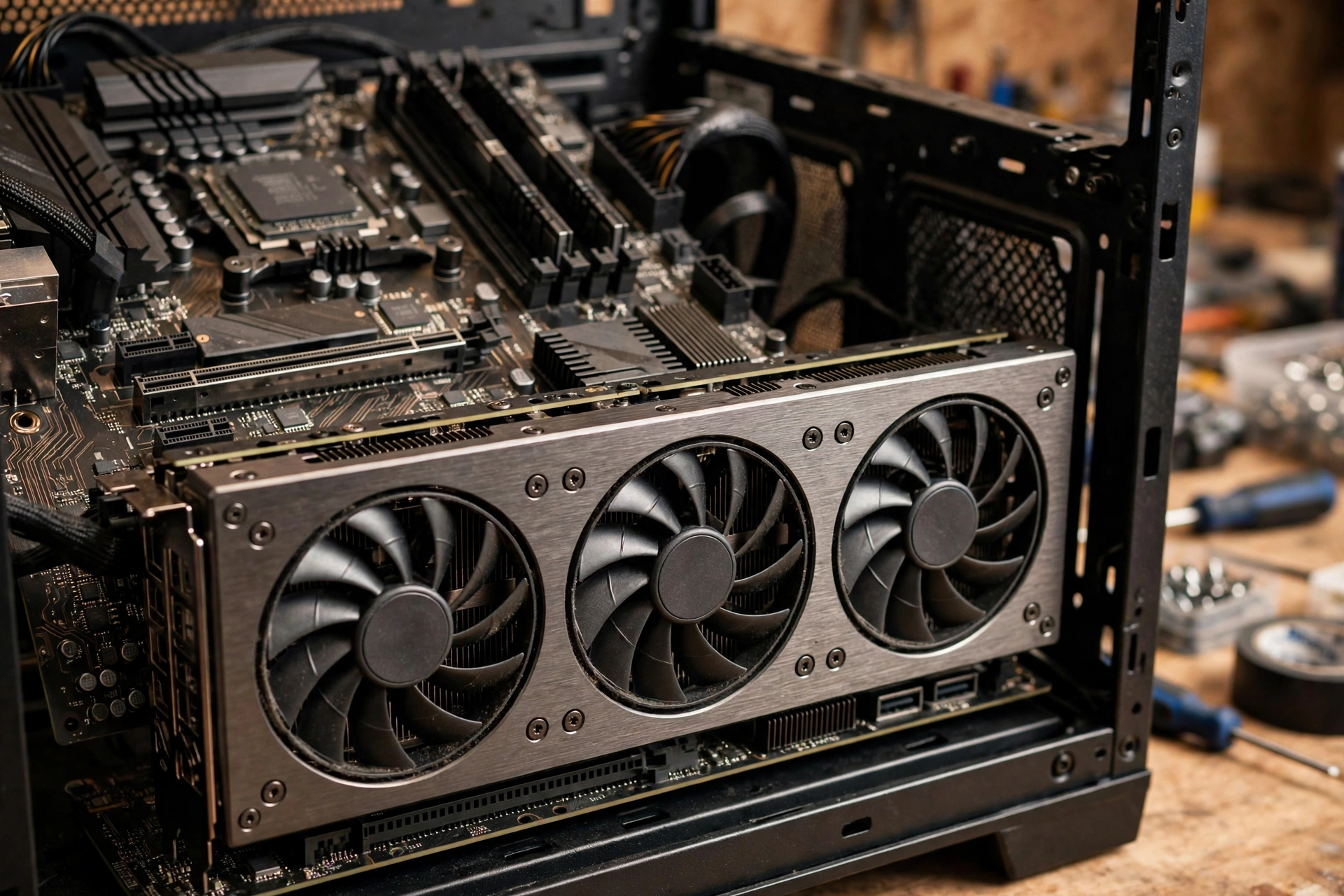
Switch to DaVinci Resolve and the graphics card becomes the star of the show. Resolve was built by colorists, and color work is massively parallel math, exactly what GPUs do best.
Color Grading, Resolve FX, and Fusion
Every node on the color page, every Resolve FX plugin, every blur, glow, and transform runs on the GPU. Stack five nodes with noise reduction and film grain on 4K footage and you will watch GPU utilization climb while the CPU idles. This is why editors on the Blackmagic forums repeat the same advice: even a fast processor with tons of RAM will not save you in Resolve if the GPU is below Blackmagic’s recommended specs, because Resolve does all of its image processing on the graphics card.
Fusion, Resolve’s built-in compositor, is the exception inside the exception: it favors strong single-core CPU speed more than raw GPU power. If your work is heavy on motion graphics and compositing rather than grading, weight the CPU a little higher.
AI Tools: Magic Mask, Noise Reduction, and Voice Isolation
Resolve’s DaVinci Neural Engine features (Magic Mask object selection, AI noise reduction, voice isolation, IntelliTrack) run locally on your GPU, and they are hungry. Blackmagic’s own system requirements for Resolve 21 call for at least 16 GB of VRAM for advanced AI tools. This is the clearest case in all of video editing where VRAM capacity beats raw GPU speed: a 16 GB mid-range card will run Magic Mask on 4K footage more comfortably than a faster 8 GB card that keeps running out of memory.
Hardware Encode and Decode (NVENC and NVDEC)
On the export side, NVIDIA’s NVENC hardware encoder turns Resolve and Premiere exports from minutes into a fraction of that time for H.264 and HEVC delivery. The quality gap between NVENC and software encoding has narrowed to the point where most YouTube and client deliveries are indistinguishable. AMD cards have their own hardware encoders (AMF/VCE), but NVIDIA’s CUDA ecosystem remains the best-supported option across Adobe software, which is why NVIDIA is the default recommendation for editors unless you have a specific reason to go AMD.
One critical Resolve detail: on Windows, the free version of DaVinci Resolve does not decode 10-bit H.264 and HEVC in hardware, and direct hardware decoding through Quick Sync or NVIDIA is reserved for DaVinci Resolve Studio. If you shoot 10-bit footage from a mirrorless camera, the $295 Studio license can matter as much as your choice of CPU. You can compare the versions and download either one from Blackmagic Design’s official Resolve page.
Premiere Pro vs DaVinci Resolve
This table is the cheat sheet. Find your most painful bottleneck on the left, see which component fixes it, and spend accordingly.
| Editing task | Winner | Why it matters |
|---|---|---|
| Timeline scrubbing and responsiveness | CPU | Single-core speed and core count drive how the timeline feels in Premiere; still important in Resolve |
| H.264/HEVC playback from mirrorless cameras | CPU (with Quick Sync) | Intel Quick Sync decodes in hardware; without it, the CPU cores do all the work |
| 10-bit 4:2:2 H.264 playback | GPU (RTX 50) | Neither Quick Sync nor older GPUs decode it; you need an RTX 50 series card |
| Color grading and Resolve FX | GPU | Resolve runs nearly all image processing on the graphics card |
| Noise reduction and AI tools | GPU | Neural Engine features scale with GPU power and VRAM capacity |
| Fusion motion graphics | CPU | Favors single-core speed over GPU power |
| Software encoding exports | CPU | x264/x265/ProRes exports scale with core count |
| Hardware encoding exports | GPU | NVENC/Quick Sync finish H.264/HEVC deliveries far faster |
| RAW footage (RED, Blackmagic RAW) | Both | GPU debayers, CPU handles the rest; Ryzen 9 chips test well here |
| Multicam timelines | CPU | More cores handle more simultaneous streams |
How Much RAM and VRAM You Actually Need
RAM is the component editors underbuy most often, and 2026 is a bad year to learn that lesson. Memory prices are climbing through what analysts are calling the 2026 memory crisis, driven by AI datacenter demand eating DRAM supply. An NVIDIA executive even addressed GPU shortages and memory supply publicly in an October interview with The Elec. If you are building an editing PC, buy the RAM capacity you need now rather than planning a cheap upgrade later.
Here are the real numbers:
- 32 GB of system RAM is the floor for 4K editing. Adobe recommends 32 GB for 4K timelines in Premiere Pro, and Resolve wants 32 GB when you use Fusion. For 1080p work, 16 GB still gets by.
- 64 GB is the comfort zone for 4K with heavy effects, multicam, or long timelines. Capacity matters far more than RAM speed for editing.
- VRAM: 12 GB is the practical minimum for 4K Resolve work with color nodes and effects. 16 GB is the sweet spot, especially if you use AI tools like Magic Mask (Blackmagic’s own spec sheet calls for 16 GB of VRAM for advanced AI features).
- 8 GB VRAM cards are now entry-level for editing. They handle 1080p and light 4K, but 4K timelines with noise reduction will spill over and stutter.
Storage deserves a mention too: keep your active project media and cache on a fast NVMe SSD, separate from your OS drive if possible. Editing 4K footage from a slow external hard drive creates a storage bottleneck that no CPU or GPU can fix, because the timeline is starved of data before either chip gets to work.
The Best CPU and GPU Pairings by Budget
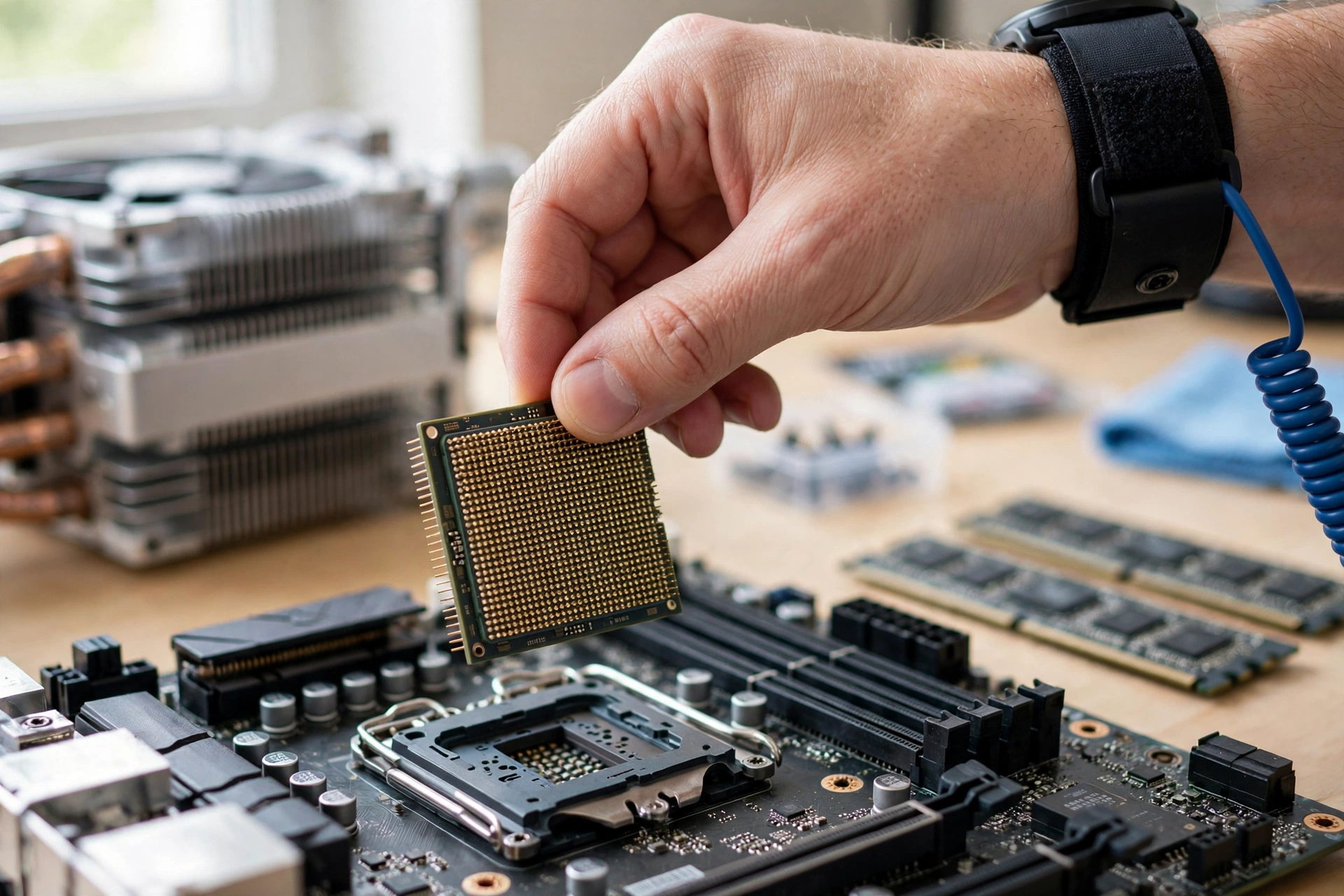
Forget the idea of a perfect 50/50 split. A balanced editing build means neither component visibly holds the other back in your software. These three tiers do that at three budgets. Street prices move constantly, especially with the 2026 memory situation, so treat the tiers as component classes rather than exact price tags.
| Tier | CPU | GPU | RAM | Best for |
|---|---|---|---|---|
| Budget | Ryzen 5 9600X (6 cores) | RTX 5060 Ti 16 GB | 32 GB DDR5 | 1080p and light 4K, YouTube workflows |
| Mid-range | Intel Core Ultra 7 265K (20 cores) | RTX 5070 12 GB | 64 GB DDR5 | Serious 4K in Premiere and Resolve |
| High-end | Ryzen 9 9950X (16 cores) | RTX 5080 16 GB or RTX 5090 32 GB | 64 to 128 GB DDR5 | 8K RAW, heavy color, AI tools |
Budget Tier: Ryzen 5 9600X + RTX 5060 Ti 16 GB
This is the value sweet spot for editors starting out or cutting 1080p and light 4K. The Ryzen 5 9600X brings strong single-core speed for timeline responsiveness at a modest price, and the RTX 5060 Ti 16 GB is the clever pick here: its 16 GB of VRAM gives Resolve’s color page and AI features real headroom that faster 8 GB cards cannot match. For a similar total spend, our best CPU and GPU combo under $1200 guide covers more gaming-leaning pairings if you also play. Upgrade first: the CPU, when you move to heavier 4K multicam work.
Mid-Range Tier: Intel Core Ultra 7 265K + RTX 5070
This is the tier most serious editors should buy. The 265K just dropped from $399 to $299, making a 20-core chip with Quick Sync cheaper than AMD’s 8-core Ryzen 7 9700X, and for Premiere Pro it is arguably the best value CPU on the market right now. Pair it with an RTX 5070 for NVENC exports, CUDA acceleration, and enough VRAM for 4K Resolve work with moderate effects. Quick Sync handles your H.264/HEVC camera footage, the 20 cores chew through software exports, and the 5070 covers the GPU side in both apps. Upgrade first: the GPU, if you get serious about Resolve color work or AI features.
One trend worth watching at this tier: NVIDIA has started shipping its RTX Spark mini AI systems, which use a unified memory architecture instead of separate system RAM and VRAM. For editors, unified memory is interesting because the CPU and GPU share one large pool, which could simplify the RAM vs VRAM balancing act. It is early days and pricing is premium, but it is a sign of where editing hardware is heading.
High-End Tier: Ryzen 9 9950X + RTX 5080 or RTX 5090
For 8K RAW, cinema cameras, heavy node trees, and daily AI tool use, buy cores and VRAM without apology. The 16-core Ryzen 9 9950X is the most versatile high-end editing CPU: Puget testing showed it 12 percent faster than Intel’s best with RAW footage and ahead on AI features, and the AM5 platform leaves an upgrade path open. Pair it with an RTX 5080 for 4K/8K Resolve work, or the RTX 5090’s 32 GB of VRAM if your timelines regularly include noise reduction, Magic Mask, and Fusion composites at high resolution. At this tier also budget for a quality 850W or higher power supply and real cooling, since these parts draw serious wattage under sustained export loads. Upgrade first: honestly, storage speed and RAM capacity usually bottleneck these builds before either chip does.
6 Costly Mistakes Editors Make
- 1. Buying an Intel F or KF chip for Premiere Pro. The 265KF looks like a deal until you realize the disabled iGPU took Quick Sync with it. For H.264 and HEVC editing, that one letter costs you the best hardware decode on the market.
- 2. Pairing a flagship GPU with an ancient CPU. A $1,500 graphics card cannot fix a 6-year-old quad-core in Premiere, because the timeline and exports are still waiting on the processor. If you are unsure whether your current pairing is lopsided, run it through our CPU bottleneck calculator before spending anything.
- 3. Ignoring your camera’s codec. Shooting 10-bit 4:2:2 H.264 on a Sony or Canon mirrorless body and editing on a GTX-era card is a recipe for a slideshow timeline. Match the decoder to the footage: RTX 50 for 4:2:2, Quick Sync or NVENC for everything else.
- 4. Assuming free DaVinci Resolve uses your GPU like Studio does. This is the most common “my GPU is at 5 percent” complaint. On Windows, the free version skips hardware decoding for 10-bit H.264 and HEVC entirely, so the CPU decodes while the GPU waits. Check your GPU processing mode (CUDA vs OpenCL), confirm hardware decoding is actually available in your version, and monitor per-component utilization while playing back a heavy timeline. Our guide on how to find a PC bottleneck walks through the monitoring step by step.
- 5. Skimping on RAM during the 2026 price surge. With memory prices climbing, 16 GB builds are a false economy for 4K work. Buy 32 GB minimum now; adding mismatched sticks later during a shortage is how you end up with instability. Our 2026 GPU shortage breakdown covers the broader supply picture affecting both GPUs and memory.
- 6. Editing from a slow drive. A 5400 RPM external HDD or a nearly full SATA SSD will stutter a 4K timeline on any hardware. Keep media and cache on an NVMe SSD with free space to spare.
FAQs
How important is GPU for video editing and rendering/uploads? Is GPU more important than CPU?
This is the classic version of the question, asked on the Linus Tech Tips forum, and the honest answer is that it depends on the software. For rendering and uploads specifically, the GPU matters most when you use hardware encoding (NVENC): exports finish dramatically faster. But rendering effects-heavy timelines still leans on the CPU in Premiere Pro. If your exports are slow, check whether hardware encoding is even enabled before buying a new card; many editors leave it off by default.
Which is more important for editing, CPU or GPU?
Asked on Adobe’s own community forums, and the consensus answer holds up: for Premiere Pro, prioritize the CPU, especially an Intel chip with Quick Sync for H.264 and HEVC. For DaVinci Resolve, prioritize the GPU and its VRAM. Either way, do not neglect RAM: 32 GB is the realistic starting point for 4K in both apps.
Is GPU, CPU, or RAM more important for editing a 4K video?
This Quora question gets to the real-world priority order. For 4K: first, make sure you have 32 GB of RAM, because running out of memory causes the worst slowdowns. Second, get the right CPU or GPU for your software (CPU-first for Premiere, GPU-first for Resolve). Third, make sure your storage is fast enough to feed the timeline. A balanced mid-range system with 32 GB of RAM will feel faster than a lopsided flagship build starved of memory.
How much graphics card memory do I need for 4K video editing?
For 1080p, 8 GB of VRAM is fine. For 4K, 12 GB is the practical minimum and 16 GB is the sweet spot, particularly in DaVinci Resolve where color nodes, noise reduction, and AI tools like Magic Mask consume VRAM quickly. Blackmagic’s own requirements list 16 GB of VRAM for advanced AI features. More VRAM prevents stuttering and crashes on complex timelines; beyond 16 GB you are paying for 8K and heavy AI work.
Which computer processor and video card are the best for video editing?
There is no single best combo, but the safest all-around answer in 2026 is an Intel Core Ultra 7 265K ($299 after the price cut) with an RTX 5070 for Premiere Pro editors, or a Ryzen 9 9950X with an RTX 5070 Ti or better for DaVinci Resolve editors who also do RAW and AI work. Always match the card to your software: NVIDIA’s CUDA support is strongest in Adobe apps, which is why GeForce cards dominate editing builds. The long-running Tom’s Hardware discussion on CPU vs GPU in video editing reaches the same conclusion from years of user experience.
Do I need an expensive computer for video editing?
Not necessarily. A budget build with a modern 6-core CPU, 32 GB of RAM, an NVMe SSD, and a 16 GB VRAM graphics card handles 1080p and light 4K comfortably. What makes editing feel expensive is mismatched hardware: a weak link anywhere (too little RAM, a slow drive, no hardware decoder for your codec) drags the whole system down. Spend on balance first, flagships second.
Key Takeaways
- Premiere Pro is CPU-first: timeline feel, encoding, and exports reward core count and Intel Quick Sync for H.264 and HEVC.
- DaVinci Resolve is GPU-first: color, effects, and AI tools run on the graphics card, and 16 GB of VRAM is the sweet spot.
- Never buy an Intel F or KF chip for Premiere: no iGPU means no Quick Sync.
- 32 GB of RAM is the 4K floor, and 2026 memory prices reward buying capacity now.
- Match the decoder to your footage: 10-bit 4:2:2 H.264 from mirrorless cameras needs an RTX 50 series card.
- The best value tiers right now: Ryzen 5 9600X + RTX 5060 Ti 16 GB (budget), Intel 265K at $299 + RTX 5070 (mid-range), Ryzen 9 9950X + RTX 5080/5090 (high-end).
Conclusion
The cpu vs gpu for video editing debate never had a single winner because it was always two different questions. Premiere Pro asks your CPU to carry the timeline and your exports, and rewards Intel’s Quick Sync more than any other feature. DaVinci Resolve asks your GPU to carry the image itself, and rewards VRAM capacity more than clock speed.
So buy backwards from your software. Premiere editor who shoots H.264 weddings? Put the money in a 265K and 64 GB of RAM, and a mid-range GeForce is plenty. Resolve colorist grading 4K commercial work? The GPU and its 16 GB of VRAM come first, with a solid 8 to 12 core CPU behind it. Either way, keep the system balanced: 32 GB of RAM minimum, media on an NVMe SSD, and a power supply that is not gasping.
Hardware keeps moving, Quick Sync keeps getting better, AI tools keep getting hungrier, and memory prices will do whatever they do. But the map above does not change: know which chip your software leans on, spend there first, and never let one component starve the other.

Leave a Reply