

Your GPU running at x8 or x4 instead of x16 is usually caused by lane sharing with an M.2 SSD, a wrong slot, a BIOS setting, a loose card, or a GPU that is an x8 model by design. In GPU-Z, click the question mark next to Bus Interface and run the render test to check the link under load.
So your gpu running at x8 pcie showed up in GPU-Z as something like “PCIe x16 4.0 @ x8 1.1”, and your stomach dropped. Before you tear your PC apart, slow down, because that reading often looks worse than it is.
The Bus Interface field shows two things. The left side is what your graphics card supports. The right side is what it is running at right now. A reading of PCIe x16 4.0 @ x8 1.1 while you are staring at the Windows desktop is not proof of a problem. Modern GPUs downshift their PCIe link when idle to save power. The 1.1 part means the link dropped to PCIe 1.1 speeds, which is normal power saving, and the x8 part can also be a temporary idle state on some boards.
The correct test takes ten seconds. In GPU-Z, click the small question mark next to the Bus Interface field. That opens the render test, which puts a real 3D load on the card. Watch the Bus Interface field while the test runs. If it jumps up to “PCIe x16 4.0 @ x16 4.0”, your link is fine and you can stop worrying. If it stays at x8 or x4 under full load, you have a real issue worth fixing.
HWiNFO gives you the same information under the GPU section as “PCIe link width” and “PCIe link speed” if you prefer a second opinion. One more note for this week: if you just installed NVIDIA’s 621.01 driver, the release headlined by Advanced Shader Delivery, retest after the update. Driver installs can reset PCIe power management behavior, and shader compilation stutter from a fresh driver is a different problem from a lane issue. Do not chase a lane problem that is actually a driver settling in.
Practical takeaway: Only troubleshoot a link width that stays low while the GPU is under load. An idle reading of x8 or 1.1 speeds is power saving, not a defect.
Why an M.2 SSD Can Drop Your GPU to x8
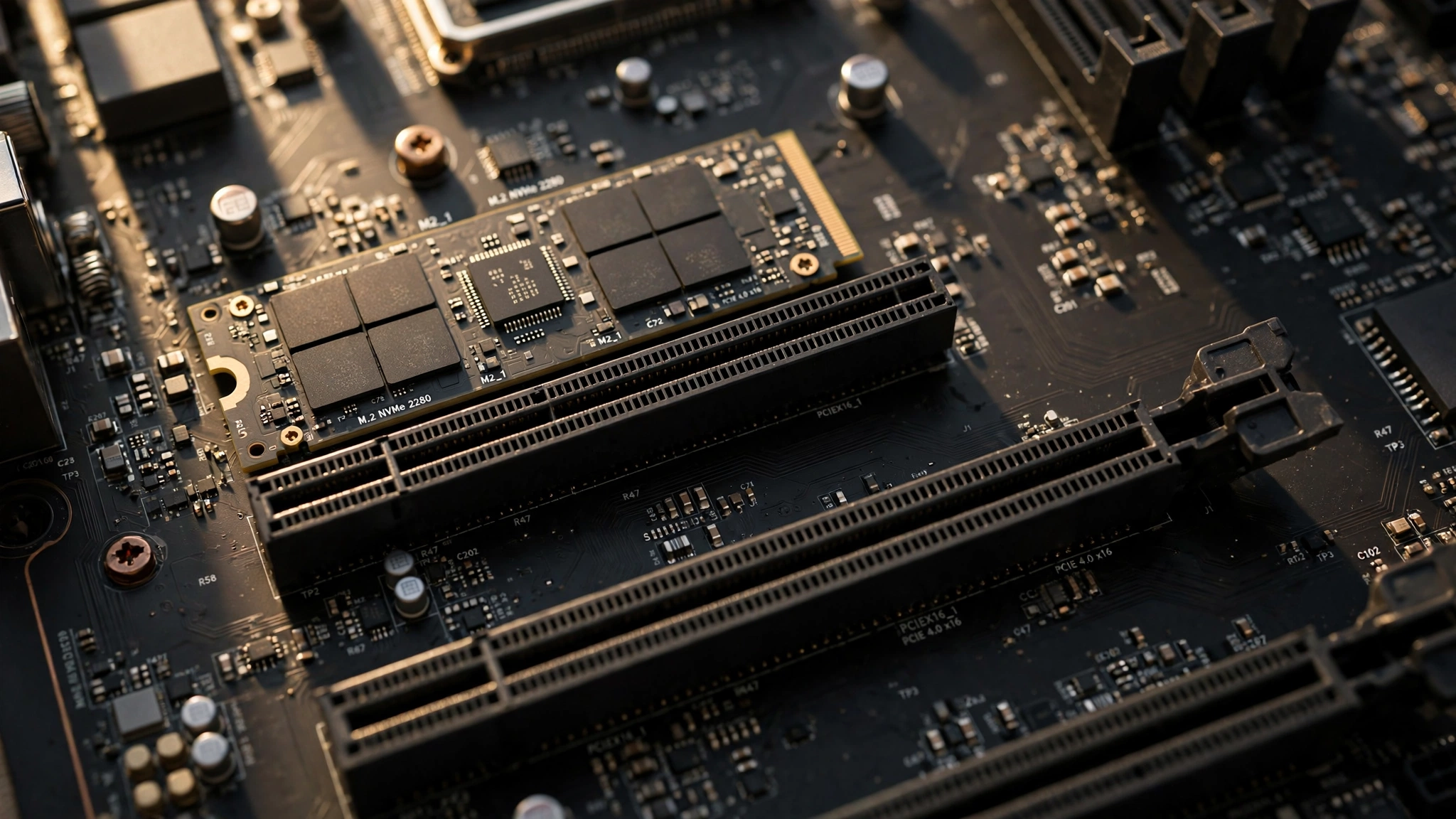
The most common real cause of a GPU stuck at x8 is lane sharing with an M.2 NVMe drive. Here is why it happens.
A mainstream desktop CPU only has a fixed number of PCIe lanes wired directly to it. A typical Ryzen or Intel Core chip gives you 16 lanes for the graphics slot plus 4 lanes for one NVMe SSD. That is the whole budget. On many Intel boards, one or two of the M.2 slots are wired to the same 16 CPU lanes that feed the graphics slot. The moment you populate one of those slots, the motherboard splits the graphics slot from x16 to x8 and hands the other 8 lanes to the SSD.
This is extremely common on Intel Z690, Z790, and Z890 boards. ASUS documents it directly: on boards like the ROG MAXIMUS Z890 HERO, populating certain M.2 slots drops the main PCIEX16 slot to x8 operation. On the ROG STRIX Z790-E, users have confirmed that filling M.2_1 forces the graphics slot to x8. One builder on the ROG forums watched his RTX 4080 sit at x8 and the fix was simply moving his SSD to a different M.2 slot that runs off the chipset instead.
The classic real-world case comes from the Linus Tech Tips forums: a builder’s GPU ran at x8 with nothing else plugged in, and dropped to x4 when he plugged in a second M.2 drive. That pattern, x8 shrinking to x4 as drives are added, is the fingerprint of lane sharing. Your motherboard manual has a lane-sharing table or block diagram that shows exactly which slots share lanes. That table is the source of truth for your specific board, because the layout changes from model to model.
Practical takeaway: If your GPU dropped to x8 right after you added an NVMe drive, check the manual’s lane-sharing table first. Moving the SSD to a chipset-connected M.2 slot usually restores x16.
GPU Running at x8 PCIe? 7 Causes Explained
The GPU Is in the Wrong Physical Slot
If you installed your card in a lower slot for looks, clearance, or because the top slot felt crowded, move it to the top slot. This single change fixes a large share of x8 and x4 reports.
Practical takeaway: The GPU belongs in the top x16 slot. A lower slot that looks identical can be electrically x8 or x4.
Your Card Is an x8-Interface GPU by Design
Here is the cause that embarrasses the most people, and there is no shame in it. Several popular cards are physically built with only 8 PCIe lanes. The RTX 4060, RTX 4060 Ti, RTX 3050, and RTX 5060 all use an x8 interface. On the AMD side, the RX 6600 uses x8 and the RX 6500 XT uses only x4. MSI’s own spec sheet for its RTX 4060 Gaming X literally reads “PCI Express Gen 4 x16 (uses x8)”.
If you own one of these cards, GPU-Z will always show x8, and that is the maximum the card can do. Nothing is wrong. One useful equivalence to remember: PCIe 5.0 x8 carries the same bandwidth as PCIe 4.0 x16, and PCIe 4.0 x8 equals PCIe 3.0 x16. So an RTX 5060 at PCIe 5.0 x8 is not losing anything at all.
Practical takeaway: Check your card’s spec sheet before troubleshooting. An x8 reading on an RTX 4060 or RX 6600 is normal by design.
A BIOS Bifurcation or Link Speed Setting
Bifurcation is a BIOS setting that splits the 16 CPU lanes into smaller groups, like x8/x8 or x8/x4/x4, usually for multi-device setups. If it was changed at some point, your graphics slot may be stuck at x8 even with nothing else installed. Dig into the BIOS advanced settings, find the PCI subsystem or PCIe bifurcation option for your graphics slot, and confirm it is set to x16 or Auto.
While you are there, check the link speed setting for the slot. If a previous owner or an old troubleshooting attempt forced it to Gen3, set it back to Auto or to the highest generation your card and board both support. ASUS boards expose this under Advanced, then PCI Express Configuration, then the PCIEX16 Link Speed option.
Practical takeaway: A wrong bifurcation or forced link speed in BIOS can halve your lanes with no hardware cause at all.
Reseat the Card and Clean the Contacts

A card that is not fully seated is a classic cause of x8 or x4 operation. Heavy cards sag over time, and sag tilts the connector just enough that some lane pins lose contact. Dust in the slot, or even a bit of residue on the card’s gold fingers, can block the exact pins the link needs to negotiate all 16 lanes.
Power down fully, flip the PSU switch off, and press the retention clip to release the card. Pull it straight out, then wipe the gold contacts gently with a lint-free cloth barely dampened with 99 percent isopropyl alcohol. Blow dust out of the slot with compressed air. Reinstall the card firmly until the retention clip clicks shut, screw the bracket in, and consider a cheap GPU support bracket to stop the sag from returning. Do not sand or scrape the contacts, and skip metal tools entirely.
If you are still unsure whether the link itself is your real performance problem, our bottleneck diagnosis guide walks through isolating it from CPU limits.
Practical takeaway: Reseating plus a quick contact cleaning fixes lane issues caused by sag, dust, or a poor connection, and it costs nothing.
A Riser or Extension Cable Is Choking the Link
Vertical GPU mounts look great, but the riser cable is a common lane killer. Many risers are only rated for PCIe 3.0, and a Gen4 card on a Gen3 riser will often train at a lower speed, a lower width, or both. If you use a riser, test with the card plugged directly into the motherboard slot. If the link jumps back to x16, the riser is your problem, and you need a Gen4-rated cable or a direct mount.
Practical takeaway: Always test without the riser cable before blaming the board or the card.
Power Saving Has Downshifted the Link at Idle
We covered this in the first section, but it deserves a spot in the causes list because it generates so many false alarms. PCIe Active State Power Management lets the link drop to x1 or x2 width and 1.1 speeds when the GPU is idle. Some boards are aggressive about it. The fix is not a fix at all: put a load on the card with the GPU-Z render test or any game, and confirm the link rises. If it rises, everything is working as designed.
Practical takeaway: A low link width at the Windows desktop is expected. Judge the link only under load.
An Older Board With Shared SATA or Slot Bandwidth
On some older boards the sharing is weirder than M.2 slots. There are documented cases where populating specific SATA ports, the ones mounted parallel to the board edge, dropped a GPU from x16 to x8, and moving the SSD to SATA port 1 restored the full link. Multi-GPU boards from the SLI era also split lanes to x8/x8 the moment a second card is detected. If your board is several generations old, read the manual’s sharing notes line by line, because the culprit may be a port you would never suspect.
Practical takeaway: On older platforms, check SATA port and second-slot sharing notes in the manual, not just the M.2 slots.
How Much Performance Do You Actually Lose
This is the question everyone really wants answered. You found the x8 reading, and now you want to know whether it is worth an afternoon of troubleshooting.
The honest answer, backed by published testing, is that PCIe 4.0 x8 barely matters for most gaming GPUs. TechPowerUp’s extensive RTX 4090 PCIe scaling test found the card loses what they called a “negligible, inconsequential amount of performance” when dropping from PCIe 4.0 x16 to x8-equivalent bandwidth. Across 1080p, 1440p, and 4K, the gap between full Gen4 x16 and Gen3 x16 (which carries exactly the same bandwidth as Gen4 x8) was only about 2 to 3 percent. Read the full scaling data in TechPowerUp’s RTX 4090 PCIe scaling review.
A few titles are hungrier for bandwidth than others. That same testing showed larger gaps in games like Far Cry 6, Elden Ring, and Horizon Zero Dawn, where data streaming across the PCIe bus matters more. An older Tom’s Hardware scaling test found the same pattern years earlier: dropping from x16 to x8 cost only 2 to 3 percent, while x4 cost around 10 percent. You can see those classic results in Tom’s Hardware’s PCIe scaling analysis.
The summary table below translates all of this into practical guidance. Treat the percentages as estimates compiled from published third-party benchmarks, not as in-house testing, because every game and GPU combination behaves a little differently.
| Link configuration | Bandwidth vs PCIe 4.0 x16 | Typical gaming impact on a modern x16 GPU |
|---|---|---|
| PCIe 4.0 x16 | 100 percent (baseline) | Baseline, nothing to gain |
| PCIe 4.0 x8 (same as PCIe 3.0 x16) | 50 percent | 0 to 3 percent in most games at 1080p and 1440p |
| PCIe 3.0 x8 (same as PCIe 4.0 x4) | 25 percent | 5 to 10 percent or more, worse on x8-interface cards |
| PCIe 4.0 x4 or lower | 25 percent or less | 5 to 15 percent depending on the game and GPU, some titles much worse |
The danger zone is the bottom half of that table. An x8-interface card like the RTX 4060 on a PCIe 3.0 board is effectively running at quarter bandwidth, and that is where published tests show real, noticeable losses. A full x16 card at PCIe 4.0 x8 is a 2 percent problem, which is barely outside run-to-run test variation.
Before you start fixing anything, measure your own baseline so you can tell whether the fix actually helped. Grab a repeatable benchmark from our list of free benchmark software, run it with the link at x8, then run it again after your fix. Log the FPS with MSI Afterburner so you are comparing real numbers instead of feelings.
Practical takeaway: PCIe 4.0 x8 on a full x16 card costs roughly 0 to 3 percent. Fix it if you can, but do not panic. At x4 or on a PCIe 3.0 board with an x8 card, the loss is real and worth fixing.
B550 vs X570 vs Intel How Lane Sharing Differs
Not all platforms share lanes the same way, and this is where most of the confusion comes from. Here is how the common platforms behave.
On AMD B550 and X570, the CPU hands the graphics slot a dedicated 16 lanes and the primary M.2 slot its own separate 4 lanes. On most B550 boards the graphics slot does not share bandwidth with M.2 drives at all, and a second M.2 drive runs off the chipset instead. That is why B550 owners rarely see their GPU drop to x8 from adding storage. The difference between B550 and X570 is the chipset link: B550 connects its chipset to the CPU over PCIe 3.0 x4, while X570 uses PCIe 4.0 x4, so chipset-connected drives and devices get twice the bandwidth on X570. The GPU’s own 16 lanes behave the same on both.
Intel’s 12th, 13th, and 14th generation chips are where lane sharing bites. These CPUs provide 20 lanes total, configured as 16 for graphics plus 4 for storage, but many Z690, Z790, and Z890 boards wire one of the M.2 slots into the graphics lanes. Populate that slot and the GPU drops to x8. Intel’s own spec sheets list these chips at up to 20 PCIe lanes in 1×16+4 or 2×8+4 configurations, which is exactly the split that causes this.
AMD’s newer AM5 chips give you more room. A Ryzen 9 7950X, for example, offers 28 PCIe 5.0 lanes with 24 usable for devices: 16 for the GPU, 4 for NVMe, and 4 for the chipset link, as listed on AMD’s official 7950X specifications page.
| Platform | CPU lanes for GPU + primary M.2 | Chipset link to CPU | What usually happens to the GPU |
|---|---|---|---|
| AMD B550 | 16 + 4, dedicated | PCIe 3.0 x4 | Keeps x16 on most boards, second M.2 runs off the chipset |
| AMD X570 | 16 + 4, dedicated | PCIe 4.0 x4 | Same as B550, chipset devices get double the bandwidth |
| Intel Z690 / Z790 / Z890 | 16 + 4, shared on some boards | DMI 4.0 x8 | A CPU-wired M.2 slot can split the graphics slot to x8 |
| Older AMD X470 / B450 | 16 + 4 (PCIe 3.0) | PCIe 2.0 or 3.0 x4 | Some boards share a second x16 slot’s lanes with an M.2 slot |
The warning that applies to every row: board vendors implement sharing differently, so the manual’s block diagram for your exact model wins over any general rule. If you are shopping for a board and want to avoid this headache entirely, our best motherboard for gaming guide covers what to look for in the spec sheet.
Practical takeaway: AMD B550 and X570 usually keep the GPU at x16 no matter how many drives you add. Intel Z690 and newer boards are the ones where a populated M.2 slot most often costs you 8 lanes.
Fix It Step by Step
Work through these steps in order. Most people find the cause by step 4, and every step here is free.
- Confirm the link under load. Open GPU-Z, click the question mark next to Bus Interface, and run the render test. If the link rises to x16, stop. There is nothing to fix.
- Check your card’s interface spec. Look up your exact model on the manufacturer’s spec page. If it is an RTX 4060, 4060 Ti, 3050, 5060, RX 6600, or RX 6500 XT, x8 (or x4) is the card’s maximum by design. No fix exists because nothing is broken.
- Read the manual’s lane-sharing table. Find the block diagram or the page titled something like “PCIe bandwidth sharing” in your motherboard manual. Identify which M.2 slots share lanes with the graphics slot. This tells you exactly which drive to move.
- Move the SSD to a chipset-connected M.2 slot. If a CPU-wired M.2 slot is stealing lanes, move that drive to a slot wired to the chipset, usually labeled M.2_2 or M.2_3. Move a secondary drive first if you have one. Your SSD will run at full speed off the chipset for gaming and everyday use, and the GPU gets its 16 lanes back.
- Use the top x16 slot and ditch the riser for testing. Move the card to the top slot closest to the CPU. If you use a vertical mount, test with the card directly in the slot to rule out the riser cable.
- Reseat and clean. Power down fully and flip the PSU switch off. Release the retention clip, remove the card, wipe the gold contacts with a lint-free cloth dampened with 99 percent isopropyl alcohol, and blow dust out of the slot. Reinstall firmly until the clip clicks, then secure the bracket. A GPU support bracket prevents sag from recreating the problem.
- Check BIOS settings. Set PCIe bifurcation for the graphics slot to x16 or Auto, and set the slot’s link speed to Auto or the highest generation your hardware supports. If the problem survives all of this, update the motherboard BIOS to the latest stable release, since newer firmware often fixes lane training quirks.
- Retest and measure. Run the GPU-Z render test again and confirm x16 under load. Then rerun the same benchmark you ran before the fix and compare. If the numbers barely moved, that is normal for a 4.0 x8 to x16 change. The win is knowing your hardware is running as designed.One financial note, because it matters right now: with memory and hardware prices spiking through the 2026 crunch, do not buy a new motherboard to chase a 2 percent gain. Every fix in this list is free, and a board upgrade for lane width alone is almost never worth it.
If you are still seeing odd performance after the link is fixed, the bottleneck may be elsewhere entirely. Our CPU and GPU compatibility guide helps you check whether your processor is the real limit, and the classic signs your CPU is bottlenecking your GPU are worth a read before spending money.
Real Questions Builders Ask
Q: Why is my RX 580 seen as PCI x8 1.1 when it is supposed to be PCI x16 3.0? It is placed in the PCI Express x16 slot and there are no other slots occupied.
A: The 1.1 part is the giveaway. Your card is idling, so the link downshifted to PCIe 1.1 speeds to save power. Run the GPU-Z render test by clicking the question mark next to Bus Interface. If the reading jumps to x16 3.0 under load, your system is behaving normally. Only worry if it stays at x8 while the card is working hard.
Q: My GPU is running at x8 instead of x16. I only have one GPU and one NVMe SSD, and it still says x8 even with the SSD removed.
A: First, confirm the reading under load with the GPU-Z render test, since idle downshifting fools a lot of people. If it stays at x8 under load with the SSD removed, the drive is not the cause. Check whether your card is an x8-interface model like the RTX 4060, verify the card is in the top slot, look at BIOS bifurcation settings, and reseat the card. One real case like this turned out to be the card model itself: some cards can never show x16.
Q: My GPU runs at x8 with nothing else plugged in, and drops to x4 when I plug in a second M.2 drive.
A: That pattern is textbook lane sharing. Your board is splitting the CPU’s graphics lanes with the M.2 slots. Check the manual’s lane-sharing table to see which M.2 slots are wired to the CPU lanes and which run off the chipset. Move your drives to chipset-connected slots and the GPU should return to x16. If your board has no chipset-connected spare slot, you may have to choose between the second drive and the full x16 link.
Q: Does it matter which PCI Express slot I use for my video card?
A: Yes. Use the top slot closest to the CPU, usually labeled PCIEX16_1. Lower slots are often wired for only x8 or x4 electrically, or routed through the chipset with higher latency. A card in the wrong slot can show x8 or x4 in GPU-Z while being completely healthy.
Q: How are PCIe lanes shared on a motherboard, and where should I install my GPU and M.2 NVMe drives?
A: Install the GPU in the top x16 slot. Install your fastest NVMe drive in the primary M.2 slot, usually M.2_1, which gets its own dedicated CPU lanes on most boards. Put additional drives in the remaining M.2 slots, which typically run off the chipset. The exception is Intel Z690, Z790, and Z890 boards, where one M.2 slot may share the GPU’s lanes, so check the manual’s diagram before filling every slot.
Q: Can I put my GPU in the second PCIe x16 slot?
A: You can, and it will work, but the second slot is often electrically x8 or x4, or wired through the chipset. For gaming you want the top CPU-connected slot at full width. The second slot is fine for a capture card, a network card, or a second SSD on an adapter, but not for your primary GPU.
When It Does NOT Matter
Chasing x16 is not always worth the effort. Here are the situations where you can safely leave things alone.
If your full x16 card is running at PCIe 4.0 x8, the measured cost is around 0 to 3 percent in most games. If fixing it means moving your boot drive and reinstalling Windows, or buying new hardware, the cure is worse than the condition. Accept the x8 and spend that time gaming.
If your card is an x8-interface model by design, there is nothing to chase. An RTX 4060 at x8 or an RTX 5060 at PCIe 5.0 x8 is running exactly as engineered.
If your GPU is older or modest, like a GTX 1660 Super or an RX 580, it cannot saturate even an x8 link in most games. The link width is not your performance limit, the GPU itself is.
And if your workload keeps data on the card, like GPU rendering or local AI inference after the model is loaded, PCIe bandwidth barely registers. The link only matters when large amounts of data stream between the CPU and GPU constantly, which is mostly a gaming concern.
Practical takeaway: PCIe 4.0 x8 on a capable card is a 2 percent problem. Fix it when the fix is free and easy, and ignore it when it is not.
Key Takeaways
- GPU-Z only tells the truth under load. Click the question mark, run the render test, and judge the link width while the card is working.
- The most common real cause is an M.2 SSD sharing the CPU’s PCIe lanes, especially on Intel Z690, Z790, and Z890 boards.
- Some cards, like the RTX 4060 and RX 6600, are x8 by design. Check the spec sheet before troubleshooting.
- The usual fixes are free: move the SSD to a chipset slot, use the top x16 slot, reseat the card, clean the contacts, and check BIOS bifurcation.
- PCIe 4.0 x8 costs roughly 0 to 3 percent on a full x16 card. At x4 or on a PCIe 3.0 board with an x8 card, the loss is real and worth fixing.
Conclusion
A GPU running at x8 or x4 instead of x16 looks alarming, but it is one of the most diagnosable problems in PC building. Check the link under load, identify which of the seven causes applies to your system, and work the fix list from free and easy toward involved. Most builders get their x16 back in under half an hour without spending anything.
If your link is healthy and games still feel slower than they should, the bottleneck is somewhere else. Run your parts through the bottleneck calculator and read the bottleneck diagnosis guide to find the real limit, because a correct diagnosis beats an expensive guess every time.

Leave a Reply