

Quick answer: A starfield cpu bottleneck shows up as stuttering and low frame rates in cities like New Atlantis even when your GPU is not maxed out. Lower Crowd Density to Low or Medium, set Shadow Quality to Medium, use FSR or DLSS at 75 percent render scale, and keep the game on an NVMe SSD. These changes fix most performance problems.
Why Starfield Is So CPU Heavy
Starfield is one of the most CPU-demanding AAA games on PC, even in 2026. It was the first Bethesda title built on Creation Engine 2, and the engine asks your processor to do an enormous amount of simulation work every frame. That is why a starfield cpu bottleneck is such a common complaint: players with powerful graphics cards watch their frame rates collapse the moment they walk into a city.
The heaviest scenes are the big settlements. New Atlantis, Akila City, and Neon pack in dozens of NPCs with pathfinding and routines, plus physics objects, dynamic shadows from many light sources, and dense geometry that all needs to be prepared by the CPU before the GPU can draw anything. Testing at launch showed scenes driving even a 24-core Intel Core i9-13900K to around 60 percent utilization, which tells you how much simulation the engine pushes through the processor (Digital Trends, Starfield PC performance: best settings, FSR 2, benchmarks, and more).
There is an important nuance here. On a flagship CPU like the i9-13900K paired with an RTX 4090, independent testing found Starfield to be mostly GPU-limited at 1080p, with performance only falling off sharply when the CPU was artificially reduced to four performance cores (Overclock3D, Starfield PC Performance Review and Optimisation Guide). But that is a best-case scenario. On the midrange six and eight core CPUs most players actually own, the cities flip the balance: the CPU becomes the limiter while the GPU sits partly idle. That mismatch is the textbook definition of a CPU bottleneck, and it is worth understanding how CPU and GPU bottlenecks differ before you start changing settings, because the fix for each one is completely different.
Two more CPU-side burdens deserve mention. First, Starfield scales noticeably with memory bandwidth, so slow or single-channel RAM can drag down frame rates on otherwise capable CPUs. Second, the game streams a huge amount of data as you move through the world, which means storage performance can show up as stutter that looks like a CPU problem but is not. We will cover both later in this guide.
How to Tell If You Have a Starfield CPU Bottleneck
Before you touch a single setting, confirm what is actually limiting your frame rate. Guessing wastes time, and the wrong fix (like buying a faster GPU when the CPU is the problem) wastes money.
Run Starfield in a demanding spot, ideally New Atlantis, with a hardware monitor overlay such as RTSS with MSI Afterburner showing per-core CPU usage and total GPU usage. These are the signatures of a starfield cpu bottleneck:
- Your frame rate barely changes between the Low and Ultra presets. If dropping every setting to Low gains you only a handful of frames, the graphics card was never the limit. Your CPU is capping how fast frames can be prepared.
- GPU usage drops in cities but is near 100 percent in open areas. A GPU that falls to 60 or 70 percent usage in New Atlantis while the frame rate tanks is waiting on the CPU. The GPU is the follower in this relationship: it can only render frames the CPU hands it.
- One or two CPU cores are pinned near 100 percent while total CPU usage looks modest. This is the trap most players fall into. Starfield leans hard on a few main threads, so an “overall 50 percent” reading can hide a single maxed-out core that is strangling performance. Always read per-core usage, never the average.
- Traversal stutter when moving fast through cities or landing on planets. Some of this is engine and storage behavior, but if it lines up with CPU spikes, the processor is struggling to keep up with streaming and simulation.
If you want a broader checklist of what to look for in any game, our guide to 10 signs your CPU is bottlenecking your GPU walks through each symptom with fixes. And if your frame rate is low for reasons you cannot pin down yet, start with why your FPS is so low to rule out the usual suspects like background apps and driver issues.
One reading you should ignore: the idea that CPU and GPU usage “should” both sit near 90 to 100 percent. That is a common misconception we see in forums, and we answer it directly in the FAQ below. Healthy gaming PCs very often show uneven utilization, and that is normal.
Starfield Settings That Cost CPU Performance
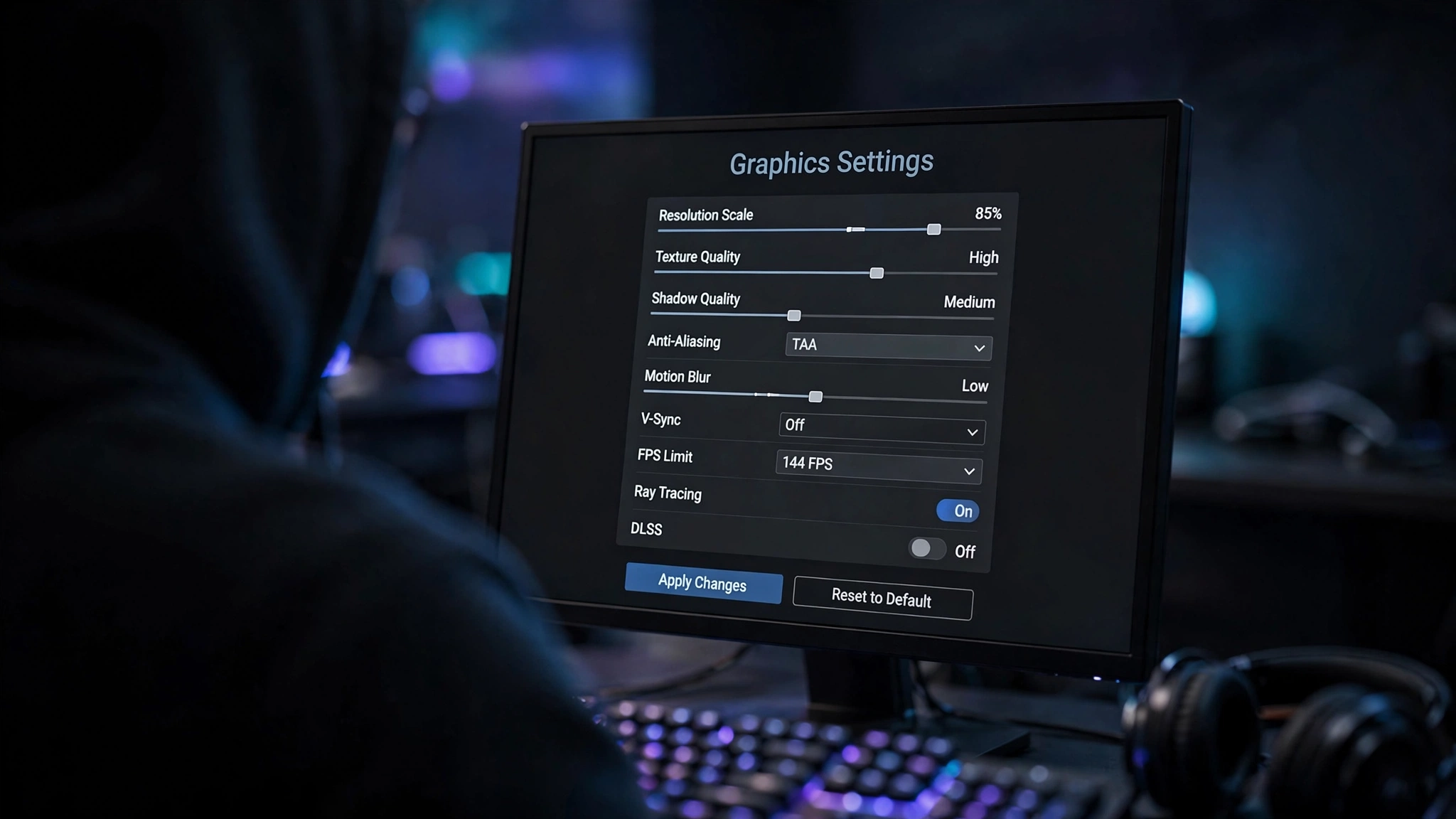
Not every graphics setting touches the CPU. Most of them (texture quality, anti-aliasing style effects, resolution) load the GPU almost exclusively. Only a handful meaningfully change how much work your processor does. The table below ranks the settings that matter for a starfield cpu bottleneck, based on launch-era testing from Digital Trends, Rock Paper Shotgun, and Overclock3D, which all converged on the same short list.
| Setting | CPU Cost | What It Does | CPU-Safe Value |
|---|---|---|---|
| Crowd Density | Very high | Controls how many NPCs populate cities | Low or Medium |
| Shadow Quality | High | Draw-call and shadow-map work the CPU must prepare | Medium |
| Volumetric Lighting | Medium | Fog and light shafts; adds CPU-side setup cost | Medium or Low |
| Particle Quality | Medium | Physics and simulation for particles and debris | Low |
| Indirect Lighting | Low to medium | Bounce-light calculations across scenes | High is usually fine |
| GTAO Quality | Low | Ambient occlusion; mostly a GPU cost | Medium |
| Contact Shadows | Low | Fine shadow detail; mostly a GPU cost | Medium |
| Grass Quality | Low | Vegetation density; mostly a GPU cost | Medium or High |
| Reflections | Very low | Reflective surfaces; almost entirely GPU | Medium |
| Render Resolution / Upscaling | None directly | Changes GPU load, not CPU load | 75% with FSR2 or DLSS |
Crowd Density deserves special attention because it is the single most powerful CPU lever in the game. It directly controls how many NPCs the engine simulates in cities, and turning it down vastly reduces CPU load. The visual trade-off is small: crowds still look dense at the lower settings, while the maximum setting can show 50 or more people in one area and punish midrange processors for it.
Shadow Quality is the second lever. Shadows in Starfield are expensive partly because the CPU has to prepare the draw calls and shadow data for many light sources in cities. Medium shadows recover a large chunk of performance with a visual difference you will barely notice in motion.
The honest bottom line from testing is that only three settings, Crowd Density, Shadow Quality, and to a lesser extent Volumetric Lighting, genuinely reduce CPU load. Everything else in the menu is primarily a GPU setting. If you are CPU-limited, turning Textures or Reflections down will not help you; you need the three CPU levers above, plus the upscaling strategy in the next section. For a general playbook on this kind of fix, see our guide on how to fix a CPU bottleneck.
The Best Starfield Settings for a CPU Bottleneck
Here is a CPU-focused preset that synthesizes the consensus from Digital Trends, Rock Paper Shotgun, and community testing. It prioritizes the three CPU levers, adds the cheap visual wins, and leaves everything else high so the game still looks great. Treat the “reason” column as your guide: if your GPU is also struggling, lower the GPU-heavy settings first.
| Setting | Recommended Value | Why |
|---|---|---|
| Dynamic Resolution | Off | Can cause visible resolution swings; control scaling manually instead |
| Render Resolution Scale | 75% | Sweet spot: big GPU relief, minimal visual loss |
| Upscaling | FSR2, DLSS, or XeSS (match your GPU) | Reconstructs a clean image from the lower render resolution |
| Shadow Quality | Medium | One of the three true CPU levers |
| Crowd Density | Low (Medium if you have 8+ strong cores) | The single biggest CPU lever in the game |
| Volumetric Lighting | Medium | Third CPU lever; Ultra costs far more than it shows |
| Particle Quality | Low | Cheap win; barely noticeable in normal play |
| Indirect Lighting | High | Keeps scenes looking rich; modest CPU cost |
| GTAO Quality | Medium | Good balance of depth and performance |
| Contact Shadows | Medium | Fine detail the GPU handles well |
| Grass Quality | High | Mostly GPU; keep it pretty outdoors |
| Reflections | Medium | Almost entirely GPU-side |
| Motion Blur | Off | Has a real performance cost; most players prefer it off |
| Film Grain Intensity | 0 | Strong default grain muddies the image and costs a frame or two |
| Depth of Field | Off | Small gain; adds up with the other cuts |
| Enable VRS | Off | Testing showed unreliable or negligible gains |
| VSync | On (or use driver-level VSync / VRR) | Prevents tearing once frame rates stabilize |
A note on expectations: this preset is a starting point, not a magic fix. If your CPU is several generations old, these settings will smooth out the worst of the city stutter, but they cannot give you hardware you do not have. Pair the preset with the frame-rate cap technique in the Expert Tips section for the most consistent feel.
Upscaling and Frame Generation
Upscaling is the most misunderstood tool in the Starfield performance toolbox, so let us be precise about what it does and does not do for a starfield cpu bottleneck.
Upscaling does not reduce CPU load. FSR 2, DLSS, and XeSS all work by rendering the game at a lower internal resolution and reconstructing a clean image. That lowers GPU load dramatically, often by 30 to 50 percent or more at higher resolutions, but your CPU does exactly the same amount of work per frame. Here is the practical consequence: if you are GPU-limited, upscaling is transformative; if you are CPU-limited, your frame rate will barely move when you turn it on. Players discovered this at launch when DLSS mods produced only a few extra frames for CPU-limited systems.
Use upscaling anyway. Even in a CPU bottleneck, upscaling lets you keep the rest of your settings high while the CPU does its thing, and it becomes essential the moment you leave the cities and the GPU becomes the limiter again. Starfield’s render resolution slider runs from 50 to 100 percent, and 75 percent is the widely agreed sweet spot for image quality. At launch the game only shipped with FSR 2, but Bethesda later added official DLSS support, so NVIDIA owners should use DLSS Quality at 75 percent render scale, AMD owners FSR 2, and Intel Arc owners XeSS.
Frame generation is the exception that helps CPU-limited scenes feel smoother. DLSS Frame Generation (and FSR 3 frame generation on supported hardware) inserts AI-generated frames between real ones. It does not make your CPU work faster, and it adds some input latency, but it can make a 45 fps CPU-limited city feel much closer to 80 or 90 fps in motion. For a slow-paced exploration RPG like Starfield, most players find that trade-off worthwhile. One caution from community testing: early frame-generation mods caused input delay complaints for some users, so prefer the game’s built-in implementation over mods, and make sure Reflex or equivalent latency reduction is enabled.
About VRS and Dynamic Resolution: Variable Rate Shading promised free performance but tested unreliably, sometimes even costing a frame. Leave it off. Dynamic Resolution can help weak GPUs hold a target frame rate, but its constant resolution swings are distracting; a fixed 75 percent render scale looks more consistent.
A 2026 development worth watching: Microsoft announced Advanced Shader Delivery for RTX GPUs on Windows 11 24H2 and later, which delivers precompiled shaders to cut shader-compilation stutter. Early reporting suggests it meaningfully reduces the hitching some players see when entering new areas. Starfield is exactly the kind of game that benefits, since its stutter is often compilation and streaming related rather than raw frame rate. If you are on a supported configuration, keep an eye on this feature as drivers and updates roll out. For more on how upscaling interacts with bottlenecks in general, read does DLSS reduce CPU bottleneck.
Best CPU and GPU Pairings for Starfield by Budget
If settings alone are not enough, the real fix for a starfield cpu bottleneck is a balanced pairing. Starfield rewards strong single-thread performance and plenty of cache in cities, which is why AMD’s X3D chips have such a good reputation in this game: community members have reported roughly 37 percent higher frame rates in New Atlantis moving from an older i7-9700K to a Ryzen 7 7800X3D (user-reported figures from community forums, not lab benchmarks, so treat them as directional).
The table below gives sensible 2026 pairings by budget tier. None of these are invented “recommended FPS” claims; instead each row describes what to expect in the game so you can match hardware to your tolerance for city dips.
| Tier | CPU | GPU | What to Expect in Starfield |
|---|---|---|---|
| Budget 1080p | Ryzen 5 5600 / Core i5-12400F | RTX 4060 / RX 7600 | Smooth in most areas with the CPU preset; expect dips in the biggest cities |
| Midrange 1440p | Ryzen 5 7600 / Core i5-13400F | RTX 4060 Ti / RX 7700 XT | Comfortable 1440p with FSR/DLSS Quality; cities stay playable |
| Sweet spot 1440p | Ryzen 7 7800X3D | RTX 5070 | Excellent city performance; the X3D cache shines in New Atlantis |
| Enthusiast 4K | Ryzen 7 9800X3D / Core i7-14700K | RTX 5080 | High settings at 4K with DLSS; CPU keeps up even in dense scenes |
A few notes on these picks. The RTX 5070 is worth singling out: it topped the Steam hardware survey in September 2026 with about 6.2 percent share, making it the most common GPU among PC gamers right now, and it is a natural 1440p partner for Starfield. If you are building around a Ryzen 5 7600 specifically, our best GPU for Ryzen 5 7600 guide covers more options at that tier.
Two budget realities for 2026 buyers. First, industry outlets reported in October 2026 that Intel is raising CPU prices by roughly 15 to 20 percent, citing supply-chain cost pressure. Those reports are still developing and street prices vary by region and retailer, but if the increases hold, AMD’s AM5 lineup becomes the stronger value play for a Starfield-focused build. Second, do not cheap out on RAM: Starfield demonstrably scales with memory bandwidth, and 32GB of DDR5-6000 is the sensible target. A fast CPU paired with slow single-channel RAM will still stutter in cities.
And a word for upgraders on older platforms: if you are still on a 4-core/4-thread chip like the i5-6600K, no settings preset will save you. Bethesda’s minimum spec lists a 6-core/12-thread i7-6800K class CPU, and community experience confirms that quad-cores without hyperthreading fall below 30 fps in cities. A platform upgrade to any modern 6-core is the single most effective Starfield upgrade you can make.
RAM, SSD and the Hidden Bottlenecks
Two components outside the CPU/GPU pairing cause a surprising share of Starfield complaints, and both masquerade as a starfield cpu bottleneck.
RAM: capacity, speed, and channels all matter. 16GB is the realistic minimum, but 32GB is the comfortable target for long sessions, since Starfield streams heavily and texture data adds up. Speed matters too: non-X3D Ryzen chips are sensitive to memory frequency and timings, and community testing has shown meaningful gains moving from DDR5-5600 to DDR5-6000. The single most damaging configuration is single-channel RAM (one stick instead of two), which halves your memory bandwidth and can tank minimum frame rates. If you have one 16GB stick, adding a matched second stick is one of the cheapest real upgrades you can make.
Storage: the game must be on an SSD, and even then the engine can stutter. Bethesda lists an SSD in the minimum requirements, and installing Starfield on a hard drive is a guaranteed stutter fest because the drive cannot keep up with texture streaming. But there is a subtler issue: testing by the Compusemble channel, reported by WCCFTech, found Starfield pushing an SSD to 100 percent utilization in New Atlantis even on a top-tier Crucial T700 Gen5 drive, with GPU usage collapsing toward zero in those moments. The suspected cause is poor I/O optimization in the engine itself: tiny block sizes that prevent even the fastest drives from delivering data efficiently. The practical takeaway is that you cannot buy your way out of traversal stutter with a faster SSD. Keep the game on an NVMe drive with at least 20 percent free space, and accept that some hitching in dense areas is engine behavior that patches, not hardware, must fix. If you want to understand how storage limits the rest of your system, see our explainer on what a storage bottleneck is.
Stutter Troubleshooting Checklist
Work through these steps in order. Each one eliminates a real, documented cause of Starfield stutter. Stop when your game feels smooth; most players never need the whole list.
- Confirm the bottleneck type. Use an RTSS overlay showing per-core CPU usage and GPU usage in New Atlantis. Same fps on Low and Ultra means CPU-limited; GPU pinned at 99 percent means GPU-limited. Do not skip this: every step below assumes you know which one you have.
- Apply the CPU-focused preset from the settings section above. Crowd Density to Low and Shadow Quality to Medium do more for a CPU bottleneck than everything else combined.
- Update your GPU drivers, and do a clean install if you have been having issues. Use Display Driver Uninstaller for a truly clean slate if a normal update does not help.
- Verify the game is on an NVMe SSD with healthy free space. Move it off any hard drive immediately; that alone fixes the worst streaming stutter.
- Set Starfield’s process priority to High in Task Manager (Details tab, right-click the process). This gives the game first claim on CPU time over background apps. Do not use Realtime: it can starve system processes and cause instability.
- Disable fullscreen optimizations on Starfield.exe (Properties, Compatibility tab). This long-standing Windows gaming tweak has resolved stutter for many players across Bethesda titles.
- Let shader compilation finish. Do not judge smoothness in the first minutes of a session. On Windows 11 24H2 and later with an RTX GPU, watch for Microsoft’s Advanced Shader Delivery support as it rolls out, since precompiled shaders directly target this class of hitching.
- Cap your frame rate slightly below your typical city minimums using RTSS or the driver control panel. A locked 60 with consistent frame times feels dramatically smoother than a bouncing 55 to 90. This is the single highest-value “feel” tweak in the game.
- Close background apps, especially browsers with many tabs, launchers, and overlays. Starfield’s main threads compete with everything else on your CPU.
- If nothing above moves the needle and fps is identical on Low and Ultra, you have confirmed a hard CPU limit. The remaining fixes are a settings compromise (frame cap plus the CPU preset) or a CPU upgrade, not a new graphics card.
Common Mistakes Starfield Players Make
- Lowering resolution to fix a CPU bottleneck. This is the number one misconception. Resolution changes GPU load only. If your CPU is the limit, dropping from 1440p to 1080p will barely move your frame rate, and you will have sacrificed image quality for nothing.
- Leaving Crowd Density on High with a midrange CPU. It is the default on higher presets and the single most expensive CPU setting. Many players never realize one dropdown is costing them 15 or more fps in every city.
- Judging bottlenecks by total CPU percentage. A CPU showing “50 percent overall” can still be bottlenecked if two cores are maxed out. Per-core readings are the only ones that matter for diagnosis.
- Installing the game on a hard drive or a nearly full SSD. Bethesda requires an SSD for a reason, and a drive with almost no free space performs worse and stutters more.
- Assuming motion blur and film grain are free. Both have measurable costs, and Starfield’s default film grain is unusually strong. Turning them off is free performance and a cleaner image.
- Chasing peak fps in cities instead of stability. A bouncing frame rate with bad frame times feels worse than a lower locked frame rate. Cap it and enjoy the consistency.
- Expecting upscaling alone to fix a CPU limit. FSR and DLSS are GPU tools. They are still worth using, but they will not raise a CPU-capped frame rate.
- Ignoring RAM configuration. A single stick of slow RAM can undo a good CPU. Check that you are running dual-channel at your kit’s rated speed with XMP or EXPO enabled.
Expert Tips for the Smoothest Starfield Experience
- Cap below your dips, not at your average. If New Atlantis runs 52 to 75 fps, cap at 50 or 60 rather than 72. Frame-time consistency matters more than the peak number on your overlay.
- Prefer driver-level VSync or a VRR display if the in-game VSync misbehaves. Community reports have noted the in-game VSync not always engaging cleanly; forcing it through the NVIDIA or AMD control panel is a reliable fallback.
- Enable Resizable BAR (NVIDIA) or Smart Access Memory (AMD) in your BIOS if your platform supports it. It lets the CPU address the GPU’s full VRAM, and while gains vary by title, it is free performance when it helps.
- Keep Windows Game Mode on and close launchers you are not using. Every background process is competition for the CPU threads Starfield wants.
- Revisit your settings after major patches and driver updates. Bethesda has improved performance in post-launch updates, including official DLSS support, and a preset that was necessary at launch may be overly conservative now.
- Watch thermals on your hottest core. A CPU that boosts to 5 GHz on paper but thermally throttles one core to 4 GHz in a long session will show the exact signature of a bottleneck. A five-minute Cinebench or gaming temperature check rules this out.
- Do not bother with outdated DLSS mods. The game now has official DLSS support; old third-party mods caused visual bugs like flickering and window resizing for some users. Use the built-in implementation.
FAQs
My CPU and GPU both show only 60 to 70 percent usage in Starfield, but my FPS is low. Should both be closer to 90 or 100 percent?
No, and this is one of the most common misunderstandings in PC gaming. Overall CPU percentage is a misleading number because Starfield leans heavily on a few main threads. If a single core is pinned at 100 percent, that core is your bottleneck no matter what the average says. As for the GPU: it renders only the frames the CPU prepares for it, so a GPU sitting at 70 percent in a demanding scene is usually waiting on the CPU (or the engine), not slacking off. Check per-core CPU usage instead of the total, and treat low GPU usage in cities as a symptom of a CPU limit, not a separate problem. (Asked on the Tom’s Hardware forums.)
Will dropping my resolution from 1440p to 1080p fix my CPU bottleneck in Starfield?
No. Lowering resolution reduces the work your GPU does per frame, but your CPU does the same amount of simulation, AI, physics, and draw-call preparation regardless of pixel count. If you are CPU-limited, expect almost no frame-rate change from a resolution drop. The settings that actually help a CPU bottleneck are Crowd Density, Shadow Quality, and Volumetric Lighting, in that order. Save resolution changes for GPU bottlenecks. (Asked in ResetEra’s Starfield PC performance thread.)
I get the same FPS on the lowest and highest settings. Is something wrong with my PC?
Your PC is almost certainly fine; you are seeing the classic signature of a CPU bottleneck. Graphics settings overwhelmingly affect the GPU, so when the CPU is the component capping frame delivery, changing those settings barely moves the needle. Confirm it with a per-core usage overlay: if one or two cores are maxed while the GPU has headroom, the CPU is your limit. The fix is the CPU-focused preset in this guide, a frame-rate cap for consistency, or ultimately a faster CPU. A new graphics card would not help this situation at all. (Asked in ResetEra’s Starfield PC performance thread.)
Is my i5-6600K too much of a bottleneck for Starfield with an RTX 3060?
Yes, in CPU-heavy areas it will be. The i5-6600K is a 4-core/4-thread chip with no hyperthreading, which sits below Bethesda’s minimum spec of a 6-core/12-thread i7-6800K class CPU. Community experience matches: quad-cores drop below 30 fps in cities like New Atlantis while the RTX 3060 idles. Outside cities the pairing is more balanced, but a CPU upgrade to any modern 6-core or better is the meaningful fix here, not settings tweaks. (Asked on NeoGAF.)
Why does Starfield stutter in New Atlantis even though I have a fast Gen5 SSD?
Because some of that stutter is engine-side, not hardware-side. Testing reported by WCCFTech found Starfield driving an SSD to 100 percent utilization in New Atlantis even on a Crucial T700 Gen5 drive, one of the fastest consumer SSDs available, with GPU usage collapsing toward zero during those spikes. The suspected cause is poor I/O optimization in Creation Engine 2: inefficient block sizes that prevent even fast drives from streaming data smoothly. Keep the game on an NVMe SSD with free space, since a hard drive is far worse, but know that a faster drive will not eliminate traversal stutter on its own. That part is on Bethesda’s patches. (Based on the WCCFTech report and forum complaints.)
Does upgrading to a Ryzen 7 7800X3D actually help Starfield?
Community reports say yes, and the reason makes technical sense: Starfield’s cities are simulation-heavy, and the 7800X3D’s large stacked cache feeds exactly that kind of workload. One player reported roughly 37 percent higher frame rates in New Atlantis after moving from an i7-9700K to a 7800X3D, with smaller gains in GPU-bound open areas. Treat that figure as a user report, not a lab benchmark, but the direction is consistent with everything else we know about this game: in cities, cache and strong single-thread performance beat raw core count. (Asked in ResetEra’s Starfield PC performance thread.)
Key Takeaways
- A starfield cpu bottleneck shows up in cities: low fps and stutter in New Atlantis or Akila City while your GPU sits below full usage.
- Only three settings meaningfully cut CPU load: Crowd Density (the biggest lever), Shadow Quality, and Volumetric Lighting. Everything else is mostly GPU-side.
- Diagnose with per-core CPU usage, never the overall average. Same fps on Low and Ultra is the definitive CPU-bottleneck signature.
- Use FSR 2, DLSS, or XeSS at 75 percent render scale, and consider frame generation to smooth CPU-limited scenes. Upscaling alone will not raise a CPU-capped frame rate.
- 32GB of DDR5-6000 in dual-channel and an NVMe SSD are the supporting cast your CPU needs; single-channel RAM and hard drives cause stutter that looks like a CPU problem.
- Cap your frame rate below your city minimums for consistent frame times. Stability feels better than a higher bouncing average.
- In 2026, watch Microsoft’s Advanced Shader Delivery for RTX GPUs as a potential fix for shader-compilation hitching, and factor reported Intel CPU price increases into upgrade budgets.
Conclusion
Starfield will probably always be a CPU-heavy game; that is the nature of a Bethesda RPG that simulates entire cities down to the last NPC’s daily routine. But “CPU-heavy” does not have to mean “unplayable.” With Crowd Density tamed, shadows at Medium, upscaling at 75 percent, the game on an NVMe SSD, and a sensible frame-rate cap, even midrange systems deliver a smooth, good-looking tour of the Settled Systems.
If you have worked through this guide and your frame rate still will not budge between Low and Ultra, you have your answer: the CPU is the ceiling, and no settings preset changes that. Run your exact parts through our free CPU bottleneck calculator to see how your processor and graphics card stack up, then target the upgrade tier in the pairings table that matches your budget and resolution. Smooth spaceflight is a balanced build away.

Leave a Reply