

Quick Answer
A gpu bottleneck fix starts with confirming the diagnosis: if your GPU sits at 97 to 100 percent usage while your CPU has clear headroom, the graphics card is the limiting part. Lower resolution or render scale, turn on DLSS or FSR upscaling, dial back ray tracing and shadows, update your drivers, and check thermals before spending money on a new card.
You just saw your GPU pinned at 99 percent in MSI Afterburner while your CPU relaxed at 40 percent, and the calculator told you the same story. That number looks scary, but it is actually the best case scenario of a bad situation. Your most expensive component is working as hard as it can, and no other part is holding it back. The only problem is that your target frame rate is still out of reach, and that is a problem with a long list of free fixes before you ever need to open your wallet.
This guide covers the GPU side of the fix story. Our CPU-side companion covers the opposite situation, so if your numbers show the CPU maxed out instead, read how to fix a CPU bottleneck first. Everything below is organized in tiers, cheapest and easiest first, ending with the decision framework for when an actual GPU upgrade makes sense.Table of Contents
Confirm Your GPU Is Really the Bottleneck
Before you touch a single setting, spend five minutes making sure you are solving the right problem. GPU-side fixes do almost nothing if the CPU is the part actually holding you back, and plenty of people lower their resolution, see zero improvement, and blame the wrong component.
The classic test uses MSI Afterburner with the RivaTuner Statistics Server overlay while you play a game for a few minutes:
- Check GPU usage. If it sits at 97 to 100 percent most of the time, the graphics card is the limiting part. This is your green light to continue with this guide.
- Check CPU usage at the same time. If total CPU usage stays well below the GPU number (say 40 to 60 percent), the processor has headroom and is not the problem. If one or two CPU cores are pinned near 100 percent while the GPU idles at 60 or 70 percent, that is a CPU bottleneck, and this article’s fixes will barely move the needle.
- Run the resolution test. Drop your game’s render resolution by one step (4K to 1440p, or 1440p to 1080p). If your frame rate jumps up noticeably, you have confirmed a GPU bottleneck: less pixel work meant more speed. If the frame rate barely changes, the limit is elsewhere, usually the CPU or a frame-rate cap.
One important mindset shift: a GPU bottleneck is what you actually want. Hardware reviewers and PC builders aim for the graphics card to be the limiting factor, because it means every dollar you spent on it is being used and nothing cheaper is dragging it down. The real frustration is a CPU bottleneck, where your expensive GPU waits around for work. A GPU bottleneck becomes a problem only when your frame rate falls below what you need, and that is what the rest of this guide fixes.
If you skipped the check and suspect both parts might be involved, our troubleshooting guide to why your FPS is so low walks through separating bottleneck issues from stutter, thermal, and driver problems.
Tier 1 Lower the Settings That Cost the Most FPS

This is the fastest free fix in the entire guide, and it costs nothing. But do not just drop the preset from Ultra to Low and call it a day. Individual settings have wildly different performance costs, and the smart move is to lower the expensive ones first while keeping the ones you can barely see.
Here is a practical ranking of the settings that hurt your frame rate the most, roughly ordered by how much GPU time each one costs in a typical modern AAA game. Exact numbers vary by game and card, so treat this as a priority order, not a promise of specific percentages.
| Setting | Typical FPS Cost (relative) | What To Do |
|---|---|---|
| Render resolution / render scale | Highest, scales almost linearly with pixel count | Drop one step, or use 90 to 95 percent render scale instead of a full resolution drop |
| Ray tracing / path tracing | Very high, can halve frame rates on its own | Turn off first, or drop to the lowest RT preset the game offers |
| Volumetric effects (fog, god rays, clouds) | High | Lower to Medium or Low, the visual difference is small in motion |
| Shadow quality | High | High to Medium often buys a big chunk of FPS with almost no visible change |
| Global illumination / ambient occlusion | Medium to high | Drop one notch before touching textures |
| Anti-aliasing (TAA, MSAA) | Medium | Switch to DLSS/FSR upscaling instead, which handles aliasing as part of the upscale |
| Texture quality | Low for FPS, but high for VRAM | Lower only if you are VRAM limited (see Tier 4); otherwise it barely changes FPS |
| Anisotropic filtering | Very low on modern cards | Leave at 16x, it costs almost nothing |
A few practical notes on the big ones:
Resolution is the single biggest dial. Rendering fewer pixels is the most direct way to cut GPU load, and it scales almost linearly. Dropping from 4K to 1440p removes roughly 55 percent of the pixel work. But if you hate how non-native resolution looks on your monitor, try the render scale slider inside the game first. Setting render scale to 90 or 95 percent keeps your monitor’s native output, so the HUD, menus, and text stay perfectly sharp, while the 3D scene renders slightly smaller. The visual difference is hard to spot, and the FPS gain is real. We go deeper on this tradeoff in our guide to 1080p vs 1440p monitor bottleneck impact.
Ray tracing is the luxury tax. Full path tracing in games like Cyberpunk 2077 or Alan Wake 2 can cut your frame rate in half on anything short of a flagship card. If you are GPU limited, ray tracing is the first toggle to turn off or drop down. You will lose some lighting realism, but you will gain a dramatically smoother game.
Do not waste time on textures unless VRAM is the issue. Texture quality barely affects frame rate on a healthy GPU. Its real cost is VRAM, which is a separate problem covered in Tier 4. Lowering textures when you are not VRAM limited just makes the game look worse for no gain.
Practical takeaway: work through the table from top to bottom, testing after each change, and stop as soon as you hit your target frame rate. There is no prize for lowering more than necessary.
Tier 2 Turn On Upscaling and Frame Generation
Upscaling technologies like NVIDIA DLSS, AMD FSR, and Intel XeSS are the single best quality-per-FPS trade of the modern era. They render the game at a lower internal resolution and then reconstruct the full image using AI or advanced filtering, so you get most of the performance of a lower resolution with most of the image quality of native.
The setup that works for most people:
- Start with Quality mode. In the game’s graphics menu, enable the upscaler your card supports and set it to Quality. This is the sweet spot: a large FPS gain with image quality that looks nearly native to most eyes.
- Step down only if needed. If you are still GPU bound, move to Balanced, then Performance, checking the image at each step. Each step down trades a little sharpness for more frames.
- Use the right one for your card. DLSS is NVIDIA only (RTX cards), and DLSS on the newest RTX 50 series cards offers the best image quality overall. FSR works on almost any GPU, including NVIDIA cards, which makes it the universal fallback. Learn more on AMD’s official site. XeSS works best on Intel Arc cards but has a compatibility mode for others. Our full comparison of DLSS vs FSR breaks down which to choose in detail.
A few honest caveats that most guides skip:
Upscaling cannot fix a CPU bottleneck. This catches people off guard. If your CPU is the limiting part, DLSS does nothing for your frame rate, because it only removes work from the GPU. The card finishes its lighter workload faster and then goes back to waiting on the CPU. Hardware testing has shown this repeatedly: on a CPU-limited system, enabling DLSS produced no meaningful gain, because the GPU was never the part holding the game back. So if Tier 2 gives you nothing, go back to the diagnosis section and re-check your usage numbers.
Frame generation is different from upscaling, and it has its own rules. NVIDIA’s DLSS Frame Generation and AMD’s Fluid Motion Frames insert AI-generated frames between real ones, which can dramatically raise the displayed frame rate. But it works best on top of a decent base frame rate (around 60 FPS before generation), it adds a small amount of input latency, and it does not make a slow game feel responsive the way real frames do. Reach your target with upscaling and settings first, then add frame generation as the finishing touch, not the foundation.
If your game has no upscaler, use render scale. Older games and some competitive shooters skip DLSS and FSR entirely. The in-game render scale slider is your manual upscaler in those cases, and it pairs well with a sharpness filter if the game offers one.
Practical takeaway: upscaling is the highest quality-per-FPS trade in gaming. It should be your second move, right after the resolution and ray tracing dials.
Tier 3 Update Drivers and Tune Windows
Drivers and operating system settings will not rescue a truly underpowered card, but stale software absolutely can create a phantom GPU bottleneck that looks exactly like a hardware problem. This tier takes about 30 minutes and is worth doing before you spend anything.
Update your GPU drivers the right way. New drivers regularly include game-specific optimizations, and playing a recent release on a months-old driver can cost you real performance. Grab the latest driver from NVIDIA or AMD directly rather than relying on Windows Update. If you have been having strange performance issues, crashes, or artifacts, do a clean install: use Display Driver Uninstaller (DDU) in Safe Mode to fully remove the old driver, then install the fresh one. This sounds extreme, but it fixes more “my GPU is slow” problems than most people expect.
Enable Windows Game Mode and pick the right power plan. Game Mode is a small optimization that reduces background activity while you play, and the Windows power plan set to Best Performance keeps your CPU and GPU from downclocking aggressively. These are small gains, not miracles, but they are free.
Consider hardware-accelerated GPU scheduling (HAGS). This Windows setting lets the GPU handle more of its own scheduling work directly instead of routing it through the CPU. On some systems, especially midrange cards paired with older CPUs, it reduces a little overhead and can smooth out frame times. On others it changes nothing. It is in Settings, then System, Display, Graphics, Change default graphics settings. Toggle it, reboot, and test; keep whichever setting performs better for your games.
Watch for Advanced Shader Delivery. One of the more interesting developments in October 2026 is Microsoft rolling out Advanced Shader Delivery to NVIDIA RTX GPUs, a feature that pre-compiles game shaders so new areas and effects load without the notorious shader-compilation stutter. It needs Windows 11 version 24H2 or later plus updated drivers. If your “GPU bottleneck” is actually random hitching when you enter new areas rather than a consistently low frame rate, shader stutter is a likely suspect, and this feature targets exactly that. It is still new, so treat it as a promising free upgrade rather than a guaranteed fix, but make sure your Windows and drivers are current enough to receive it.
Enable Resizable BAR if your hardware supports it. Resizable BAR lets the CPU access the GPU’s entire VRAM pool at once instead of in small chunks, which can lift performance a few percent in supported games. It needs to be enabled in your motherboard BIOS and supported by your GPU and driver. The gains are modest, but again, free is free.
Practical takeaway: do the full software pass before concluding your card is too weak. A surprising number of “I need a new GPU” situations are actually “I need a new driver” situations.
Tier 4 Fix the VRAM Squeeze (Especially on 8GB Cards)
There is a special kind of GPU bottleneck that has nothing to do with how fast your card’s processor is: running out of video memory. In 2026, this is the hidden limiter for a huge number of midrange cards, because 8GB of VRAM that felt generous a few years ago is now the minimum for smooth AAA gaming at high settings.
The symptoms of a VRAM bottleneck are different from a normal GPU bottleneck. Instead of a consistently low frame rate, you get sudden stuttering and hitching, especially when you turn the camera quickly or enter new areas, as the card desperately shuffles textures in and out of memory. Your GPU usage might even look fine while the game feels terrible.
The fix is straightforward:
- Drop texture quality one notch. Textures are the biggest VRAM consumer by far. Going from Ultra to High textures on an 8GB card can completely eliminate VRAM stutter in many games, with a visual difference you will struggle to notice during actual gameplay.
- Turn down texture streaming and view distance slightly. These control how much texture data stays loaded at once.
- Do not max out ray tracing on a VRAM-limited card. Ray tracing structures also consume VRAM, so it hits you twice: once in raw GPU load, once in memory.
This is also why the 8GB versus 16GB question matters so much when buying a card in 2026. If you are shopping for an upgrade, the extra VRAM is often worth more than a slightly faster chip for future-proofing, a point we explore in our guide to the best CPU for the RTX 5060 Ti, which breaks down the 8GB versus 16GB decision. Monitor your VRAM usage in MSI Afterburner alongside GPU usage; if the memory allocation is pinned at your card’s limit while games stutter, you have found your real bottleneck.
Practical takeaway: on 8GB cards, treat texture quality as a VRAM setting, not an FPS setting. One notch down can transform a stuttering game.
Tier 5 Give Your GPU Thermal and Power Headroom
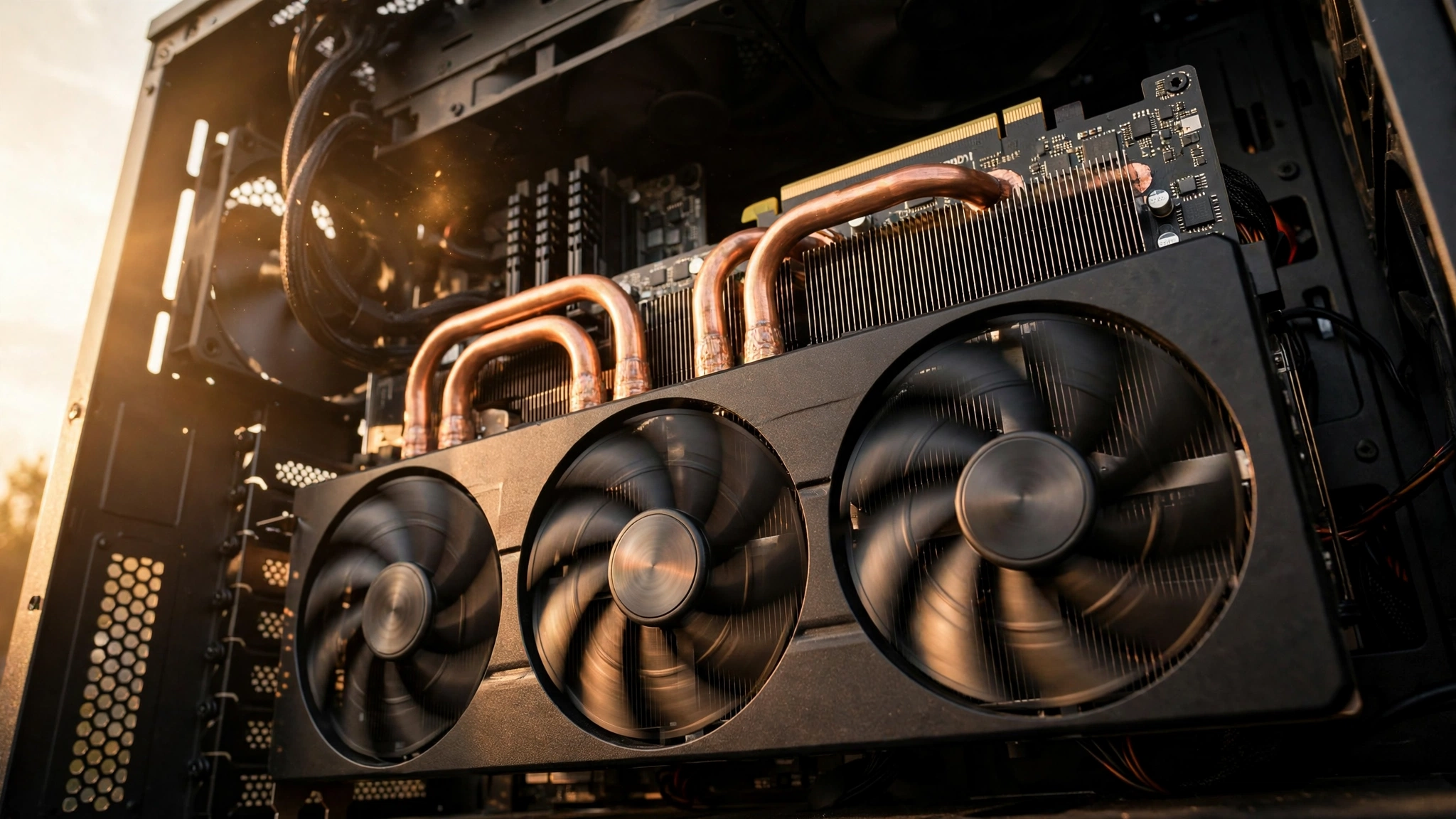
A graphics card that runs too hot quietly slows itself down. Modern GPUs use boost clocks that automatically scale with temperature and power headroom, so a card suffocating in a dusty case with bad airflow can perform noticeably worse than the same card running cool. This is a silent GPU bottleneck: the hardware is capable, but it is throttling itself.
Check these in order:
Look at your temperatures under load. Run a game for 15 minutes with Afterburner showing GPU temperature. Most modern cards are happy between 65 and 85 degrees Celsius under full load. If you are consistently pushing past 85, your card is likely losing boost clock speed, and if you are near 90 or above, you are in definite throttling territory.
Clean the card and improve case airflow. Dust is the number one cause of creeping GPU temperatures. Power down the PC, open the case, and clean the GPU fans and heatsink fins with compressed air. While you are in there, check that your case fans are actually spinning and that cables are not blocking airflow. Our PC cooling guide walks through fan placement and airflow direction in detail.
Set a more aggressive fan curve. The default fan curve on many cards prioritizes quiet operation over cooling. In MSI Afterburner, you can set the fans to ramp up earlier. It will be louder, but a cooler card holds higher clocks longer.
Verify your power supply is adequate. An underpowered or aging PSU can cause a GPU to behave erratically under load, with clock drops and crashes that look like a performance problem. If you recently upgraded your card or your system is a few years old, confirm the PSU wattage and age are still appropriate for your hardware.
If you want a systematic walkthrough of checking your card’s condition, our complete GPU health guide covers stress testing, artifact checking, and spotting a dying card versus a merely hot one.
Practical takeaway: before spending money, make sure your card is actually allowed to run at full speed. Cooling is the most overlooked free performance upgrade in PC gaming.
Tier 6 Overclock the GPU Safely, With Realistic Expectations
Overclocking is the last free tier, and honesty requires setting expectations: on a modern GPU, a careful overclock typically buys you a single-digit percentage gain, maybe 5 to 10 percent in the best case. It will not turn a weak card into a strong one, but it can be the difference between a game feeling borderline and feeling smooth.
The safe approach:
- Increase the power limit first. In MSI Afterburner, raise the power limit slider to its maximum allowed value. This alone lets the card hold its boost clocks longer and is the safest gain available.
- Add core clock in small steps. Increase the core clock by 25 to 50 MHz at a time, then run a demanding game or a stress test for 15 to 20 minutes. If it is stable, go a little further. If you see artifacts, flickering, or crashes, back off.
- Memory clock is optional. A modest memory overclock can help in bandwidth-heavy games, but memory errors cause visual artifacts that are easy to miss and can corrupt your testing. Many people skip this step entirely.
- Watch temperatures. Overclocking adds heat, which can undo your gains through thermal throttling. If temperatures climb too far, your “faster” card may actually perform worse.
The honest caveat: every chip is different (the silicon lottery), some cards barely overclock at all, and pushing too far risks instability and, in extreme cases, hardware stress. If you are uncomfortable with any of this, skip the tier entirely. The gains are real but small, and a stable stock card beats an unstable overclocked one every time.
Practical takeaway: overclocking is a fine-tuning step, not a fix. Do it last, keep it modest, and never chase numbers at the cost of stability.
Tier 7 Know When to Upgrade the GPU
If you have worked through Tiers 1 through 6 and your frame rate is still short of your target, you have done something valuable: you have proven that no free fix closes the gap, which means an upgrade is a rational decision rather than a guess. Here is how to make it a smart one.
Use the cost-per-frame framework. Estimate the FPS gain an upgrade would give you in the games you actually play (Tom’s Hardware maintains a GPU hierarchy that ranks cards by relative gaming performance, and TechPowerUp’s GPU database lists detailed specifications). Divide the upgrade’s net cost, after selling your old card, by the expected FPS gain. That number tells you what each additional frame costs, and it makes it easy to compare, say, a one-tier jump versus a two-tier jump. A modest step up that doubles your frame rate per dollar is usually the better buy than a flagship that costs three times more for 30 percent more performance.
Match the new GPU to your CPU. This is the step people skip, and it is the most expensive mistake in PC building. A massively powerful new GPU paired with an old CPU just moves the bottleneck from one part to the other, and you will be back to square one with less money. Check your pairing on a bottleneck calculator before buying, and read our pairing guides, such as the best CPU for the RTX 5060, to make sure the new card fits the processor you already own.
Watch the market, because GPU prices move. As of October 2026, graphics card pricing has been volatile, with cards like the RX 9070 GRE seeing brief price dips that come and go within days. Never treat a price you saw last week as current, and never base a buying decision on a single screenshot. Check current street prices from multiple retailers on the day you buy, factor in any games or bundles included, and be patient if prices look inflated. A two-week wait can easily save you more than any settings tweak ever will.
Do not forget the supporting parts. A bigger GPU may need a bigger power supply, a case with enough clearance, and adequate cooling. Budget for those before you commit, or your shiny new card will be throttled by the parts around it.
Practical takeaway: upgrade only after the free tiers are exhausted, match the card to your CPU, and buy on current prices, not remembered ones.
Common Mistakes That Waste Time and Money
- Lowering settings when the CPU is the actual bottleneck. If your GPU sits at 60 percent while your CPU is maxed out, no graphics setting will save you. Diagnose first, always.
- Buying a new GPU for a CPU-limited system. The most expensive mistake on this list. Confirm with the resolution test before spending a dollar.
- Turning on DLSS and expecting miracles on a CPU bottleneck. Upscaling only removes GPU work. On a CPU-limited system it changes nothing except making the GPU wait faster.
- Lowering texture quality for FPS when VRAM is fine. Textures cost VRAM, not frame rate. If your VRAM usage is healthy, all you did was make the game uglier.
- Ignoring thermals. A throttling card looks exactly like a weak card in benchmarks. Check temperatures before concluding the hardware is not enough.
- Chasing maximum settings instead of a target frame rate. Decide what frame rate you need for your monitor and games, tune to hit it, and stop. Ultra presets are marketing, not requirements.
Pro Tips for Squeezing Out More FPS
- Cap your frame rate a few FPS below your monitor’s refresh rate with RTSS. This smooths frame pacing, reduces GPU load and heat, and often makes a game feel better than an uncapped but erratic higher average.
- Try DLSS or FSR Quality mode before dropping native resolution. It usually looks better than a lower native resolution while costing less performance.
- Update drivers before every major game launch you care about. Day-one driver updates exist because launch-day performance issues are real.
- Close your browser before gaming. Modern browsers with hardware acceleration can hold meaningful GPU resources, and dozens of tabs add up.
- If you play competitive shooters, consider that lower settings are a feature, not a compromise. Less visual clutter means clearer targets, which is why pros play on low settings even with flagship cards.
Frequently Asked Questions
What is preferable, a GPU bottleneck or a CPU bottleneck?
A GPU bottleneck is preferable, and this is one of the most common questions on forums like Quora for good reason. When your GPU is the limiting part, it means your most expensive component is fully utilized and nothing is holding it back. A CPU bottleneck is worse because your pricey graphics card sits partially idle, waiting for work, which means you paid for performance you cannot use. Aim for the GPU to be the limit.
Is it bad if my GPU is at 100% utilization?
No, 100 percent GPU usage while gaming is normal and healthy. It simply means your graphics card is working as hard as it can, which is exactly what you want from the most powerful component in your system. This question comes up constantly on Reddit and PC building forums, and the answer is consistent: high GPU usage is fine as long as temperatures are under control and your frame rate meets your needs. It only becomes a problem worth fixing when the frame rate is too low for the games you play.
Can 100% GPU usage damage my graphics card?
No. Graphics cards are designed to run at full utilization, and they have built-in thermal safeguards that throttle performance before heat can cause damage. What you should watch is temperature, not usage percentage. Keep the card under roughly 85 degrees Celsius under load with decent airflow, and running at 100 percent is completely safe for the life of the card.
Does lowering resolution fix a GPU bottleneck?
Yes, lowering resolution is the most direct fix for a GPU bottleneck, because it proportionally reduces the number of pixels the card must render. Dropping from 4K to 1440p cuts the pixel workload by more than half. But it is not always the best fix: enabling DLSS or FSR upscaling, or lowering the in-game render scale to 90 or 95 percent, often delivers similar performance gains with better image quality, since your monitor keeps running at its native resolution.
My PC has an i7-11700K and a GTX 1660, and my FPS is so low. Is that a bottleneck?
Yes, this is a textbook GPU bottleneck, and it is a real configuration people ask about on Quora. The i7-11700K is a strong processor with plenty of headroom, while the GTX 1660 is a modest card by 2026 standards. In demanding games, the GPU will sit near 100 percent while the CPU waits, which is exactly the situation this guide addresses. Work through the tiers: upscaling, settings tuning, and drivers first, and if the card still cannot hit your target frame rate, it is a genuine candidate for an upgrade that the i7-11700K can easily support.
Key Takeaways
- A GPU bottleneck means your graphics card is the limiting part, and that is the healthy state you want. Fix it only when your frame rate falls short.
- Always confirm the diagnosis first with MSI Afterburner: 97 to 100 percent GPU usage with CPU headroom means the GPU is the limit.
- Work the tiers in order: settings, upscaling, drivers, VRAM, cooling, overclocking, and only then a hardware upgrade.
- Upscaling (DLSS, FSR, XeSS) is the best quality-per-FPS trade available, but it cannot help a CPU bottleneck.
- On 8GB cards in 2026, VRAM is often the real limiter. Drop texture quality one notch before anything else.
- Upgrade decisions should follow the free tiers, match the new card to your existing CPU, and be based on current street prices.
Final Word
Most GPU bottlenecks are fixed without spending money. The order matters more than any single trick: confirm the diagnosis, turn the big dials (resolution, ray tracing, upscaling), clean up the software side, check thermals, and only then think about new hardware. If you do reach the upgrade stage, you will buy with confidence, because you will know exactly how much performance you are missing and which card actually closes the gap.
For more ways to lift performance across your whole system, check our guides on how to increase FPS and how to fix a CPU bottleneck. And if you are planning new parts, run your combination through the bottleneck calculator first so the next bottleneck is one you chose on purpose.

Leave a Reply