
Low FPS is annoying. But it is not a mystery. Once you know the cause, the fix is usually quick. Most people try random tips. One at a time. Hoping something works. That takes a long time. And a lot of that advice does not even fit their problem.
This guide works differently. First, we find out what is causing your low FPS. Then we fix it in the right order. We start with the fixes that take five minutes and cost nothing.
Short on time? Start here. Update your graphics card driver. Do a clean install. Set Windows to the High Performance power plan. Close background apps you do not need. Turn on Resizable BAR in your BIOS, if your PC supports it. These four steps fix most low FPS problems. The rest of this guide covers what to do next.
What does FPS mean? FPS stands for Frames Per Second. It is how many images your PC draws on screen every second while you play. A higher number usually means smoother motion, up to the limit of your monitor.
How to Increase FPS in 2026
There is no single trick that works for every PC. The real way to increase FPS is to check what is holding your PC back first, then fix that exact thing. Some PCs need a driver update. Some need a BIOS setting turned on. Some just need fewer background apps running. This guide walks through each cause, in the order that helps the most people the fastest.
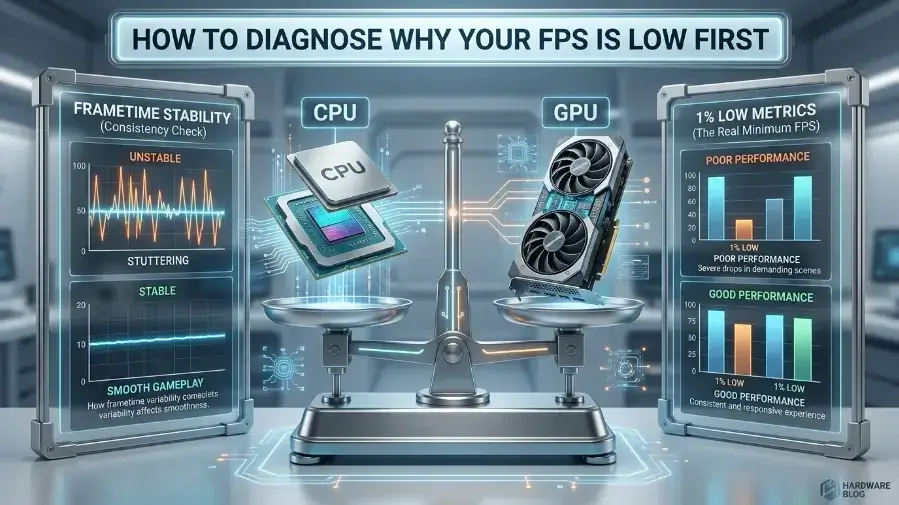
How to Diagnose Why Your FPS Is Low First
Before you change any settings, take five minutes to check what is wrong. Guessing wastes time. Many “fixes” only work for one specific problem. Using the wrong fix will not help much.
Is it a CPU bottleneck or a GPU bottleneck?
Open Task Manager while you play. Press Ctrl+Shift+Esc. Click the Performance tab. Watch your CPU and GPU numbers. If your GPU is near 100% and your CPU is around 50 to 60%, your graphics card is the limit. That is normal, especially at high resolutions.
If it is the other way around, your CPU is the problem. You will see your GPU usage jump around at 60 to 70%. One CPU core will be maxed out. This happens a lot in strategy games. It also happens in simulation games. Or in any game with many characters on screen at once. A better graphics card will not fix this. A lower resolution will not help much either. You need a faster CPU. Or you need to lower settings that use the CPU more, like crowd size or draw distance.
If you want an instant, data-driven report on your hardware balance without opening Task Manager, use our free online Bottleneck Calculator to analyze your CPU and GPU pairing in seconds.
For a clearer view, try a free tool called MSI Afterburner. Use it with the RTSS overlay. It shows both usage numbers right on your screen while you play. It is a simple and helpful tool.
Average FPS vs. frametime vs. 1% lows
Everyone talks about average FPS. But it is not the most useful number. A game that holds a steady 70 FPS feels smoother than one that jumps between 45 and 110. Even though the second one has a higher average.
What matters more is how steady your frames are. This is called your “1% lows.” It measures your worst moments, not your best ones. If your average FPS looks fine but the game still feels choppy, check your 1% lows. This usually points to background programs. Or low video memory. Or short CPU spikes. Not a weak graphics card.
Quick symptom to cause checklist
| What you’re seeing | Likely cause |
|---|---|
| FPS is low everywhere, GPU usage near 100% | Your GPU is working at its limit for your settings |
| FPS is low, but GPU usage stays well under 100% | CPU bottleneck, or a background app using resources |
| Small stutters, even though average FPS looks fine | Background apps, overheating, or low video memory |
| FPS drops hard in busy scenes or crowds | 2CPU bottleneck, or video memory limits |
| Random half-second freezes, then it catches up | A slow storage drive, or something else using the disk |
Tier 1: Free Five Minute Fixes
These fixes cost nothing. They take almost no time. Start here first. The fastest way to raise FPS on any PC is a clean driver install plus the High Performance power plan.
Update your GPU driver with a clean install
Most people just click “update” in GeForce Experience or AMD Software. That is usually fine. But if you have had FPS problems for a while, old driver files can get left behind. They can cause small conflicts you would never notice.
A clean install uses a free tool called Display Driver Uninstaller, or DDU. You run it in Safe Mode. It wipes the old driver fully. Then you install a fresh copy. This takes about fifteen minutes. It often fixes problems that have been there for months.
Switch to the High Performance power plan
Many Windows PCs use a “Balanced” power setting by default. This happens even on desktop PCs that are always plugged in. They do not need to save power at all. This setting can slow your CPU down without you knowing it. Go to Settings, then Power & Battery, then Power Mode. Pick “Best Performance.”
Game Mode is a smaller factor. On some PCs, it gives your game a bit more priority. On others, mostly older laptops, it can get in the way of recording software. If you do not notice a difference either way, do not worry about it. It is not the big fix some websites claim.
Close background apps and trim your startup list
This step sounds boring. But it matters more than people think. Discord’s overlay uses resources. So does a browser with many tabs open. So do lighting apps and cloud backup tools. All of them use your CPU and memory while you try to play.
Open Task Manager. Sort by CPU. Then sort by Memory. Close anything you do not need while gaming. Also check the Startup Apps tab. Turn off anything that does not need to launch the moment your PC turns on. You are not deleting these programs. You are just stopping them from using resources before you even open your game.
Turn on Hardware-Accelerated GPU Scheduling, but test it both ways
This setting is often called HAGS. It lets your graphics card handle its own memory instead of leaving that job to Windows. In theory, this cuts down on delay. Find it under Settings, System, Display, Graphics, then Default Graphics Settings.
On most newer graphics cards, it helps a little or does nothing. On some older cards, or in some games, it can cause small stutters instead. Try it on for ten minutes in a game you know well. Then try it off for ten minutes. If you see no difference, leave it on. If your worst moments get worse with it on, turn it back off.
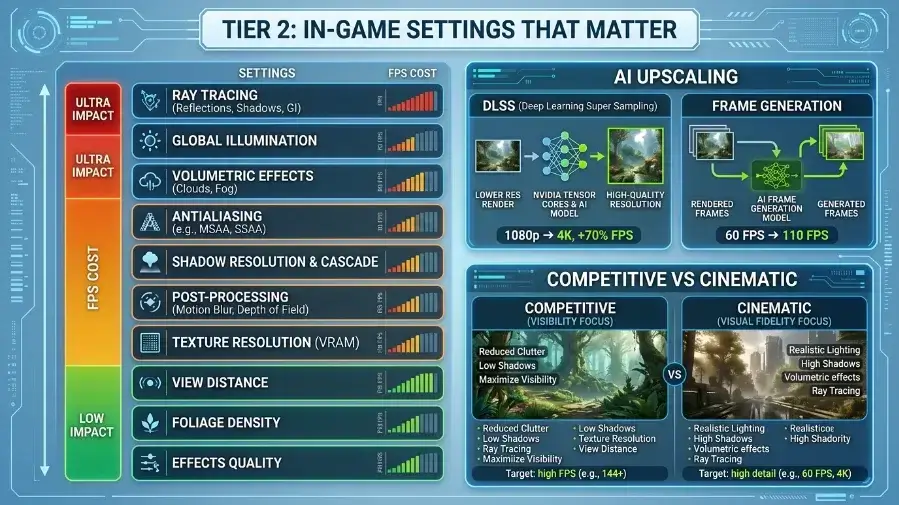
Tier 2: In Game Settings That Actually Matter
Shadows, ray tracing, and volumetric lighting cost the most FPS out of any in-game settings. Turning these down first gives the biggest visual-to-performance trade. Not every graphics setting costs the same amount of FPS. Some settings barely slow your game down at all. Others quietly eat 15 to 20% of your frame rate. And you might never even notice the visual difference while playing.
The settings with the biggest FPS cost
Shadows are almost always one of the most expensive settings in modern games. This is especially true for soft or moving shadows. Turning shadows down from the highest setting to High or Medium often costs very little in looks. But it can give you a real gain in FPS.
Fog and volumetric lighting work the same way. You might see them called “god rays” or “volumetric clouds.” They look nice. But they cost a lot of performance. Turning them down rarely stands out while you are actually playing.
Anti-aliasing matters too. The type used matters more than the strength. MSAA is hard on performance. TAA is much cheaper and usually looks close enough. If a game has its own upscaling tool built in, that option usually beats both.
Ray tracing is the big one. It can look amazing in the right game. But it uses a lot of GPU power. Turning it off is still the single biggest FPS gain in most games that support it. This is true if raw speed matters more to you than lighting detail.
AI upscaling: DLSS vs. FSR vs. XeSS
These tools work in a simple way. The game renders at a lower resolution first. Then the tool sharpens it back up to your screen’s real resolution. You get most of the speed benefit of a lower resolution. But you keep most of the sharpness too.
DLSS is made for Nvidia RTX cards. It is often seen as the sharpest of the three, especially in newer versions. But it only works on Nvidia hardware. FSR is made by AMD. It works on almost any modern graphics card, including Nvidia and Intel cards. This makes it the most flexible choice. Older FSR versions could look a bit soft during fast motion, though. XeSS is made by Intel. It sits in between the other two. It has gotten much better since it first came out.
Frame Generation is different. It creates brand new frames between the ones your GPU actually makes. This raises your FPS number. But it adds a small delay, since those extra frames are not based on anything you actually did. It works well in slower, story-based games. In fast competitive games, it can work against you, even though the FPS number looks higher.
Competitive settings vs. cinematic settings
If you play competitive games, turn shadows, effects, and post-processing down as low as they go. Keep resolution scaling sensible. Aim for a steady, high frame rate over fancy visuals. There is a reason pro players build their settings this way. A clean, simple image is easier to react to quickly.
If you play single-player games and want them to look good, you can keep the demanding settings turned up. Then let DLSS or FSR bring your frame rate back up.
Tier 3: BIOS Level Gains
Turning on XMP or EXPO, plus Resizable BAR, in your BIOS are two of the safest and most overlooked FPS gains available. Both are official, supported features, not risky overclocking. This part makes people nervous. But both of these changes are safe. You do not need to worry.
Turning on XMP or EXPO
Your memory sticks can run faster than they do by default. Most systems play it safe. They run at a slower speed unless you tell the BIOS otherwise. XMP works on Intel systems. EXPO works on AMD systems. Both are profiles saved right on the memory stick. They tell your motherboard, “here is the real speed this memory can handle, please use it.”
Turning it on is usually one switch in your BIOS. Look in a memory or overclocking menu. It might be labeled “XMP Profile 1.” This is a normal, supported feature. It is not a risky hack. It will not cancel your warranty. The biggest benefit shows up in CPU-heavy games. Faster memory can raise your lowest frame rates in a way you will actually feel.
Resizable BAR
Resizable BAR lets your processor see your graphics card’s whole memory at once. Normally it can only see small chunks at a time. This cuts down on extra work in supported games. It needs support from your motherboard, processor, and graphics card. If your system is a few years old or newer, there is a good chance you already have what you need.
Check your BIOS for two settings. Look for “Above 4G Decoding” and “Resizable BAR Support.” Turn both of them on. Then check your graphics card software to confirm it is working. How much it helps depends on the game. Sometimes it is barely noticeable. Sometimes it is a real jump. There is almost no downside to leaving it on.
Tier 4: Hardware and Thermal Health
Heat, low RAM, and a slow storage drive are the three hardware issues most likely to cause stutter rather than a low average FPS number.
Is heat quietly killing your FPS?
Thermal throttling happens when your processor or graphics card gets too hot. It slows itself down to protect the hardware. The clue to look for is FPS that starts strong. Then it slowly drops the longer you play. This happens more in long sessions or warm rooms.
Use a free tool like HWInfo. Or use the monitoring tab in MSI Afterburner. Watch your temperatures while you play. As a rough guide, most modern CPUs are fine up to about 80 to 85 degrees Celsius. Most graphics cards are fine up to about 83 degrees. The exact number depends on your chip. If you go higher than that a lot, and your clock speed drops at the same time, it is time for a fix. Clean the dust out of your case. Replace old thermal paste. Improve airflow around your PC.
Does an SSD actually change your FPS?
A solid-state drive will not raise your average FPS in most games. What it changes is loading time. It also stops stutter caused by slow file loading. This happens when the game tries to pull in textures while you are still playing. If you use an older mechanical hard drive and notice hitches during open-world exploring or fast travel, that is likely your drive. Not your graphics card.
RAM amount for 2026 games
16GB is really the bare minimum now. It used to be a comfortable amount, but not anymore. Many newer games, plus a browser and background apps, will fill up 16GB fast. Then your PC starts using slow swap space. That causes stutter. 32GB is the real sweet spot if you are building or upgrading a PC now. Prices have dropped enough that there is little reason to skip it.
Safe, beginner-friendly undervolting
Undervolting means lowering the voltage your CPU or GPU uses. You do this without lowering its speed. This sounds backwards. But most chips ship with more voltage than they truly need. This just guarantees stability across every unit made. Lower voltage means less heat. Less heat means less throttling. That often means your hardware holds its top speed for longer.
For graphics cards, this is usually done in MSI Afterburner’s voltage-frequency curve editor. You set a slightly lower voltage at your card’s normal top speed. Then you test it with a game or stress test. If you see a crash or visual glitches, just raise the voltage a little. This is fully reversible. Getting it slightly wrong will not damage anything. Worst case, it crashes. You just undo the change.
A newer factor worth knowing about background AI features
Newer Windows builds now run background AI assistants. Some laptops do this too. These features quietly use CPU and memory, even when you are not using them. On some systems, you can pause or limit these features. You do not have to turn off the whole thing. Check your Task Manager for one of these assistants running by default. This is a newer cause of background load. Older guides usually do not mention it.
Monitor and Sync Settings
Your monitor’s refresh rate sets a hard limit on the FPS you can actually see, no matter how powerful your PC is.
G-Sync and FreeSync
If your monitor supports G-Sync, from Nvidia, or FreeSync, from AMD, turn it on. It matches your monitor’s refresh rate to the FPS your GPU is actually making. This removes screen tearing. And it does not add the input delay that older V-Sync settings had. Most monitors need this turned on in two places. First in the monitor’s own menu. Then in your graphics card’s control panel.
Frame rate capping
Here is one that surprises people. Try capping your frame rate slightly below your monitor’s max. Try 5 to 10 frames under its refresh rate. This often feels smoother than leaving it uncapped. An uncapped frame rate can push your GPU to run flat out. This can make frame timing less steady. A small cap gives your GPU a bit of breathing room. RTSS lets you set this cap easily.
Refresh rate vs. FPS
Your monitor’s refresh rate is a hard limit. A 60Hz screen will never show the benefit of 150 FPS. It simply cannot display more than 60 frames each second. No matter how many your graphics card makes. If you upgraded your GPU and the frame rate seems off, check your real monitor refresh rate first. This is easy to miss. Here is a newer issue too. Some monitors quietly reset to a lower refresh rate after a Windows update. It is worth checking your display settings again, even if you set this before.
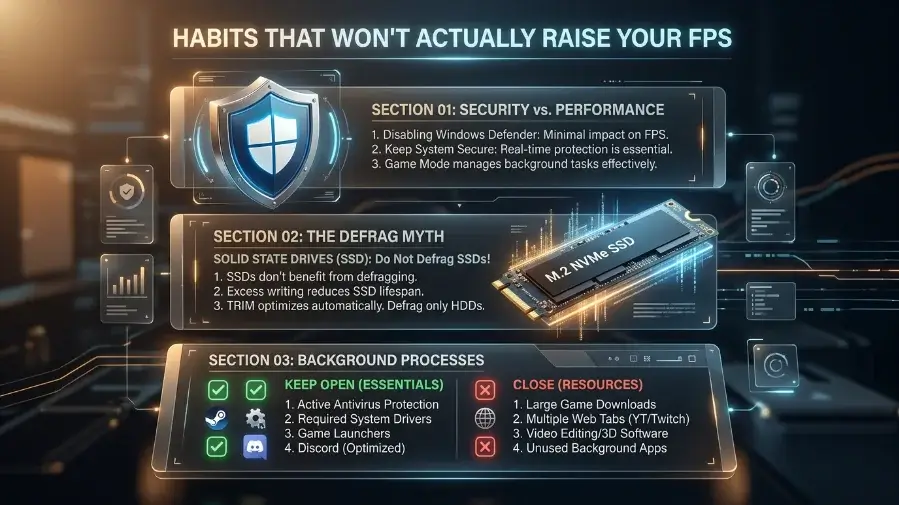
Habits That Won’t Actually Raise Your FPS
A few tips get repeated everywhere. But they do not really work.
Turning off Windows Defender completely. Real-time scanning does use some resources. But modern Defender is light enough that you likely will not notice a difference. Giving up your antivirus for a gain you cannot even measure is not worth it.
Gaming mode registry tweaks and paid optimizer apps. Most of these just flip settings you could change yourself for free. They just dress it up with marketing words. A few do nothing at all.
Running defrag on an SSD. This was good advice for old hard drives. On an SSD, it does nothing for speed. It can even add unneeded wear over time.
Pushing your monitor past its rated refresh rate without testing it. Some monitors can go higher than their rating. But doing this without checking can cause flickering. It can also cause visual glitches that make the game harder to see clearly.
Closing every background process, even ones you need. There is a point where this stops helping. Closing Discord during a match makes sense. Shutting down your antivirus or cloud backup for good, just for a couple extra frames, does not.
How to Test Your Changes the Right Way
Change one thing at a time. If you update your driver, turn on Resizable BAR, and change three graphics settings all at once, you will not know what actually helped. Test one change. Play for ten or fifteen minutes in a spot you know well. Write down your average FPS and your 1% lows. Then move to the next change.
MSI Afterburner with the RTSS overlay is the easiest free setup for this. It shows live FPS, frame timing, and CPU and GPU usage right on your screen. You can also save a session to a file. This helps if you want to compare real numbers later, instead of trying to remember them.
FAQs
What’s the fastest way to increase FPS on any PC? Update your GPU driver with a clean install. Then switch Windows to the High Performance power plan. These two steps fix most cases where FPS feels worse than it should. The whole thing takes about twenty minutes.
How do I know if my FPS problem comes from the CPU or GPU? Check Task Manager, or a tool like Afterburner, while you play. If GPU usage is near 100% and your CPU stays well below that, your graphics card is the limit. If it is the other way around, especially with one CPU core maxed out, that points to a CPU bottleneck.
Does more RAM actually raise FPS, or just stop stutter? Mostly the second one. Going from too little RAM, like 8GB, up to 16GB or 32GB smooths out stutter. It stops your PC from using slow swap space. This helps your worst moments a lot more than your average FPS number.
Is DLSS or FSR cheating? Does it hurt image quality? Not really. Newer versions of both are genuinely good. Sometimes the upscaled image even looks sharper than native resolution with a weak anti-aliasing method. It is a real, useful tool. Not something to feel bad about using.
Will Frame Generation add input lag? A small amount, yes. It adds frames that are not based on new input from you. It is a good trade in slower single-player games, where a few extra milliseconds will not matter. In fast competitive games, it is usually better left off. Even though the FPS number goes up when it is on.
Is it safe to turn on XMP or Resizable BAR? Does it cancel my warranty? Both are normal features supported by the makers of your hardware. They are not risky overclocking tricks. Neither one cancels your warranty. Both are safe to leave on all the time.
What FPS should I aim for? Does higher always mean smoother? It depends on your monitor’s refresh rate. There is no benefit chasing 200 FPS on a 60Hz screen. Beyond that, how steady your frame rate is matters more than the peak number. A game holding a steady 90 FPS usually feels smoother than one bouncing between 60 and 140.
How do I check if overheating is limiting my FPS? Watch your CPU and GPU temperatures with a tool like HWInfo or Afterburner. Do this during a longer play session. If your clock speed drops and your FPS drops with it the longer you play, that points to heat as the cause.
Does reinstalling Windows actually help gaming performance? Sometimes, yes. This is true if your current setup has a lot of background clutter, failed updates, or old driver conflicts built up over the years. But a clean GPU driver install and trimming your startup apps usually gets you most of the same benefit. And it saves you the hassle of reinstalling the whole operating system.
Can I increase FPS on a laptop the same way as a desktop? Mostly, yes. But laptops are more sensitive to heat and power settings. Make sure it is plugged in, not running on battery. Set it to a high performance power mode. And make sure it is using the dedicated graphics card, not the built-in one, while gaming. That last part trips up a lot of laptop owners. It is a laptop-only issue that desktop advice does not usually cover.
Final Thoughts
Low FPS almost always has a real cause. It is rarely bad luck. Once you check the right things, most fixes take just a few minutes. Start small. Update your driver. Switch your power plan. Close a few background apps. These steps alone fix most cases. If FPS is still low after that, move on to your BIOS settings, then your in-game settings, then your hardware. You do not need every fix in this guide. Most people only need three or four of them. Test one change at a time. Keep what helps. Skip what does not. That is really all FPS optimization is.

Leave a Reply