

Quick answer: Microsoft Flight Simulator is CPU limited, specifically main-thread limited. One thread schedules simulation work, so a faster single core beats a bigger GPU. If the overlay says Limited by MainThread, lower Terrain LOD, Objects LOD, and traffic. Upgrade the GPU only when it says Limited by GPU.
Introduction
The microsoft flight simulator cpu bottleneck is one of the most misunderstood performance problems in PC gaming. Players buy a powerful new graphics card, fire up the sim at a busy airport, and find their frame rate barely moved. Task Manager shows the CPU loafing at 25 percent and the GPU at 60 percent, and nothing looks broken. Yet the sim crawls.
What is happening is not a mystery, and it is not a broken PC. Microsoft Flight Simulator leans harder on a single CPU thread than almost any other modern game. Understanding that one fact changes every decision you make: which CPU to buy, which graphics settings to touch first, and when DLSS or frame generation will actually help. This guide walks through the whole picture for both MSFS 2020 and MSFS 2024, with real community-tested fixes, honest setting economics, and CPU and GPU pairings for every budget.
Why MSFS Bottlenecks CPUs Differently
In most games, a bottleneck is simple: whichever component works hardest caps your frame rate. Microsoft Flight Simulator adds a twist. The sim funnels a large share of its per-frame work, simulation logic, scenery loading coordination, and draw-call scheduling, through a single main thread on the CPU. Even though the sim uses other threads too, that one main thread acts as the gatekeeper. When it cannot finish its work in time, you are CPU limited, no matter what the other 15 cores are doing.
This is why overall CPU utilization lies to you. A 16-core processor can report 20 percent total usage while the main thread is pegged and holding your frame rate back. The official MSFS forums are full of threads from pilots confused by exactly this: a 12700K at 20 to 30 percent usage, a GPU nowhere near full load, and the overlay calmly reporting “Limited by MainThread.” Low utilization does not rule out a CPU bottleneck in this sim. If you want the broader theory behind this behavior, our explainer on CPU bottleneck vs GPU bottleneck covers how one limiting component caps the whole pipeline.
The main-thread limitation is a documented engine trait, not a bug you can patch with a driver. Multi-core usage improved significantly over the sim’s lifetime, especially after the DX12 updates, but the main thread remains the usual suspect at dense airports, in big cities, with complex airliners, and with heavy AI traffic. This makes Microsoft Flight Simulator arguably the most CPU-bound mainstream title on PC, and a close cousin of other simulation games with the same profile. If you fly cities as well as skies, our Cities: Skylines 2 CPU bottleneck guide shows the same single-thread pattern in a different genre.
Single-Core Speed Beats Core Count in MSFS
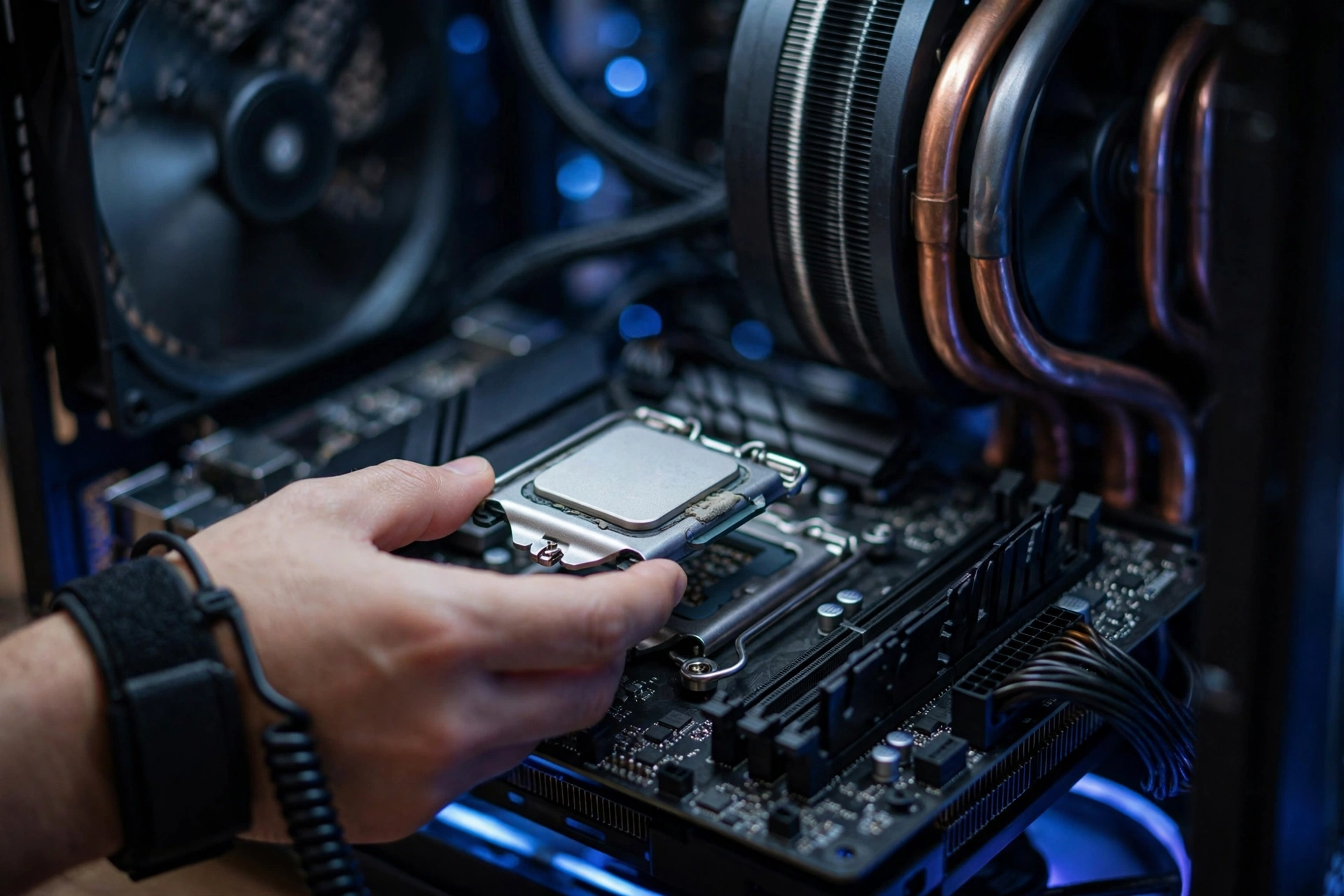
Because the main thread is one thread, the metric that matters most is single-core performance: clock speed, instructions per clock (IPC), and cache that keeps the thread fed. A 16-core workstation CPU with modest clocks will generally lose to an 8-core gaming chip with higher single-core speed in this sim. Community experience across the forums converges on roughly 6 to 8 fast cores being the sweet spot; beyond that, extra cores mostly sit idle or handle background tasks while the main thread sets the ceiling.
AMD’s X3D chips, the Ryzen 7 7800X3D and Ryzen 7 9800X3D, have earned a strong reputation in flight sim circles because their stacked cache feeds that critical main thread exceptionally well. Tom’s Hardware’s MSFS 2024 performance testing used the 9800X3D as its primary test CPU and found that even an RTX 4090 hits CPU limits with frame generation enabled, with roughly 120 FPS as the practical average ceiling. That tells you everything about the hardware balance in this sim: once you own a fast X3D-class CPU, the GPU gets to stretch its legs, but the CPU’s single-thread ceiling is never far away.
RAM speed and configuration matter more here than in many games too. Fast DDR5 in dual channel with EXPO or XMP enabled feeds the main thread; a misconfigured memory profile can quietly cost you frames. And storage matters: the sim streams the world as you fly, so keep it on a fast NVMe SSD rather than a spinning drive.
How to Tell If You Are CPU Limited or GPU Limited
Stop guessing and start measuring. Microsoft Flight Simulator ships with a developer FPS overlay that names your limiter in real time. Enable it under Options, General, Developers, then open the developer menu and turn on Display FPS. The overlay will show either “Limited by MainThread” or “Limited by GPU,” plus millisecond timings for each.
Use this symptom table to read your situation before touching a single setting:
| What you observe | Likely limit | Best first test |
|---|---|---|
| FPS tanks at large airports and dense cities but recovers in cruise | CPU main thread | Lower Terrain LOD and AI traffic, then retest at the same airport |
| Lowering render scaling immediately boosts FPS | GPU | Reduce output resolution, clouds, or render scale |
| Total CPU usage looks low but the overlay says MainThread | CPU main thread | This is normal for MSFS; ignore total CPU percent |
| Same FPS at Low and Ultra settings | CPU main thread | Graphics settings cannot fix a simulation-side limit |
| Camera pans cause hitches and late-loading textures | VRAM or storage | Lower texture resolution, check you are on an SSD |
| FPS is locked at an exact number no matter what | Frame cap or V-Sync | Check sim, driver, and external limiter settings |
Two notes on reading this table honestly. First, some CPU limitation is normal in this sim; forums consensus treats being “Limited by MainThread” as a fact of the engine rather than a fault, and the goal is to balance the load, not to eliminate the message entirely. Our guide on what a good bottleneck percentage looks like explains why a small, stable bottleneck is healthier than a lopsided system. Second, run every test in the same place, same aircraft, same weather. A controlled baseline at a default airport with a default aircraft is the only honest way to compare.
Terrain and Object LOD The Two Settings That Eat Your CPU
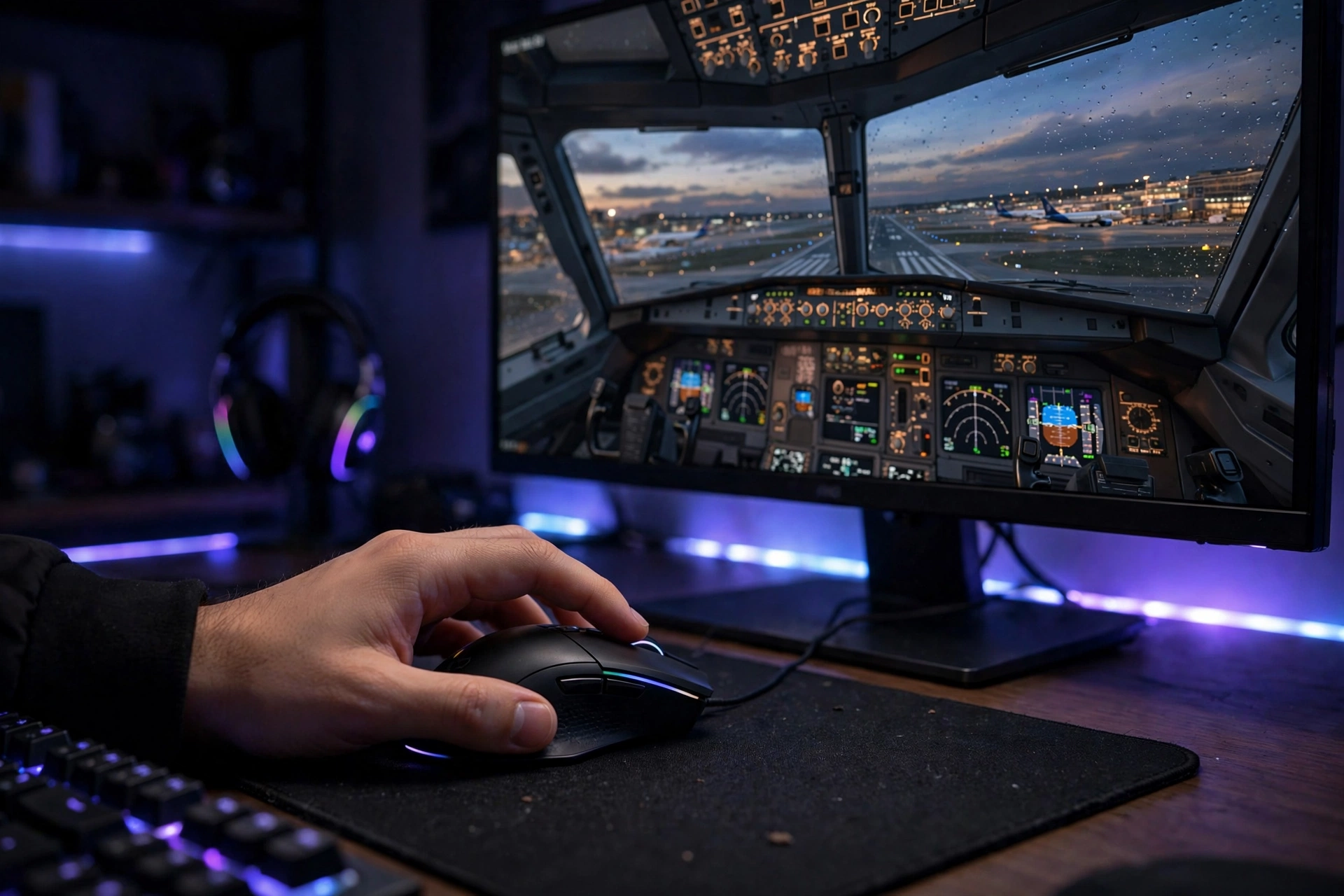
Terrain Level of Detail (TLOD) and Objects Level of Detail (OLOD) are the two most CPU-expensive settings in Microsoft Flight Simulator, and they work directly on the main thread’s workload. They control how far out and how densely the sim draws terrain meshes, buildings, and scenery objects. Every extra ring of detail is more data for the main thread to prepare each frame.
Here is how the heavy settings rank for main-thread cost:
| Setting | Main-thread cost | Practical guidance |
|---|---|---|
| Terrain Level of Detail | Very high | 100 to 200 for most systems; above 200 needs a top-tier CPU |
| Objects Level of Detail | High | 100 to 200 is the sane range for most users |
| AI and live traffic density | High at dense airports | Reduce below 20 percent or use generic plane models |
| Glass cockpit refresh rate | Medium to high | Medium is a good balance in airliners |
| Offscreen terrain pre-caching | Medium | Higher values can smooth camera panning |
| Photogrammetry cities | Medium | Beautiful but heavy near big metros; test per city |
The counterintuitive rule of MSFS: when you are main-thread limited, raising pure GPU settings like reflections, clouds, and texture resolution is nearly free, because your GPU has headroom. Several forum veterans use exactly this trick, cranking visual settings up while the CPU stays the limiter, trading idle GPU capacity for prettier frames at zero FPS cost. Do the reverse of the usual advice: lower the CPU settings, raise the GPU ones until the overlay flips to “Limited by GPU,” and you have found your system’s sweet spot.
What They Can and Cannot Fix
Upscaling and frame generation are powerful tools, but their effect depends entirely on which side of the bottleneck you sit on.
DLSS Super Resolution and AMD FSR render the frame at a lower internal resolution and upscale it, which cuts the GPU’s workload. PC Optimized Settings measured DLSS Quality at about a 26 percent performance uplift in its MSFS 2024 guide, with Balanced and Performance modes adding smaller gains. If the overlay says “Limited by GPU,” upscaling is your best friend. If it says “Limited by MainThread,” upscaling changes little, because the GPU was never the problem. For the general principles, see our guide on whether DLSS reduces CPU bottlenecks.
Frame generation is the trickier case. DLSS 3 frame generation on NVIDIA RTX 40 and 50 series cards and FSR 3 frame generation (available more broadly, including via community mods for older RTX cards) insert AI-generated frames between real ones. PC Optimized Settings’ testing put frame generation at a 30 to 35 percent bump to displayed frame rates, but it does not reduce a CPU bottleneck. It multiplies whatever frame rate the main thread already delivers, so a 30 FPS main-thread-limited scene becomes a smoother-feeling 40 FPS, while input latency and the underlying simulation rate stay tied to the CPU. It works best on top of a stable base frame rate; enabling it over a stuttering 20 FPS base often just makes the stutters look stranger.
The smart order: fix the main-thread limit first with LOD and traffic settings, then add upscaling if you are GPU limited, then consider frame generation for extra smoothness. Stacking frame generation on an unresolved CPU limit is like polishing a rough road.
Best CPU and GPU Pairings for MSFS in 2026
Hardware choice for MSFS is really two decisions. The CPU sets your frame ceiling; the GPU decides your resolution, detail level, and how well upscaling and frame generation work. Buy the CPU for the sim, buy the GPU for your monitor.
The September 2026 Steam Hardware Survey gives useful context on where the market sits: the RTX 5070 became the most common GPU on Steam at about 6.2 percent of Windows systems, per Digital Foundry’s read of the survey, while AMD’s CPU share climbed to 48.4 percent of Windows systems, nearly at parity with Intel. For MSFS, that RTX 5070 popularity is convenient: it supports DLSS 4 with frame generation and lands in the mid-range tier below, which is exactly where most sim pilots should aim.
| Tier | CPU | GPU | Target experience |
|---|---|---|---|
| Budget 1080p | Ryzen 5 5600 or Core i5-12400F | RTX 4060 or RX 7600 XT | 30 to 60 FPS at medium settings, TLOD 100 to 150 |
| Sweet spot 1440p | Ryzen 7 7800X3D | RTX 5070 | Smooth 60 FPS class with DLSS Quality, great value |
| High-end 1440p/4K | Ryzen 7 9800X3D | RTX 5070 Ti or RTX 5080 | High detail with frame generation, 4K viable |
| Flagship 4K | Ryzen 7 9800X3D | RTX 5090 | Maximum detail, still main-thread aware |
A few honest notes on this table. First, on the CPU side the 9800X3D is the current single-thread champion for this sim, and the 7800X3D remains the value king; both beat higher-core-count chips that cost more but clock lower. Second, avoid pairing a flagship GPU with a weak CPU for MSFS: a 5090 behind a mid-range processor spends the flight waiting on the main thread, which is the classic money-wasting bottleneck. Third, two unconfirmed market reports are worth knowing as you shop: an October 10 report of an NVIDIA RTX 5090 production halt (unconfirmed, via cointime.ai) and a leak of AMD RX 9000 series MSRP increases in Q4 (unconfirmed, via PC Guide).
Treat both as rumors, not facts; neither changes the pairing logic above, but they are a reason to buy at prices you can verify today rather than waiting on a rumor.VRAM deserves its own line. MSFS at 4K with high texture settings is hungry for memory, and 8 GB cards can hit VRAM pressure that looks like stuttering rather than low FPS. The 12 GB and 16 GB tiers are the comfortable choices for this sim in 2026, which lines up with where the mainstream market has moved.
VR Performance Notes
Virtual reality is where the main-thread limit hurts most, because the sim must prepare the scene for two eyes and any stutter shatters immersion. The same diagnosis applies: the developer overlay works in VR, and “Limited by MainThread” means the same thing.
Practical VR settings from experienced sim pilots:
- Lock motion reprojection to 30 or 36 FPS in your OpenXR runtime so perceived motion stays smooth even when the sim runs below headset refresh.
- Set render resolution to roughly 80 to 90 percent of native; the CPU is usually the limit, so leave GPU headroom rather than maxing pixels.
- Use DLSS Balanced or TAA, keep texture resolution at High (it costs the GPU, not the CPU), and set shadow maps and contact shadows low.
- Keep Terrain LOD and Objects LOD in the 80 to 100 range and glass cockpit refresh rate at Medium.
- Set terrain pre-caching to Medium or higher to reduce panning hitches.
MSFS 2024 remains very demanding in VR, and no current CPU delivers the frame rates a 240 Hz headset would want. Chasing ultra-high VR frame rates in this sim is a losing battle against the main thread; aim for a stable, reprojection-locked 30 to 36 FPS with clean frame pacing instead.
Troubleshooting Stutters A Step by Step Fix List
Work this list in order, testing the same airport scene after each change. Fix the actual limiter instead of changing settings at random.
- Confirm the limiter. Enable the developer FPS overlay and read whether it says MainThread or GPU. Everything below depends on this answer. Our walkthrough for why your FPS is so low covers the same diagnostic logic for any game.
- Lower Terrain LOD and Objects LOD first if you are main-thread limited. Drop TLOD to 100 and OLOD to 100 as a test, then raise them until the limit just flips.
- Cut traffic. Reduce AI, live, and ground traffic density, and enable generic plane models. Traffic is one of the heaviest main-thread costs at busy airports.
- Clean up add-ons. Move third-party content out of the Community folder temporarily and retest. A single heavy airport scenery or traffic injector can dominate the main thread; complex airliners like the Fenix A320 are known main-thread loads at large airports.
- Update Windows and GPU drivers. Microsoft’s Advanced Shader Delivery is rolling out to all NVIDIA RTX GPUs in October 2026, with support already live on AMD RDNA cards. It ships precompiled shaders with the game instead of making your CPU compile them, cutting first-launch shader preparation by roughly 95 percent, and it requires Windows 11 24H2 or newer. Shader-compile stutter is a different beast from the main-thread limit, and this update attacks it directly, so stay current.
- Delete the rolling cache if stutters appeared suddenly after an update. Corrupted cache data causes severe hitches; a fresh cache on an SSD often cures it.
- Check thermals and power. A CPU or GPU quietly throttling under load looks exactly like a bottleneck. Watch clocks during a flight, not just temperatures.
- Use one frame limiter. Stacking the sim’s limiter, the driver limiter, and an external cap creates uneven frame pacing that feels like stuttering.
- Consider a CPU upgrade only after settings are exhausted. If you are still main-thread limited at modest LOD with traffic low, a faster single-core CPU, ideally an X3D chip, is the real fix. Our guide on how to fix a CPU bottleneck walks through the full checklist.
Common Mistakes Sim Pilots Make
Upgrading the GPU to fix main-thread stutters. The forums are full of pilots who went from a GTX 1080 to an RTX 3070 and saw stuttering unchanged. If the overlay says MainThread, a new GPU buys you nearly nothing.
Running Terrain LOD at 400 on a mid-range CPU. TLOD 400 exists for screenshots and flagship processors. In dense areas it can halve a mid-range CPU’s frame rate while the GPU idles.
Ignoring RAM configuration. Single-channel memory or a disabled XMP/EXPO profile starves the main thread. This is a five-minute BIOS fix that many builders skip.
Changing ten settings at once. Optimization guides warn against this repeatedly: with traffic injectors, recording software, and add-ons all active, you cannot tell which change did what. One variable at a time.
Stacking frame caps. The sim’s V-Sync plus a driver cap plus RTSS creates micro-stutter that mimics a hardware bottleneck. Pick one limiter and target a frame rate your system sustains on approach, not in cruise.
Judging by Task Manager. A CPU at 25 percent total usage can still be main-thread limited. The developer overlay is the truth; Task Manager is a distraction in this sim.
Expert Tips for Smooth Flying
- Find your flip point. Raise GPU-heavy settings (clouds, reflections, texture supersampling) until the overlay just switches from MainThread to GPU. That balance point is your system’s maximum visual quality at zero FPS cost.
- Use per-scenario expectations. Cruise flight is often GPU limited; the same PC is main-thread limited on short final at a handcrafted airport. Tune for your worst case, the approach, not your best.
- Separate your profiles. Keep a “heavy airport” preset with lower LOD and traffic and a “cruise and scenery” preset with everything maxed. Switching takes seconds and saves constant fiddling.
- Restart long sessions. Some pilots report main-thread frame times creeping up over multi-hour flights. If your approach stutters after a long cruise, a sim restart before descent is a pragmatic workaround while the underlying cause is investigated.
- DX12 is the modern path. The sim’s multithreading improved notably with the DX12 updates, and MSFS 2024 builds on that. If you are still on DX11 for legacy reasons, testing DX12 is worthwhile on current drivers.
- Fly the bottleneck calculator. Before spending on hardware, plug your candidate CPU and GPU into our bottleneck calculator to check the pairing balance for the resolution you fly at.
Frequently Asked Questions
What does “Limited by MainThread” mean in Microsoft Flight Simulator?
It means one thread on your CPU, the sim’s main thread, takes longer to prepare each frame than your GPU takes to render it. Your GPU ends up waiting on the CPU. It does not mean you need more cores; it means the fastest single thread you have is the ceiling. Lower Terrain LOD, Objects LOD, and traffic, or move to a CPU with stronger single-core performance. (Source: official MSFS forums, “Does MSFS use all CPU cores?” and “Im still there: Limited by Main Thread” threads)
Why does the sim say my CPU is the bottleneck when Task Manager shows only 20 to 30 percent usage?
This is the most asked question on the MSFS forums, and the answer is that Task Manager averages across all cores. The sim loads a handful of threads hard, with the main thread as the limiter, while the rest sit near idle. One forum explanation puts it well: the main thread is like a single checkout lane, and adding more lanes does not help when most shoppers queue at that one lane. Trust the developer overlay, not the CPU percentage. (Source: official MSFS forums)
I upgraded my GPU and my stutters did not change at all. Why?
Because the stutters were never GPU-caused. A forum pilot who upgraded from a GTX 1080 to an RTX 3070 reported stuttering completely unchanged, which is exactly what you expect when the main thread is the limiter. When the CPU thread cannot deliver frames faster, a faster GPU just waits longer between frames. Diagnose first with the overlay, then spend on the component the overlay names. (Source: official MSFS forums)
Will DLSS frame generation fix my low FPS if I am CPU limited?
It will raise the displayed frame rate, roughly 30 to 35 percent in testing, but it does not fix the CPU bottleneck. Frame generation inserts AI frames between real ones, so the base frame rate, the input latency, and the simulation itself stay tied to the main thread. It is best used on top of an already stable base rate. Fix the main-thread limit with settings first, then add frame generation for smoothness. (Source: FlyAwaySimulation MSFS 2024 optimization guide)
Do I need more cores or a faster CPU for Flight Simulator?
A faster CPU, specifically faster single-core performance. Forum testing and reviewer data agree that 6 to 8 fast cores is the sweet spot and that extra cores beyond that add little for this sim. The Ryzen 7 7800X3D and 9800X3D are the community’s favorite answers because their stacked cache feeds the main thread so well. If you are choosing between a 16-core chip and an 8-core chip with higher clocks for MSFS, take the faster cores. (Source: official MSFS forums, Tom’s Hardware MSFS 2024 CPU benchmarks)
Why is my FPS fine in cruise but terrible at big airports?
Because airports concentrate everything the main thread hates: complex terminal geometry, ground vehicles, AI and live traffic, detailed aircraft systems, and nearby photogrammetry, all at once. In cruise, the scenery is simpler and the GPU usually becomes the limiter. This is normal engine behavior, not a failed setting. Tune your LOD and traffic for the airport case and accept that the two flight phases stress different components. (Source: FlyAwaySimulation MSFS 2024 performance guide)
Key Takeaways
- Microsoft Flight Simulator is main-thread limited: one CPU thread gates your frame rate, and low total CPU usage does not disprove a CPU bottleneck.
- Single-core speed and cache (Ryzen X3D chips lead here) matter far more than core count.
- The developer FPS overlay is the only honest diagnostic; “Limited by MainThread” means lower Terrain LOD, Objects LOD, and traffic.
- DLSS and FSR help GPU limits; frame generation smooths but never removes a CPU limit.
- When main-thread limited, raising GPU visual settings is nearly free, use the idle GPU for prettier frames.
- October 2026’s Advanced Shader Delivery rollout to RTX GPUs targets shader-compile stutter, a separate issue from the main-thread limit; keep Windows 11 24H2 and drivers current.
Conclusion
The Microsoft Flight Simulator CPU bottleneck frustrates pilots because it breaks the usual rules: the CPU looks idle, the GPU looks fine, and the sim still stutters. Once you see the main thread for what it is, the path is clear. Measure with the developer overlay, spend your settings budget on Terrain LOD, Objects LOD, and traffic, let the GPU stretch on visuals, and only upgrade the component the overlay actually names.
If a hardware upgrade is on the table, check the pairing before you buy. Run your candidate combination through our CPU bottleneck calculator to confirm the balance at your resolution, and remember the sim’s golden rule: buy the CPU for the main thread, buy the GPU for the monitor.

Leave a Reply