

Quick Answer
Is CS2 CPU or GPU bound? For most players running competitive settings at 1080p, CS2 is CPU bound. The processor prepares every frame, and at the high frame rates competitive players want, the CPU runs out of time before the GPU does. At 1440p or 4K with high settings, the GPU can become the limit instead. The rest of this guide shows you how to test your own PC, which settings fix it, and what hardware to buy.
Introduction
You bought a graphics card that should crush every game on your list. Then you load Counter-Strike 2, join a match, and watch your frame rate sag every time someone throws a smoke. Your GPU usage sits at 50 percent while your friend’s cheaper card runs smoother. If you are asking whether is cs2 cpu or gpu bound, you are asking the right question, because the answer decides where your next dollar should go.
The question is cs2 cpu or gpu bound comes up constantly because CS2 behaves differently from most modern games. In a cinematic single-player title at 4K, the graphics card is almost always the ceiling. In CS2, played at low settings on a 1080p monitor with a 240Hz or 360Hz display begging for frames, the processor is usually what sets the cap. Understanding that single fact changes every decision you make: which settings to change, which component to upgrade, and how much money you can stop wasting.
This guide answers the question properly. You will learn why CS2 leans on the CPU, how to test your own system in about ten minutes, the exact settings that reduce a CPU bottleneck, which CPUs can actually feed 300 or more frames per second, what a high-refresh monitor really demands, and the stutter causes that look like bottlenecks but are not.
Why CS2 Is CPU Bound More Than Most Games
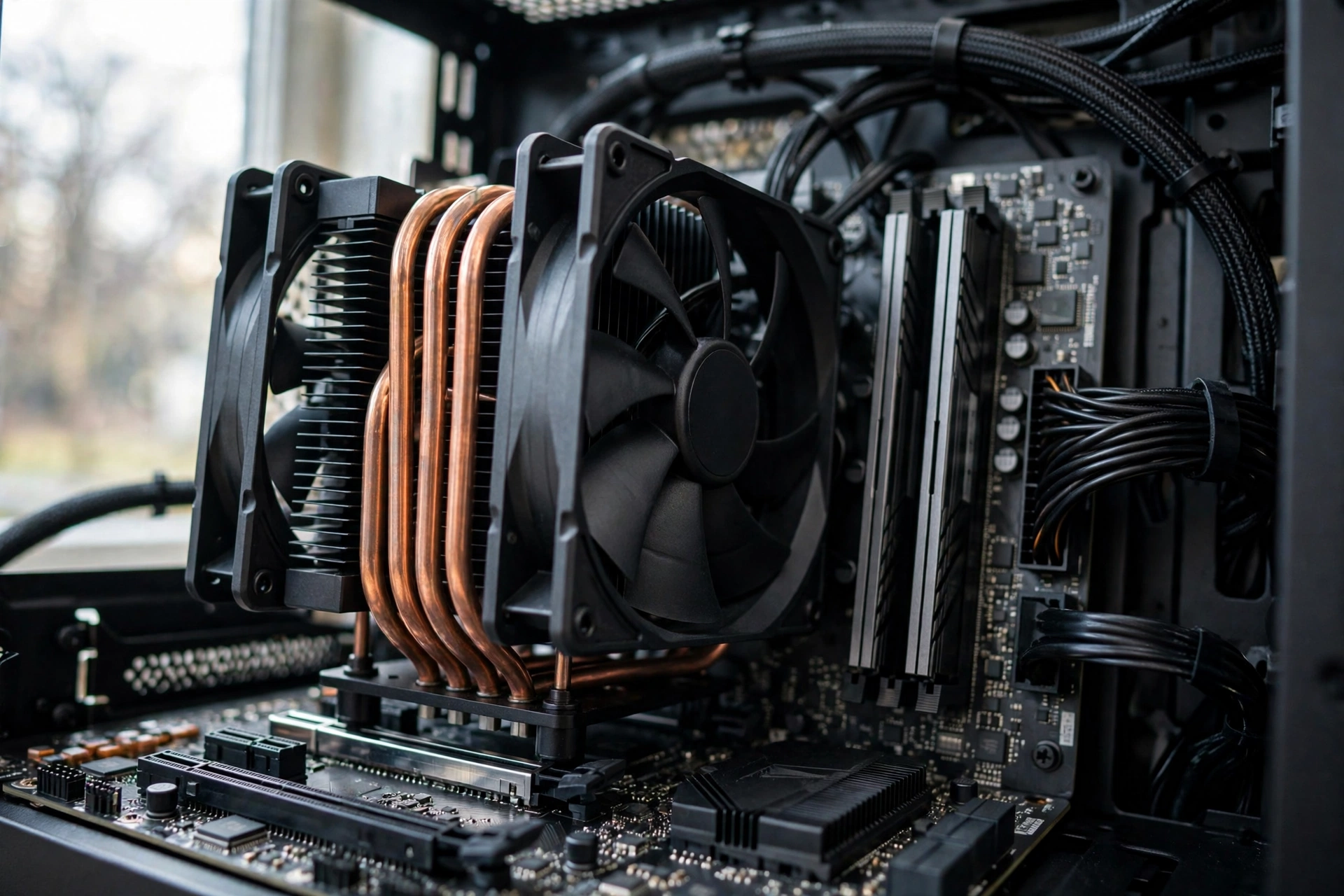
Every frame your PC draws goes through two stages. The CPU runs the game simulation: player movement, physics, hit registration, network code, animation, sound, and the draw calls that tell the GPU what to render. The GPU then draws the frame. Whichever stage takes longer sets your frame rate. CS2 is unusual because, on the settings most players actually use, the first stage is almost always the slow one.
The Source 2 engine carries a lot of simulation work on the processor. Player movement and shooting are calculated many times per second, hit detection and bullet tracing run constantly, and the newer volumetric smoke system makes the CPU work harder during exactly the moments that matter: mid-round fights full of utility. Valve clearly knows the CPU is the pressure point. Recent patch notes have targeted processor cost directly, including a reworked bullet penetration simulation meant to reduce CPU usage and the Animgraph 2 animation system, which Valve says cuts CPU and networking costs tied to animation. When a developer keeps optimizing the processor side of the engine, that tells you where the limit usually sits.
The second reason is the frame rate target itself. CS2 players do not aim for 60 frames per second. They aim for 144, 240, 360, or more. Pushing 400 frames per second means the CPU has only 2.5 milliseconds to prepare each frame. Lowering your graphics settings makes the GPU’s job much smaller, but the CPU’s per-frame work barely shrinks. That is why lowering settings can actually expose a CPU bottleneck instead of fixing it: the GPU finishes faster and faster, and the processor becomes the part everyone is waiting on.
Open enthusiast testing on CS2 confirms the pattern. On competitive settings at 1080p, the GPU typically sits well below saturation while a single CPU thread is pinned. Measurements shared in an open CS2 benchmarking repository showed an RTX 4090 running at only 25 to 30 percent load at 1280×960 with low settings, which means upgrading the graphics card further would have done literally nothing for the frame rate. The CPU was the ceiling.
There is a subtlety here that trips up a lot of players. Sometimes the GPU is at 40 percent and no CPU thread looks maxed out. That can be a memory bottleneck: the CPU is stalling while it waits on RAM or on cache, so it never shows 100 percent usage. Fast dual-channel memory and the big L3 cache on AMD’s X3D chips exist precisely to fight this. We will come back to RAM in the hardware section.
The rule of thumb: if you play CS2 at 1080p on low or medium settings and chase high frame rates, assume your CPU is the limit until a test proves otherwise.
How to Test Whether Your System Is CPU or GPU Bound in CS2
Guessing is what wastes money. These three tests take about ten minutes combined and tell you exactly which part is holding you back. Run them while playing a real match or a busy deathmatch, not in the main menu, because menus and empty maps behave nothing like a firefight.
Method 1: Watch Your Usage With an On-Screen Overlay
Install MSI Afterburner with its RivaTuner Statistics Server overlay, or use any monitoring tool you trust. Turn on graphs or text readouts for GPU usage, per-core CPU usage, and frame rate. Then play a normal competitive round.
Read the pattern, not a single number:
- GPU usage pinned at 97 to 99 percent or higher: you are GPU bound. Your graphics card is the limit.
- GPU usage sitting low (roughly under 70 percent) while one CPU thread is pinned near 100 percent: you are CPU bound. This is the classic CS2 pattern.
- GPU usage low and no CPU thread is maxed out, yet the frame rate is stuck: suspect a memory bottleneck. The CPU is waiting on RAM, which is why no thread shows 100 percent. Check whether your RAM is running at its rated speed and in dual-channel mode.
A quick sanity check on your CPU graph matters here. Windows Task Manager averages across all cores, which hides the truth. A game can be completely stuck on one busy thread while the overall CPU readout says a relaxed 30 percent. Always look at per-core or per-thread usage, not the total.
Method 2: The Resolution Test
Drop your render resolution or turn on FidelityFX Super Resolution in Performance mode, which lowers the internal rendering resolution. Watch what happens to your frame rate.
- FPS jumps up a lot: the GPU was the limit, because giving it less work to do helped.
- FPS barely moves: the CPU was already the limit, because the processor’s per-frame workload did not change when you asked the GPU to do less.
This test is honest and fast. It directly separates the two stages of the frame: if shrinking the GPU’s job changes nothing, the GPU was never the problem.
Method 3: The Settings Test
Max out the heavy graphics settings for a minute: Global Shadow Quality to Very High, MSAA to 8x, Ambient Occlusion to High, HDR to Quality. Then compare with your normal low settings.
- Huge FPS drop at max settings: you had GPU headroom. Your graphics card can handle more than you were asking, which fits a CPU-bound system.
- Almost no change: you are deeply CPU bound. The GPU was twiddling its thumbs either way.
Use the table below to interpret whatever you found.
| What you observe | What it means | What to do next |
|---|---|---|
| GPU usage at 97-99%+, FPS rises when you lower resolution | GPU bound | Lower settings or upgrade the graphics card |
| GPU usage low, one CPU thread at ~100% | CPU bound | Use the settings in the next section, then consider a CPU upgrade |
| GPU usage low, no thread maxed, FPS stuck | Memory bound | Enable XMP/EXPO, run dual-channel RAM, consider faster memory or an X3D CPU |
| FPS identical at low and max settings | Severely CPU bound | Settings changes will only help slightly; the processor is the real project |
If you want a deeper explainer on reading these signs across any game, our guide to the 10 signs your CPU is bottlenecking your GPU walks through each symptom with fixes.
Test before you spend. A ten-minute check beats a $500 guess.
Best In-Game Settings to Reduce a CS2 CPU Bottleneck
When the CPU is the limit, your settings goal is simple: shrink the CPU’s per-frame workload, keep visual clarity for spotting enemies, and avoid settings that add input lag. Here is what each video setting actually does, and what to pick.
| Setting | Recommended value | Why |
|---|---|---|
| Global Shadow Quality | Low | High shadows add many draw calls, which cost CPU time every frame |
| Model / Texture Detail | Medium | Mostly a GPU and VRAM cost; safe to raise if your GPU has headroom |
| Texture Filtering Mode | Bilinear or Anisotropic 2x | Higher filtering costs the GPU, not the CPU; keep it low for max FPS |
| Shader Detail | Low | Reduces shader work and compile hitches on both CPU and GPU |
| Particle Detail | Low | Smokes and flashes are CPU-heavy during fights; low keeps fights smooth |
| Ambient Occlusion | Disabled or Medium | A pure GPU cost, but disabling frees frames with no visibility loss |
| High Dynamic Range | Performance | Quality mode costs the GPU; Performance keeps colors without the tax |
| FidelityFX Super Resolution | Disabled if CPU bound, Quality/Balanced if GPU bound | Upscaling helps a struggling GPU, not a struggling CPU |
| MSAA Anti-Aliasing | Off or 2x | Heavy GPU cost for little competitive benefit |
| V-Sync | Off | Adds input lag; competitive players always disable it |
| NVIDIA Reflex / AMD Anti-Lag | On (Reflex On+Boost on NVIDIA) | Cuts render-queue latency; most valuable when the GPU is busy |
| Boost Player Contrast | Enabled | Visibility aid with negligible performance cost |
| Multicore Rendering | Enabled | Lets the engine spread work across CPU cores |
| Max FPS In-Game | Set to your monitor’s refresh rate or slightly above | Caps runaway frame rates that cause coil whine and heat without visible benefit |
A few notes on the settings that confuse people most.
Particle Detail on Low is the single biggest smoothness win during real fights. Smoke grenades, flashes, and explosions spike CPU work exactly when you need stable frames to aim. Most guides treat this as a generic “low for FPS” suggestion, but in CS2 it specifically protects you against the frame drops that happen mid-fight.
Do not crank everything to maximum hoping to “shift the load to the GPU.” Making the GPU the bottleneck on purpose only helps if your CPU is strong enough that the new, lower frame rate is still above your monitor’s refresh rate. Otherwise you traded a CPU limit for a GPU limit at fewer frames and added input lag for nothing.
Two settings deserve special mention in 2026. CS2 has a CPU Cores Usage Preference option, added for processors that mix fast and efficient cores. Set it to favor your performance cores so the game never schedules its hot threads on slow efficiency cores. And use the in-game FPS cap sensibly: capping a few percent above your monitor’s refresh rate keeps frame times steadier than letting the engine swing wildly between 200 and 500 FPS.
For a full walkthrough of the fixes that apply to any CPU-bound game, see how to fix a CPU bottleneck.
Worth remembering: lower shadows, particles, and shader detail first. Those are the CPU levers. Raise texture detail only if your GPU has spare headroom.
Which CPU and GPU Pairings Make Sense for CS2
The CPUs That Can Feed 300+ FPS
Independent testing keeps telling the same story: in CS2, cache and single-thread speed beat core count. TechSpot’s testing of the Ryzen 7 9800X3D found it about 24 percent faster than the Ryzen 7 7700X in CS2 even at 4K, jumping from roughly 505 to 626 frames per second, and noted that players of competitive shooters at low settings often find themselves CPU-limited. That is an extreme example, but it shows how wide the gap between a good and a great CS2 CPU can be. TechPowerUp’s data on the newer Ryzen 7 9850X3D, reported through esports outlets, showed about 689 frames per second at 1080p against roughly 563 for a competing Intel flagship, a 22 percent spread that widened further at 720p. When the gap grows as resolution falls, the processor is the limit. That is the textbook signature of a CPU-bound game.
| Tier | Example CPUs | What to expect in CS2 |
|---|---|---|
| Flagship for 360Hz+ | Ryzen 7 9800X3D, Ryzen 7 9850X3D | The highest averages and the strongest 1% lows; the standard for serious competitive play |
| Excellent for 240Hz | Ryzen 7 7800X3D, Ryzen 7 9700X, Intel i7-14700K | Comfortably feeds 240Hz monitors with headroom in fights |
| Solid for 144Hz | Ryzen 5 7600X, Intel i5-14600K, Ryzen 7 5700X3D | Great value tier; holds high frame rates on competitive settings |
| Budget, needs care | Ryzen 5 5600X, Intel i5-12400F | Fine for casual play, but will cap ambitious frame rate targets |
| Upgrade these first | Anything older or 4-core chips | Likely the reason your strong GPU looks lazy in CS2 |
Notice that the top tier is dominated by AMD’s X3D chips. Their stacked L3 cache cuts the memory latency that stalls CS2’s hot threads, which is exactly the memory-bound pattern from the testing section. You do not need flagship everything, though. A Ryzen 5 7600X or i5-14600K with fast RAM is a genuinely good CS2 processor. The key insight is that CPU choice moves your CS2 frame rate more than GPU choice does.
Stop Overpaying for the GPU
Here is where most CS2 players waste money. At competitive settings, even a mid-range graphics card spends the match waiting on the CPU. The open benchmarking data mentioned earlier had an RTX 4090 at 25 to 30 percent load at low resolution and low settings. If a $1,600-class card is one-quarter busy, a bigger card buys you nothing.
What does that mean in practice? A GeForce RTX 4060, RTX 5060, or Radeon RX 7600-class card is plenty for CS2 at 1080p competitive settings. Spend the difference on the CPU, fast RAM, and a better monitor instead. That advice lines up with where the market actually is: Valve’s September 2026 Steam Hardware Survey, covered by Digital Foundry, found the GeForce RTX 5070 has become the single most common GPU on Steam at about 6.2 percent of Windows systems, with AMD closing in on Intel at roughly 48 percent of CPUs and octa-core chips passing 30 percent of all systems.
If you own one of those popular mid-range RTX cards, the good news is that it is already overkill for CS2 at competitive settings. Your upgrade budget belongs with the processor. The exception is resolution. If you play at 1440p or 4K on high settings, the GPU genuinely matters and the balance tips. Our 1080p vs 1440p monitor bottleneck guide explains exactly how resolution moves the bottleneck between the two components.
Do Not Forget the RAM
CS2 is sensitive to memory speed and configuration in a way many players underestimate. Run two sticks in dual-channel mode, enable your motherboard’s XMP or EXPO profile so the kit actually runs at its rated speed, and aim for DDR5-6000 or similar on modern platforms. A single slow stick, like the lone 32GB DDR5-4800 module in one real player’s upgrade question we cover in the FAQ, can quietly cap a system that looks fine on paper. For the full breakdown of capacity, speed, and dual-channel rules, see our guide to how much RAM gaming really needs.
So for CS2, budget in this order: CPU first, fast dual-channel RAM second, monitor third, GPU last. A mid-range graphics card is plenty at competitive settings.
240Hz and 360Hz Monitors What Your Display Demands
A high-refresh monitor only helps if your PC can feed it frames. A 240Hz display shows a new image up to 240 times per second, so anything below roughly 240 FPS means you are not using the panel you paid for. Competitive players commonly target frame rates comfortably above the refresh rate, because higher frame rates also cut input latency even when the monitor cannot display every frame.
That makes the monitor a bottleneck calculator of its own:
- 144Hz at 1080p: a mid-range modern CPU (Ryzen 5 7600X, i5-14600K class) with a modest GPU handles this easily on competitive settings.
- 240Hz at 1080p: you need a genuinely strong CPU with excellent single-thread performance and fast RAM. This is where the 7800X3D and 14700K class earns its keep.
- 360Hz at 1080p: flagship territory. Only the fastest gaming CPUs with stacked cache hold these frame rates through smokes and full buy rounds.
A painful and common mismatch is buying the 360Hz monitor first and discovering the old i5 cannot push past 200 FPS. The monitor did not fix the bottleneck; it just made it visible. Buy the CPU that can feed the monitor, not the other way around. Our dedicated guide on what CPU you need for 240Hz breaks down the per-tier requirements in detail.
One more display tip: enable your monitor’s actual 240Hz or 360Hz mode in Windows display settings and in the game. A surprising number of “low FPS” complaints turn out to be a 360Hz panel running at 60Hz because nobody changed the default.
Match the monitor to the CPU. A fast panel with a slow CPU is a bottleneck you bought on purpose.
Common Mistakes That Waste Your Money
Mistake 1: Upgrading the GPU while the CPU is the limit. This is the classic CS2 money pit. Your RTX 4070 sits at 50 percent, you buy an RTX 5070 Ti, and your frame rate barely moves, because the processor was the ceiling all along. Run the usage test first. If the GPU is not saturated, a faster GPU changes nothing.
Mistake 2: Running single-channel or slow RAM. One stick of DDR5-4800 instead of two matched sticks at DDR5-6000 can cost you a noticeable chunk of frame rate in CS2, and it specifically hurts the 1% lows that make aiming feel consistent. RAM is the cheapest meaningful CS2 upgrade most people skip.
Mistake 3: Buying a 360Hz monitor for a 200 FPS PC. The monitor cannot create frames. If your CPU tops out at 200 FPS, a 360Hz display shows you 200 FPS with extra motion clarity you paid a premium for. Feed the panel first.
Mistake 4: Copying a pro’s config file blindly. Pro settings are tuned for their exact hardware and preferences. Their resolution, their launch options, and their NVIDIA control panel tweaks were chosen for a machine that is not yours. Use pro configs as a starting point, then test on your own system.
Mistake 5: Maxing settings to “use the GPU more.” Deliberately making yourself GPU bound only helps if the resulting frame rate still clears your monitor’s refresh rate. Otherwise you lowered your FPS and added input lag to solve a problem you did not have.
To tell the two bottleneck types apart in any game, our CPU bottleneck vs GPU bottleneck explainer covers what each one feels like and which upgrades fix which.
When Stutter Is Not a Bottleneck
Sometimes the frame rate average looks fine but the game hitches, and no CPU or GPU upgrade fixes it. Before you blame the hardware balance, check these.
Shader compilation stutter. When CS2 encounters new effects, the driver may compile shaders on the fly, causing brief freezes even on strong hardware. There is genuinely good news here: on October 1, 2026, Microsoft confirmed that Advanced Shader Delivery is expanding to all NVIDIA RTX GPUs later this month, joining AMD cards that already have it. The feature ships precompiled shaders with the game download instead of making your CPU build them at launch, and Microsoft says it cuts first-launch shader preparation by about 95 percent. It requires Windows 11 24H2 or newer. This will not raise your average FPS, but it directly attacks one of the most annoying stutter sources in PC gaming.
Background software. Discord’s hardware acceleration, a browser with a dozen tabs, recording software, and RGB utilities all steal CPU time from the game’s hot threads. Close what you do not need during matches, and check Task Manager’s CPU column sorted by usage while the game runs.
Thermal throttling. A CPU that boosts to 5.5 GHz in a benchmark and throttles to 4.2 GHz in a long match behaves like two different processors. Watch clock speeds, not just temperatures, during a full game. Repasting, better airflow, or a stronger cooler fixes more “mysterious” stutter than people expect.
Driver problems. Keep GPU drivers current, but if a new driver introduces stutter, rolling back is legitimate troubleshooting. Note that some hardware has known quirks: Intel’s Arc B580, for example, has a documented driver-side issue where a DirectX 11 translation layer leaves GPU usage stuck near 40 percent in crowded CS2 modes even on strong CPUs. If your usage numbers look impossible, check whether your specific card has a known issue before buying new parts.
Network, not hardware. Packet loss and server-side problems feel like stutter but no upgrade fixes them. If hitches happen only online and never in offline bot matches, the problem is your connection or the server, not your bottleneck.
If your FPS is low across every game and not just CS2, our why is my FPS so low guide covers the system-wide causes.
The bottom line on stutter: with good average FPS, the culprit is usually shaders, background apps, thermals, drivers, or the network, not a component imbalance.
Frequently Asked Questions
How should I upgrade my PC for CS2 if my GPU usage is low?
This exact question came up in the official CS2 Steam discussions from a player with an i5-12400F, a single 32GB stick of DDR5-4800, and an RTX 4070 SUPER. Their GPU sat at 50 percent on 1440p mid and high settings with 150 to 250 FPS, and lowering settings only dropped GPU usage to 30 or 40 percent without raising FPS. That is a textbook CPU and memory bottleneck: the graphics card is waiting on the processor, so asking the GPU to do less changes nothing. The right upgrade order is a faster CPU first, then a proper dual-channel DDR5-6000 kit. Buying a stronger GPU would barely move the frame rate.
Should I buy a Ryzen 5 5600X to get more FPS in CS2, or upgrade my GPU instead?
A player on the LinusTechTips forum asked exactly this: they could barely push 200 FPS in CS2 (down from 300 in CS:GO), had 850 to 900 euros to spend, and were eyeing the Ryzen 5 5600X plus a 144Hz monitor. For CS2 specifically, the CPU-first advice they received was correct. CS2 rewards single-thread speed and cache far more than GPU power at competitive settings, so the processor upgrade plus the monitor is the right call. The GPU can wait. If the budget stretches, a 5800X3D on the same AM4 board is an even bigger CS2 upgrade.
Does an old CPU like the FX-8350 bottleneck a mid-range GPU in CS2?
Yes, and CS2 is one of the worst games for it. A Quora question about whether the FX-8350 bottlenecks an RX 5600 XT drew answers explaining that CPU-heavy games at 1080p low settings, explicitly including CS2, will be held back by weak or aging processors long before the graphics card matters. An old eight-core chip with weak per-core performance cannot prepare frames fast enough for competitive frame rates, so even a modest modern GPU spends the match underused. On an old platform like that, the CPU and platform upgrade comes before any GPU purchase.
I want more CS2 FPS. Should I buy an RTX 4060?
Forum advice on HLTV for this exact dilemma was blunt: upgrade the CPU first, with suggestions like a Ryzen 7000 chip or a budget i5-13400F, and do not bother with a 4060-class GPU upgrade for CS2. That matches everything in this guide. At competitive settings, cards as modest as an RTX 3060 Ti or RX 6700 XT already spend much of the match waiting on the processor. A GPU upgrade only pays off in CS2 if your current card is genuinely saturated, which the usage test will tell you in minutes.
Key Takeaways
- On competitive settings at 1080p, CS2 is almost always CPU bound. The processor prepares every frame, and at 240+ FPS targets it runs out of time before the GPU does.
- Test before you spend: low GPU usage with a pinned CPU thread means CPU bound; 97 percent-plus GPU usage means GPU bound; low usage on both points at memory.
- Lower Global Shadow Quality, Particle Detail, and Shader Detail first. These are the settings that actually reduce the CPU’s per-frame workload.
- For CS2, budget in this order: CPU, fast dual-channel RAM, monitor, GPU. A mid-range graphics card is plenty at competitive settings.
- Match the monitor to the CPU. A 360Hz display cannot show frames your processor never renders.
- Stutter with good average FPS is usually shaders, background apps, thermals, drivers, or the network, not a bottleneck.
Conclusion
CS2 rewards the player who understands where frames actually come from. In this game, the processor is the engine room: it simulates the round, traces the bullets, and hands the GPU a finished frame to draw. Feed it with a fast CPU, quick dual-channel memory, and sensible settings, and even a mid-range graphics card will deliver the smooth, high frame rates competitive play demands. Spend your money on a bigger GPU while the CPU is the limit, and you buy a faster card that spends every match waiting.
Run the three tests, apply the settings table, and upgrade in the right order. Your frame rate, and your wallet, will thank you. If you want to sanity-check a specific CPU and GPU pairing before you buy, run it through the bottleneck calculator on our homepage and compare against the tiers in this guide.

Leave a Reply