

Quick answer: If your CPU usage sits at 95 to 100 percent while your GPU usage stays under about 80 percent, your CPU is likely bottlenecking your GPU. Other clear signs your CPU is bottlenecking your GPU include FPS that does not rise when you lower resolution, heavy stuttering with decent average FPS, and one or two CPU cores pinned at 100 percent. This guide gives you all 10 signs plus the exact free test to confirm each one in about 15 minutes.
You upgraded your graphics card expecting smooth high FPS gaming. Instead, the numbers barely moved. The GPU you paid good money for seems bored while your CPU screams at full load. Is your CPU holding back your GPU, or is something else wrong?
Guessing wastes money. People buy a new GPU when the CPU was the problem, or replace a CPU that was never the issue. This article takes a different path: 10 observable signs your CPU is bottlenecking your GPU, and for each one, a concrete way to confirm it with free tools. No guesswork, no bought hardware, just evidence.
The 15 Minute Bottleneck Confirmation Test
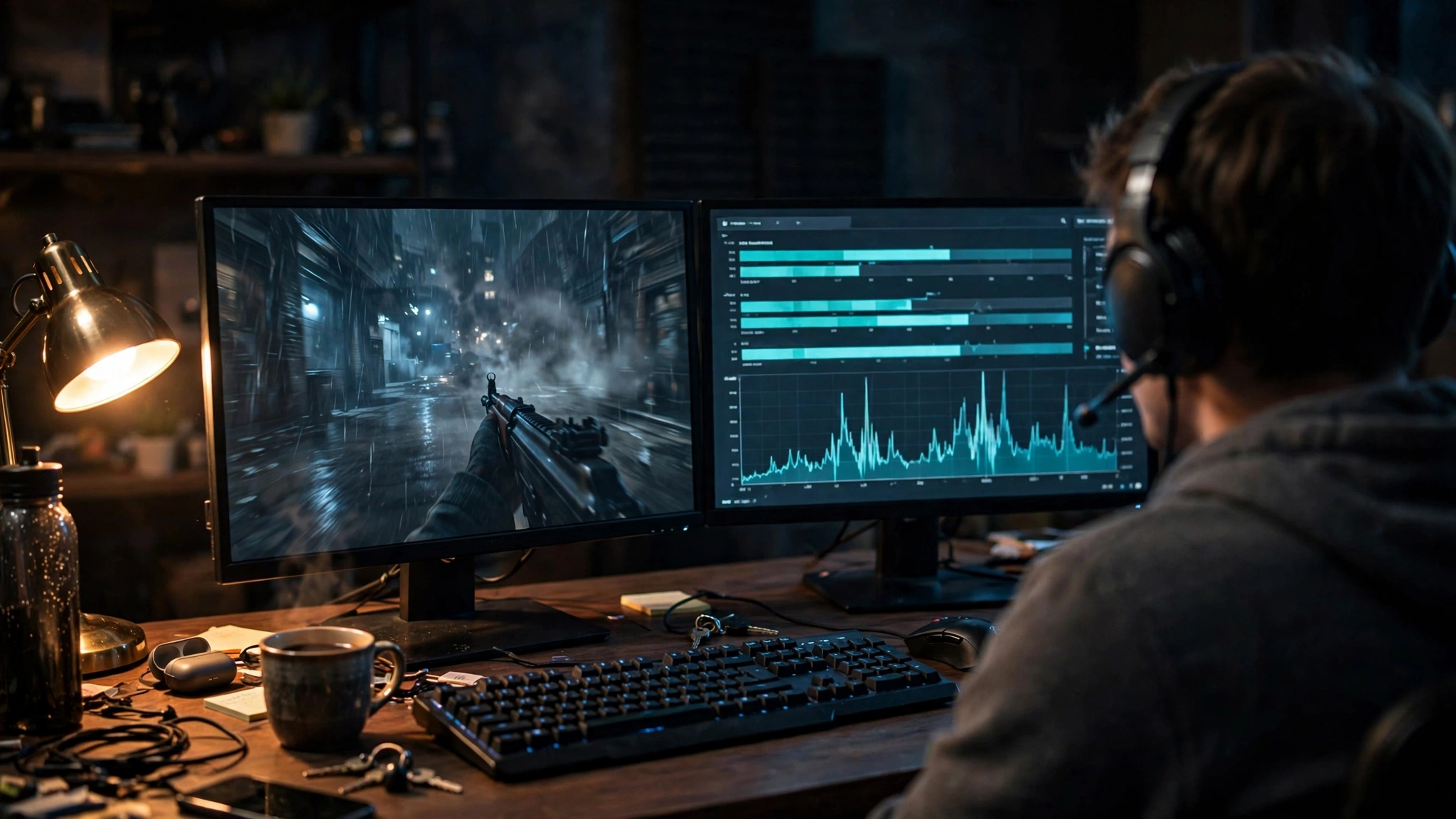
Before the signs, set up the test. You will use it for almost every sign below, so do this first.
Step 1: Install MSI Afterburner and RivaTuner Statistics Server (RTSS). MSI Afterburner is free and comes bundled with RTSS. Install both with default options.
Step 2: Turn on the on-screen display. Open Afterburner, click Settings, then the Monitoring tab. Check “Show in On-Screen Display” for: GPU usage, GPU temperature, CPU usage, CPU temperature, Framerate, and Frametime. Click the gear icon next to each to set “Show in On-Screen Display: Text” or graph. Confirm RTSS is running (you will see its icon in the system tray).
Step 3: Pick your test game and scene. Choose the game where performance feels wrong. Load the most demanding scene you can: a crowded city area, a 64-player multiplayer map, a big battle. Benchmark menus do not count; test in real gameplay.
Step 4: Play for five minutes and watch three numbers. Note your average CPU usage, average GPU usage, and how steady the frametime graph looks. Ignore one or two second spikes. You want the numbers that hold for several seconds at a time.
Step 5: Run the resolution test. Drop your resolution one step (for example, from 1440p to 1080p, or 1080p to 720p) without changing any other setting, play the same scene again, and note your FPS. Then raise settings to maximum at your original resolution and note FPS again. These two comparisons reveal more about your bottleneck than any calculator ever will.
Keep this overlay running while you read through the signs. Now, here they are.
Sign 1 CPU at 100% While GPU Sits Below 80%
What you observe: During gameplay, the overlay shows your CPU pinned near maximum on most or all cores, while your GPU usage hovers somewhere between 40 and 75 percent. Your expensive graphics card is waiting around for work that never arrives.
What it means: Your processor cannot prepare frames fast enough to keep the GPU fed. The GPU finishes rendering each frame quickly, then idles until the CPU delivers the next one. This is the single most reliable sign of a CPU bottleneck, and it is the first thing experienced builders check.
How to confirm it: With the overlay running in a demanding scene, watch the CPU and GPU usage numbers for at least two minutes. If total CPU usage stays above 95 percent while GPU usage stays below roughly 80 percent, the CPU is the limit. One honest caveat: games vary. A game that only uses four cores might show 50 percent total CPU usage on a 16-core processor and still be CPU-limited, which is why Sign 6 exists. Read both signs together.
Sign 2 Lower Resolution, Same FPS
What you observe: You drop from 1440p to 1080p, or from 1080p to 720p, expecting a big FPS jump. Nothing happens, or FPS rises by only a few percent.
What it means: Resolution is almost entirely the GPU’s job. If making the GPU’s job much easier does not speed anything up, the GPU was never the slow part. The CPU was setting the pace the whole time, and it still is. This test is beautifully simple because it isolates the CPU’s workload, which stays roughly the same regardless of resolution.
How to confirm it: This is the resolution test from the 15-minute protocol. Play the same demanding scene at two different resolutions with identical settings. If FPS changes by less than about 10 percent, you have a CPU bottleneck. If FPS jumps by 30 percent or more, your GPU was the limit. For a deeper look at how resolution interacts with bottlenecks, see our breakdown of 1080p vs 1440p monitor bottleneck impact.
Sign 3 Ultra Settings Barely Drop FPS
What you observe: You crank every setting to Ultra, expecting your frame rate to collapse. Instead it dips slightly, maybe 5 to 10 percent. The game looks dramatically better and costs you almost nothing.
What it means: Settings like texture quality, shadow resolution, and anti-aliasing load the GPU, not the CPU. If the GPU can handle Ultra nearly as fast as Low, the GPU is not the constraint. You are CPU-limited, and you might as well enjoy the prettier visuals. One experienced tester on the Tom’s Hardware forums summed up the core rule: whichever part hits 100 percent usage in-game is the bottleneck, so if your GPU never gets there while your CPU does, the answer is clear.
How to confirm it: Run the same scene twice, once on Low and once on Ultra, keeping resolution fixed. If the FPS difference is small (under roughly 15 percent), your CPU is the ceiling. This sign pairs naturally with Sign 2; when both tests point to the CPU, you can be confident.
Sign 4 Stuttering Despite High Average FPS
What you observe: Your average FPS reads a respectable 90 or 110, but the game feels awful. Movement hitches, the camera stutters when you turn, and the whole experience feels choppy. This is the sign that frustrates gamers most, because every benchmark review talks about average FPS while your eyes see something very different.
What it means: Average FPS hides the problem. What matters for smoothness is frame time: how long each individual frame takes. A CPU that struggles with game logic, physics, or draw calls will deliver frames unevenly. A few frames take far longer than the rest, and you feel each one as a hitch. This shows up in the numbers as weak 1% and 0.1% low FPS readings, even when the average looks fine.
How to confirm it: Watch the frametime graph in your RTSS overlay. Smooth gameplay shows a fairly flat line. A CPU bottleneck shows repeated tall spikes, especially in busy scenes. For an even more precise read, Intel’s free PresentMon tool reports a metric called GPU Busy, which measures how much of each frame’s time the GPU actually spent working. When frametime is much higher than GPU Busy, the GPU is finishing early and waiting on the CPU, which points directly at a CPU or platform bottleneck. The wccftech diagnostic guide explains this comparison well.
One important distinction: not all stutter is a CPU bottleneck. Shader compilation stutter happens when a game compiles graphics shaders for the first time, and it looks similar on a frametime graph. Here is where a real October 2026 development helps: Microsoft’s Advanced Shader Delivery now ships precompiled shaders with supported games (Gears of War: E-Day is the showcase title, with support rolling out across AMD, NVIDIA RTX including the upcoming RTX Spark devices, and Intel hardware). If your stutter appears mostly during the first minutes of a new game or right after a driver update and then fades, that is likely shader compilation, not your CPU. If the stutter persists in the same busy scenes every session, your CPU is the suspect.
Sign 5 GPU Usage Drops in Crowded Scenes
What you observe: In quiet areas your GPU runs at 90 percent and everything is smooth. The moment you enter a crowded city, a packed battle royale zone, or a big multiplayer fight, GPU usage drops to 40 or 50 percent and FPS tanks.
What it means: Crowded scenes hammer the CPU with work the GPU never touches: AI for dozens of characters, physics calculations, netcode for multiplayer, draw calls for every object on screen. When the CPU cannot finish this work in time, the GPU starves. This is exactly what a Quora user described with Fortnite, asking why GPU usage fell to 20 to 30 percent in crowded areas. The answer is that crowded areas are a CPU stress test, and the GPU can only render as fast as the CPU feeds it.
How to confirm it: Stand in an empty area and note GPU usage, then walk into the busiest area you can find and note it again. If GPU usage falls sharply (20 percentage points or more) while CPU usage climbs, the CPU is choking on scene complexity. Games known for this behavior include open-world titles with dense NPC populations, large-scale multiplayer shooters, and strategy games with hundreds of units.
Sign 6 One CPU Core Maxed, Others Idle
What you observe: Total CPU usage looks modest, maybe 40 or 50 percent, so you assume the CPU is fine. But when you look at per-core usage, one or two cores are pegged at 100 percent while the others barely wake up.
What it means: Many games, especially older titles and some simulation or strategy games, depend heavily on one main thread. That single thread can only run as fast as one CPU core. If that core maxes out, the game cannot go faster no matter how many other cores sit idle and no matter how powerful your GPU is. This is a single-thread CPU bottleneck, and it is why a modern 6-core CPU can outperform an older 12-core chip in certain games.
How to confirm it: In Task Manager (Ctrl+Shift+Esc, Performance tab, right-click the CPU graph and select “Change graph to: Logical processors”), or in Afterburner by enabling per-core CPU monitoring, watch individual cores during gameplay. If one or two cores hold near 100 percent while the rest sit low, you have found your bottleneck. This sign often appears together with Sign 1 in older games and emulators.
Sign 7 Same FPS After Upgrading Your GPU
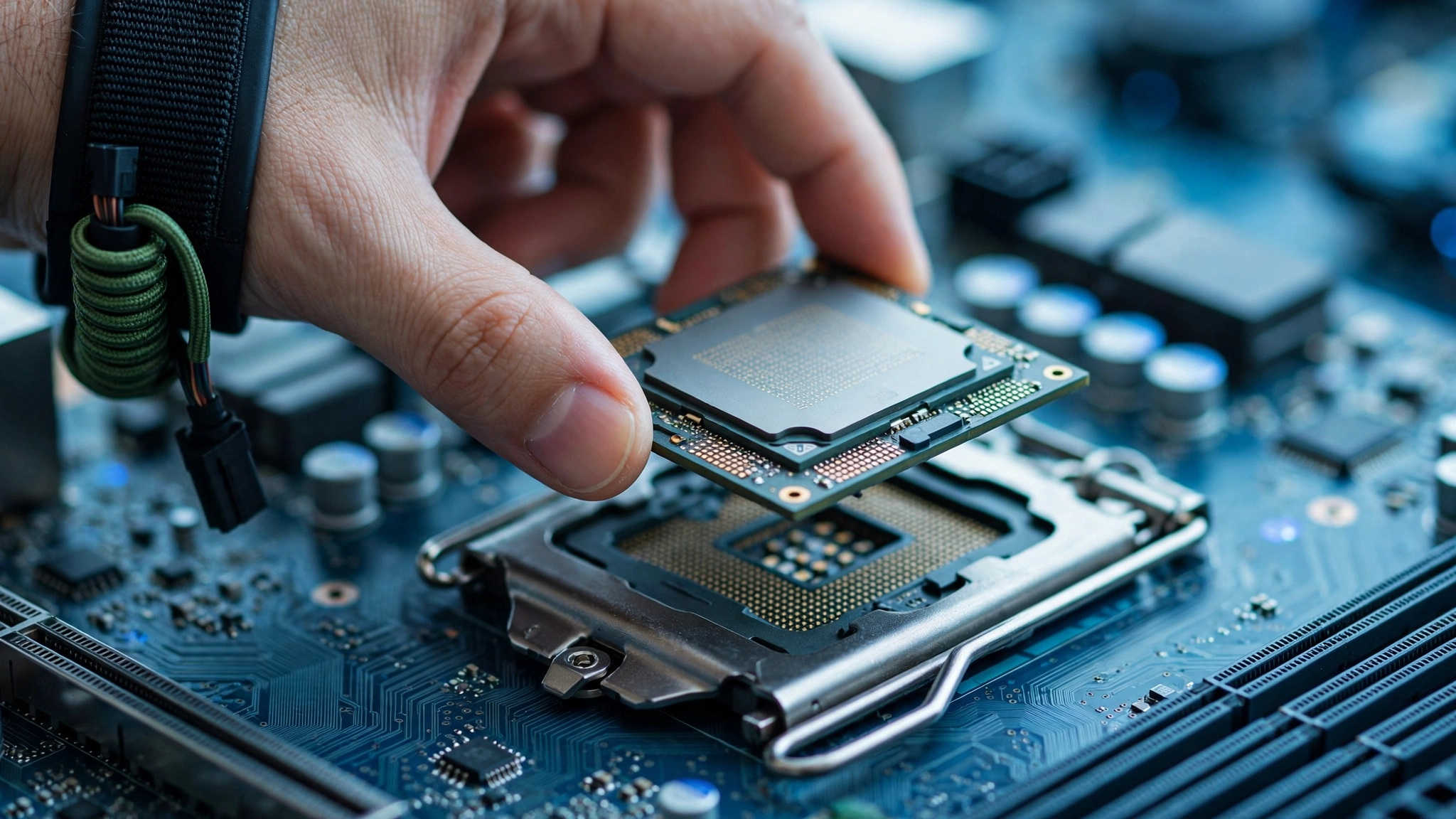
What you observe: A friend lends you a much faster graphics card, or you upgrade your GPU yourself. You install it, launch your favorite game, and get essentially the same frame rate as before.
What it means: When two very different GPUs produce the same FPS on the same CPU, the GPU was never the limiting factor. The CPU is capping performance at a fixed number of frames per second, and no graphics card can push past that ceiling. This is the most expensive way to discover a bottleneck, because you already bought the hardware. It is also the most conclusive.
How to confirm it: You do not need to buy anything. Compare your FPS against published benchmarks of your exact GPU paired with a faster CPU at the same resolution and settings. If reviewers get 40 percent more FPS from the same card with a stronger processor, your CPU is holding yours back. You can also estimate the mismatch with our CPU bottleneck calculator before spending money, which takes about a minute and beats learning the hard way.
Sign 8 1080p Low Feels Worse Than 1440p
What you observe: You play at 1080p with low settings to chase high frame rates for competitive play. Paradoxically, the game feels less smooth and less consistent than when a friend plays the same game at 1440p. Your FPS counter shows big numbers, but the experience feels off.
What it means: Low resolution with low settings shifts almost all the work onto the CPU. The GPU renders each frame so fast that the CPU becomes the sole pace-setter, and any weakness in single-thread performance or frame pacing shows up immediately. At higher resolutions, the GPU takes longer per frame, which smooths out the CPU’s uneven delivery. This is why competitive players with older CPUs sometimes report that 1440p actually feels more consistent than 1080p, even at slightly lower average FPS.
How to confirm it: Play the same competitive scene at 1080p Low and at 1440p Medium. Compare not just average FPS but the 1% lows and how the game feels. If 1080p shows higher averages but worse lows and more hitching, your CPU is struggling to keep up with the frame pace that low settings demand.
Sign 9 Background Apps Tank Your FPS
What you observe: Your game runs fine until you open a browser with a few tabs, start a Discord call, or leave a download running. Then FPS drops noticeably, sometimes by 20 percent or more.
What it means: A CPU with headroom absorbs background tasks without complaint. A CPU that is already near its limit in-game has nothing left to give. Every background process steals cycles from the game thread, and frame rates fall. This sign matters because it reveals a bottleneck you might miss in a clean test: your real-world setup, with everything you actually run, is what counts.
How to confirm it: Close everything except the game and record your FPS and CPU usage. Then reopen your normal background apps (browser, Discord, streaming software) and test the same scene again. If FPS drops significantly and CPU usage was already above 90 percent in the clean test, background tasks are exposing a CPU that has no margin left. Consider this a warning sign even if the other signs look borderline.
Sign 10 Stream Drops Frames, Game Runs Fine
What you observe: Your gameplay feels okay, but your Discord stream preview stutters, your OBS recording drops frames, or your friends say your stream looks choppy. Encoding video is pure CPU work (unless you use GPU encoding), and it competes directly with your game.
What it means: Streaming, recording, and video calls all demand CPU time. If your CPU is already the limiting factor for your GPU, adding encoding on top pushes it over the edge. The game gets priority, so the stream is what visibly suffers. Many gamers discover their CPU bottleneck for the first time the day they start streaming.
How to confirm it: Stream or record a demanding scene for five minutes and watch two things: your in-game FPS with the overlay, and your streaming software’s dropped-frames counter. If dropped frames climb while CPU usage sits near maximum and GPU usage stays low, the CPU cannot handle gaming plus encoding. Switching to GPU-based encoding (NVENC on NVIDIA cards, AMF on AMD cards) can relieve this specific pressure, but it does not fix an underlying gaming bottleneck. Our guide on how to increase FPS covers encoding settings alongside other quick wins.
Signs at a Glance Quick Reference Table
Use this table to match what you are seeing with the most likely explanation and the fastest confirming test.
| Sign | What You See | Most Likely Meaning | Fastest Confirming Test |
|---|---|---|---|
| 1 | CPU 95-100%, GPU under 80% | Classic CPU bottleneck | Overlay usage numbers in a demanding scene |
| 2 | FPS barely rises at lower resolution | CPU sets the pace, not the GPU | Same scene at two resolutions |
| 3 | Ultra settings cost almost no FPS | GPU has spare headroom | Same scene on Low vs Ultra |
| 4 | Stutter with good average FPS | Uneven frame delivery by the CPU | Frametime graph; check 1% lows |
| 5 | GPU usage collapses in crowds | CPU chokes on AI, physics, netcode | Empty area vs busy area comparison |
| 6 | 1-2 cores at 100%, rest idle | Single-thread CPU limit | Per-core monitoring in Task Manager |
| 7 | Same FPS with a faster GPU | CPU caps the frame rate | Compare against reviewer benchmarks |
| 8 | 1080p Low feels worse than 1440p | CPU cannot sustain the frame pace | Compare 1% lows at both settings |
| 9 | Background apps tank FPS | No CPU headroom left | Clean test vs normal-apps test |
| 10 | Stream/recording drops frames | Encoding overloads the CPU | Watch dropped frames + CPU usage |
Reading Your Results How Bad Is It?
One sign alone can occasionally mislead. Two or three signs pointing the same direction is a diagnosis. Here is how to think about severity:
Mild (one or two signs, small gaps): If your CPU sits at 85 percent and your GPU at 90 percent, or the resolution test shows a modest FPS gain, your system is reasonably balanced. Small bottlenecks under about 10 percent are normal and not worth chasing with new hardware. Our good bottleneck percentage guide explains what counts as acceptable and when a number actually deserves action.
Moderate (three to five signs): CPU pinned while the GPU idles, stutter in busy scenes, background apps hurting FPS. Software tuning can genuinely help here: closing background processes, enabling hardware-accelerated GPU scheduling, updating chipset drivers, making sure your RAM runs at its rated speed, and checking that your CPU is not thermal throttling. Our complete GPU health check guide is also worth running, to make sure the graphics card itself is behaving before you blame the processor.
Severe (most signs, big gaps): CPU at 100 percent, GPU at 50 percent, FPS identical across GPUs, heavy stutter everywhere. No settings tweak fixes a genuine tier mismatch. The honest answer is a CPU or platform upgrade, and the money is better saved than spent on another GPU.
One more honest note: calculators and percentages are estimates, not verdicts. Your own 15-minute test with real games beats any theoretical number, because it measures your exact hardware running your exact workload.
What to Do Next
If the signs confirm a CPU bottleneck, you have two paths. The free path is tuning: our how to fix a CPU bottleneck guide walks through every software-side fix, from background process cleanup to settings that shift load back onto your GPU, before you spend anything. The planning path is measurement: run your exact CPU and GPU through our CPU bottleneck calculator to estimate the size of the mismatch and see which upgrade actually moves the needle.
And if your signs point elsewhere, maybe the GPU is the limit, or FPS is low for reasons no bottleneck explains, our why is my FPS so low guide covers every cause, not just CPU bottlenecks.
Frequently Asked Questions
Is my CPU restricting my GPU?
This is one of the most common questions on PC building forums. A Linus Tech Tips forum member with an i7-6700K and a GTX 1080 Ti saw CPU usage between 70 and 100 percent while the GPU never passed 40 percent, and asked exactly this. The answer the community gave matches this guide: when the CPU is pegged and the GPU has headroom, the CPU is restricting the GPU. Run the 15-minute test above on your own system and compare your numbers to Signs 1 and 2.
My GPU usage is low but CPU usage is high. Is that a bottleneck?
Yes, that pattern is the textbook definition. Another Linus Tech Tips forum member with a Ryzen 3 1200 and GTX 1050 Ti reported the CPU at 100 percent the entire time in Fortnite while the GPU bounced between 20 and 80 percent, with terrible frame rates and dips. When the CPU runs flat out and the graphics card cannot get enough work to stay busy, the processor is the bottleneck. Start with Signs 1, 5, and 9 to confirm it on your setup.
Why is my GPU usage so low and getting even lower (20-30%) in crowded areas on Fortnite?
A Quora user asked exactly this about a Ryzen 5 2600 paired with a GTX 1070. Crowded areas multiply the CPU’s workload: more players means more netcode, more AI, more physics, and more draw calls. The GPU can only render frames as fast as the CPU prepares them, so GPU usage falls precisely where the scene gets busiest. This is Sign 5. Test it with the empty-area versus busy-area comparison described above.
How can I test for bottlenecks myself without buying anything?
A Linus Tech Tips forum member asked this while wondering whether an old 6-core CPU paired with an RTX 3090 would bottleneck even without hitting 100 percent total usage. The answer: use free monitoring tools and the tests in this article. MSI Afterburner with RTSS shows you live CPU and GPU usage, per-core loads, and frametime graphs. The resolution test (Sign 2) and the settings test (Sign 3) need no tools at all. Pay special attention to Sign 6, because a game limited by one maxed-out core will never show 100 percent total CPU usage.
Is my GPU bottlenecking my CPU, or is it the other way around?
A Tom’s Hardware forum member asked this the other way round, and the distinction matters. A GPU bottleneck means your graphics card runs near 100 percent while the CPU has room to spare. That is actually the healthy state for gaming: it means you are getting everything your GPU can deliver. A CPU bottleneck is the reverse, and it is the worse problem, because it wastes the GPU you paid for. Check Sign 1 to see which direction yours runs.
Key Takeaways
- The strongest single sign of a CPU bottleneck is sustained CPU usage near 100 percent with GPU usage well below 80 percent in demanding scenes.
- The resolution test is the fastest free proof: if lower resolution does not raise FPS, the CPU is the limit.
- Average FPS can lie. Frametime graphs and 1% lows reveal CPU-caused stutter that averages hide.
- One maxed-out CPU core is enough to bottleneck a game, even when total CPU usage looks low.
- Persistent stutter in busy scenes points to the CPU; stutter that fades after the first minutes of a new game may be shader compilation instead.
- Confirm with your own 15-minute test before spending money. Real measurements beat every estimate.
Final Thoughts
A CPU bottleneck is not a mystery and it is not a matter of opinion. It leaves fingerprints: usage numbers, resolution tests, frame time graphs, and the feel of the game itself. The ten signs in this guide give you the vocabulary to read those fingerprints, and the 15-minute test gives you the evidence.
The worst outcome is spending money on the wrong part. The second worst is living with stutter you could have fixed with free tuning. Fifteen minutes of testing now saves you from both. Set up the overlay, run the tests, trust the numbers, and then decide with confidence whether your CPU deserves an upgrade or just a little tuning.
Found your bottleneck? Run your exact parts through our CPU bottleneck calculator for a quick estimate, then read how to fix a CPU bottleneck for every fix worth trying before you buy anything.

Leave a Reply