

Quick answer: No, the i5-12400F does not meaningfully bottleneck the RTX 4060 Ti. Calculator estimates show 0% limitation at both 1080p and 1440p, and under 4% at 4K. Only in competitive esports at very high refresh rates can the CPU become the limit. At 1440p, this is one of the most balanced mid-range combos you can buy.
If you are building a mid-range gaming PC or eyeing a used 12400F system with a 4060 Ti, this is the question that decides whether your money is well spent. A bad CPU and GPU pairing means one part sits idle while the other works at full load, and you paid for performance you never get. Nobody wants that.
The good news is that this particular pairing is one of the safer bets in the whole mid-range market. The bad news is that “safe” still has a few footnotes: your resolution, your game type, your VRAM choice, and even your RAM setup all change the answer a little. This guide walks through each of those so you know exactly what to expect before you buy.
What You Are Actually Buying The Two Parts Side by Side
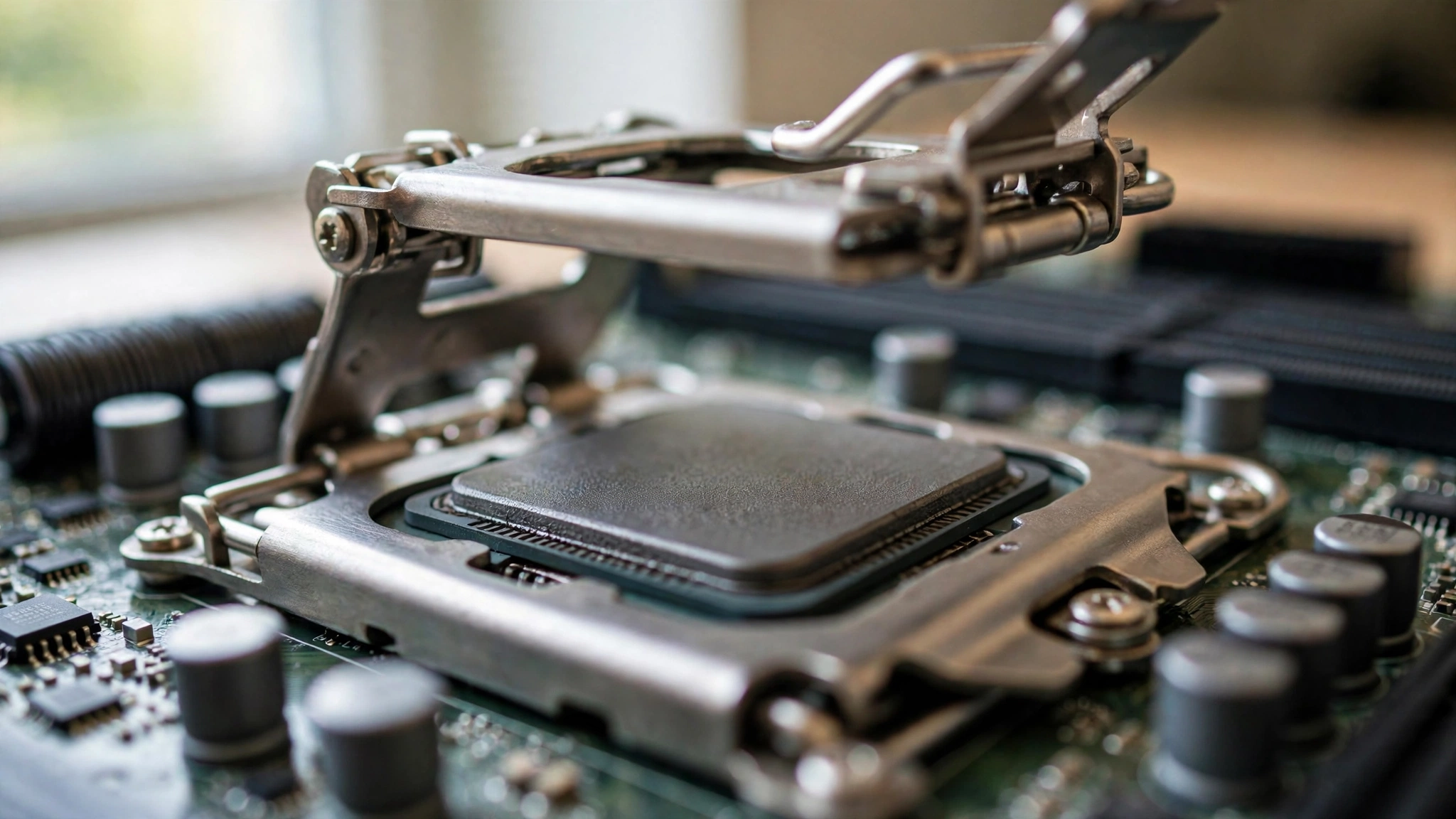
Before talking about bottlenecks, it helps to know what each part brings to the table. The Core i5-12400F is a 12th-generation Alder Lake chip with 6 performance cores and 12 threads. It runs at 2.5 GHz base and boosts up to 4.4 GHz, carries 18MB of L3 cache, and drops into the LGA 1700 socket. The “F” in the name means it has no integrated graphics, so you must pair it with a discrete GPU. That is exactly what we are doing here. You can read the full independent review on TechPowerUp if you want the deep technical detail.
The RTX 4060 Ti is built on NVIDIA’s Ada Lovelace architecture with 4,352 CUDA cores, 8GB or 16GB of GDDR6 memory on a 128-bit bus, and a modest 160W total graphics power (165W on 16GB cards). It supports DLSS 3 with frame generation, which matters a lot for this discussion. The full launch specs are well documented in Digital Foundry’s coverage.
Here is how the two compare on paper:
| Spec | Intel Core i5-12400F | NVIDIA GeForce RTX 4060 Ti |
|---|---|---|
| Cores | 6 cores, 12 threads (Golden Cove P-cores) | 4,352 CUDA cores |
| Clock speeds | 2.5 GHz base, up to 4.4 GHz turbo | 2.31 GHz base, 2.54 GHz boost |
| Memory | 18MB L3 cache, supports DDR4 or DDR5 | 8GB or 16GB GDDR6, 128-bit bus |
| Power draw | 65W base power (117W max turbo) | 160W TGP (165W on 16GB models) |
| Connection | LGA 1700 socket | PCIe 4.0 slot (runs at x8 electrically) |
| Architecture | Alder Lake, Intel 7 process | Ada Lovelace, TSMC 4N process |
A quick note on that PCIe x8 detail, because it scares people. The 4060 Ti only uses 8 PCIe lanes, so on a PCIe 4.0 motherboard it gets the full bandwidth it was designed for. You only lose a small amount of performance if you drop it into an older PCIe 3.0 board, and even then the loss is a few percent at most. On any modern B660, H610, or Z690 board this is a non-issue.
The practical takeaway from the spec sheet: this is a mid-range CPU and a mid-range GPU from the same era of PC building, and neither one obviously outclasses the other. That is exactly the kind of pairing that tends to balance well.
The Numbers Bottleneck Estimates by Resolution
Bottleneck percentages come from calculators that estimate how well two parts match based on their specifications and performance data. They are estimates, not measured benchmarks, and real in-game results vary by title, settings, and drivers. Still, when several independent calculators agree, the consensus is worth listening to.
Here is what the calculators say about the i5-12400F and RTX 4060 Ti:
| Resolution | Estimated Bottleneck | Limiting Part | What It Feels Like |
|---|---|---|---|
| 1920 x 1080 (1080p) | 0% | Neither | Very high frame rates in esports, smooth in AAA |
| 2560 x 1440 (1440p) | 0% | Neither | The balanced sweet spot for this pairing |
| 3840 x 2160 (4K) | About 4% | GPU (mild) | GPU-bound, which is normal for this card class |
The key thing to understand about a bottleneck percentage is that anything under 10% is generally considered excellent, and small numbers like these mean the parts are well matched. If the whole concept of bottleneck percentages is new to you, our guide on what a good bottleneck percentage actually means explains it in plain terms with a simple 2 to 3 minute read.
Want to see the estimate for your own exact setup, including different RAM amounts or a different resolution? Run your own combo through our free CPU bottleneck calculator and compare the result to the numbers above.
Bottleneck at 1080p Great for Most Gamers
At 1080p, the calculator consensus is clear: 0% bottleneck. The i5-12400F keeps up with the RTX 4060 Ti comfortably, and neither part wastes the other’s potential.
What does that mean in real games? In AAA titles at 1080p high or ultra settings, this pair delivers smooth, high frame rates. In competitive shooters like Fortnite and Valorant, frame rates climb well into the hundreds. One FPS estimator puts Fortnite at around 200 average FPS at 1080p medium settings with this exact combo, which is more than enough for a 144Hz or even 240Hz monitor.
The only place 1080p shows a hint of CPU limitation is in esports at extremely high frame rates. In very light, CPU-bound games, a faster CPU could push a few more frames. But here is the thing most people miss: when you are already getting 400+ FPS in Valorant, the difference between that and 450 FPS does not change how the game feels. Your monitor, your reaction time, and your settings matter far more at that point.
Practical takeaway: if you play on a 1080p monitor, especially a 144Hz or 165Hz one, the 12400F and 4060 Ti are a great match. Do not upgrade the CPU for this resolution. It would be money spent on frames you will never see.
For a deeper look at how resolution choice changes the CPU and GPU workload, see our breakdown of 1080p vs 1440p and what each means for bottlenecks.
Bottleneck at 1440p The Sweet Spot
If 1080p is good, 1440p is where this pairing truly shines. As resolution goes up, the graphics card works harder on every frame while the CPU’s job stays roughly the same. That shift takes pressure off the processor, so any tiny CPU limitation at 1080p disappears completely at 1440p.
The RTX 4060 Ti is widely considered a 1440p card first and a 1080p card second. Pairing it with the i5-12400F at 1440p gives you a system where the GPU is the part doing the heavy lifting in almost every game, which is exactly how a balanced gaming PC should behave. Calculator estimates again show 0% bottleneck here, and this time the estimate lines up with common sense: the card’s 8GB or 16GB of VRAM and Ada Lovelace efficiency are the real factors at this resolution, not the CPU.
In AAA games at 1440p with high settings, expect smooth 60+ FPS gameplay in most titles, often well above that with DLSS quality mode enabled. Frame generation can push that higher still, though it adds a bit of input latency, which competitive players should know about before turning it on.
Practical takeaway: 1440p is the resolution this pairing was made for. If you are buying a monitor for this build, a 1440p 144Hz or 165Hz display is the best investment you can make.
Bottleneck at 4K GPU Limited, As Expected
At 4K, the picture flips: the RTX 4060 Ti becomes the limiting part, with an estimated bottleneck of about 4%. But before that sounds bad, remember what a GPU bottleneck at 4K actually means. It means the graphics card is working at full capacity rendering those 8.3 million pixels, which is completely normal. Almost every mid-range card is GPU-limited at 4K. That is not a defect in the pairing. It is just physics.
Would a faster CPU help at 4K? Barely. When the GPU is the limit, a stronger processor sits waiting for the card to finish each frame. Upgrading from the 12400F to something faster would change almost nothing in 4K gaming performance. The money would be far better spent on a stronger GPU if 4K is your goal.
Honest advice: the 4060 Ti is not really a 4K gaming card. It can run many games at 4K with DLSS and lowered settings, and lighter titles will be fine, but demanding AAA games at native 4K ultra will struggle. That is a limitation of the GPU itself, not of the pairing. The 12400F is doing its job perfectly well here.
Practical takeaway: at 4K, do not blame the CPU. If you want better 4K performance, the upgrade that matters is the graphics card, not the processor.
8GB vs 16GB VRAM Does It Change the Bottleneck Picture?
The RTX 4060 Ti comes in two versions that are identical except for memory: 8GB and 16GB of GDDR6. Everything else, the core count, the clock speeds, the 128-bit bus, stays the same. So does the VRAM choice change the bottleneck situation?
For the CPU bottleneck question, no. The i5-12400F feeds both versions equally well. The difference shows up in GPU-side behavior, and it mostly matters at 1440p and above.
At 1080p, 8GB of VRAM is still enough for the vast majority of games at high settings. At 1440p, most games are fine too, but a growing number of demanding titles with ultra textures can push past 8GB, and when that happens you get stuttering as the card swaps data in and out of system memory. The 16GB version has headroom that the 8GB version simply does not.
Here is the nuance people miss: when the 8GB card runs out of VRAM, the bottleneck is no longer “CPU vs GPU” at all. It becomes a memory capacity problem, and it looks like stuttering rather than low frame rates. No CPU upgrade fixes that. Only more VRAM, or lower texture settings, does.
Practical takeaway: the 12400F pairs equally well with both VRAM versions. If you play at 1440p and keep your cards for several years, the 16GB model is the safer long-term pick. If you play at 1080p and upgrade more often, 8GB is fine and the CPU will not hold either version back.
Esports vs AAA Games Same Pair, Very Different Balance
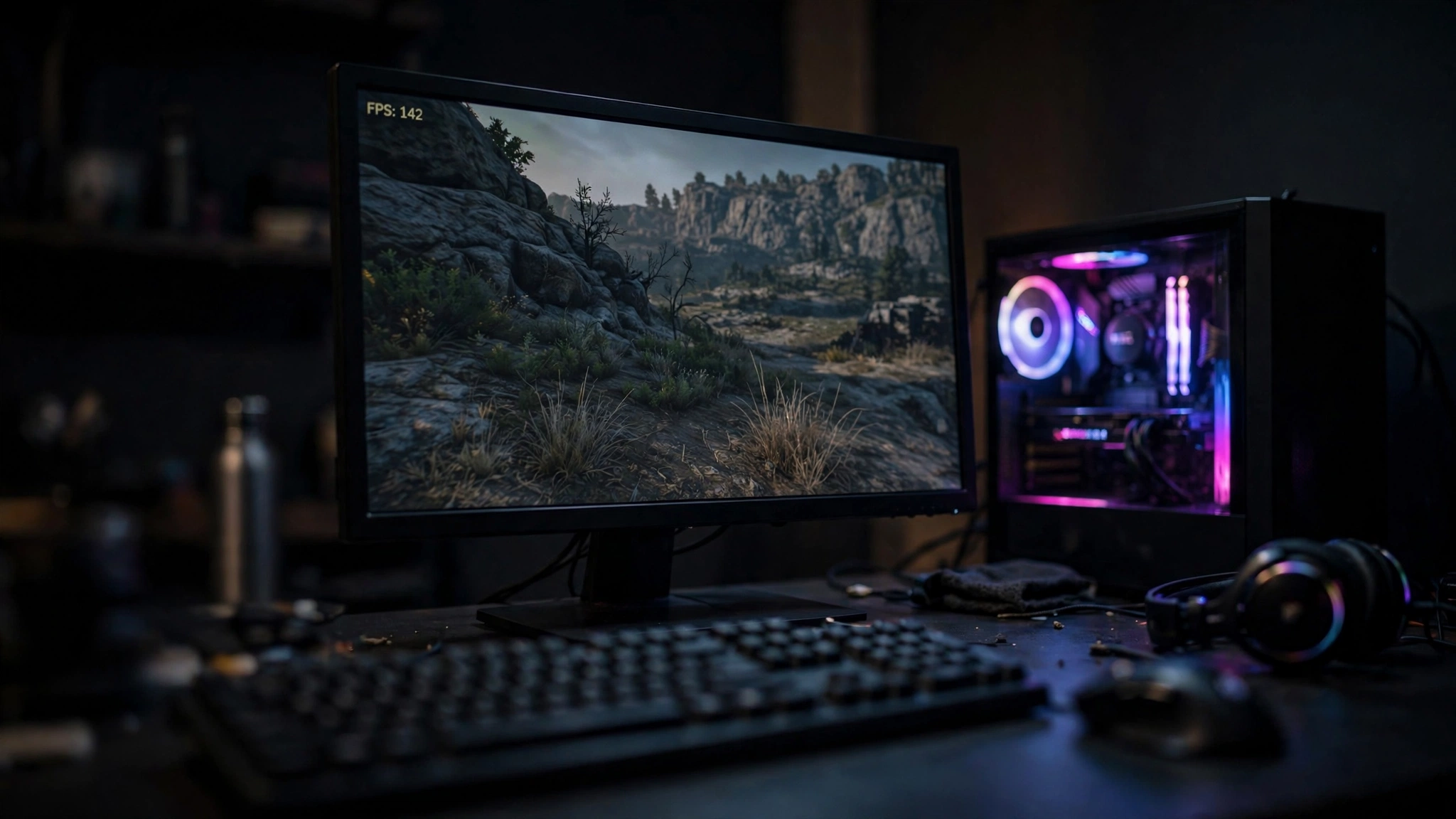
This is the section most bottleneck articles skip, and it is the one that actually answers the question for real players. “Bottleneck” is not one number for a pairing. It changes with every game because different games stress the CPU and GPU differently.
Esports and competitive shooters (Valorant, CS2, Fortnite, Apex Legends, Overwatch 2): these games are designed to run fast on modest hardware, so at 1080p they lean on the CPU. This is the one scenario where the i5-12400F can become the limiting factor, and even then we are talking about the difference between extremely high and slightly more extremely high frame rates. One estimator shows Valorant averaging over 450 FPS at 1080p with this pair. The CPU is technically the limit there, but it is a limit almost nobody can feel.
AAA single-player games (Cyberpunk 2077, Alan Wake 2, Starfield, Red Dead Redemption 2): these hammer the GPU with complex lighting, textures, and ray tracing. The CPU’s job is comparatively light. Here the 4060 Ti is the limiting part at every resolution, and the 12400F has headroom to spare. This is the more common gaming scenario, and it is where the pairing looks its best.
Simulation and strategy games (Cities: Skylines 2, Total War, Microsoft Flight Simulator): these are the CPU-heavy exceptions. They simulate thousands of objects and AI decisions, which leans hard on processor cores. The 12400F’s 6 cores handle these well, but this genre is where a stronger CPU would show the biggest improvement if you ever upgrade.
Practical takeaway: match the answer to your library. Mostly AAA and story games? The 12400F will never hold you back. Mostly competitive shooters chasing 240Hz+? The CPU is fine, but it is the part closest to its limit.
Settings Tweaks If You Feel CPU Limited
Most 12400F and 4060 Ti owners will never need this section. But if you play CPU-heavy games, or you are chasing maximum frame rates on a high-refresh monitor and your GPU usage sits well below 100% while frames will not climb, these tweaks shift work from the CPU to the GPU:
- Raise the resolution or render scale. Moving from 1080p to 1440p, or bumping the render resolution to 125-150%, makes the GPU work harder per frame. The CPU’s workload barely changes, so the balance shifts toward the graphics card. Your total FPS may drop slightly, but GPU utilization goes up and the system feels smoother.
- Increase graphics quality, not decrease it. This sounds backwards, but in a CPU-limited situation, lowering settings makes the GPU finish frames faster and wait on the CPU more. Raising settings (especially GPU-heavy ones like shadows, ambient occlusion, and ray tracing) gives the GPU more to do per frame and balances the load.
- Enable DLSS Frame Generation carefully. Frame generation boosts FPS by having the GPU create extra frames, which reduces the CPU’s per-frame burden in practice. It works best when your base frame rate is already decent (60+ FPS). Note that it adds some input latency, so competitive players may prefer DLSS Super Resolution without frame generation.
- Close background apps. Browsers with dozens of tabs, Discord overlays, and recording software all compete for the same 6 cores. Freeing up CPU headroom is the simplest fix there is.
- Check your RAM configuration. A single stick of RAM running in single-channel mode can quietly starve the CPU of data and look exactly like a CPU bottleneck. This one deserves its own section, so keep reading.
For a full walkthrough of these and other fixes, our guide on how to fix a CPU bottleneck without upgrading covers every option step by step.
Practical takeaway: in the rare case the CPU is your limit, settings and background apps are the first things to fix. A CPU upgrade is the last resort, not the first.
Do Not Forget the RAM Dual Channel Matters
Here is a bottleneck that has nothing to do with your CPU or GPU choice. The i5-12400F supports both DDR4 and DDR5 memory, and whichever you use, it must run in dual-channel mode: two matching sticks, not one.
A single 16GB stick in single-channel mode roughly halves your memory bandwidth. In CPU-sensitive games, that can cost you a noticeable chunk of your frame rate and make a perfectly good 12400F look like a weak processor. Two 8GB sticks of the same memory will outperform one 16GB stick every time, and this is one of the most common “hidden bottlenecks” in budget and prebuilt PCs.
How much RAM do you need with this pairing? 16GB (2x8GB) is the sweet spot for gaming in 2026. It is enough for every current game plus Discord and a browser in the background. 32GB is nice to have for heavy multitasking, streaming, or content creation, but it will not raise your gaming FPS over 16GB in dual-channel.
Speed matters less than channel mode, but it still matters a little. For DDR4, aim for 3200MHz CL16. For DDR5, 5600MHz or higher is the comfortable zone. Either way, enable XMP (Intel) or EXPO in your motherboard BIOS so the RAM actually runs at its rated speed instead of the slow default.
If you want the full explanation of how memory bandwidth, capacity, and speed each affect gaming performance, our RAM bottleneck explained guide breaks it all down.
Practical takeaway: before blaming the CPU or GPU for anything, check that your RAM is two sticks, matched, with XMP enabled. It takes five minutes in the BIOS and it is free performance.
Upgrade Path When Does This Pair Stop Being Enough?
No pairing lasts forever, so let us talk honestly about what comes next. The good news is that the LGA 1700 platform gives you a cheap upgrade path.
If the CPU becomes the limit first: the easiest move is a drop-in replacement on the same motherboard. The i5-13400F and i5-14400F both fit the LGA 1700 socket, so in most cases you only need a BIOS update, not a new board or new RAM. The 14400F adds efficiency cores (10 cores and 16 threads total) and boosts to 4.7 GHz, which helps in CPU-heavy games and multitasking. This is the sensible upgrade if you get into simulation games, streaming, or high-refresh esports a couple of years from now.
If the GPU becomes the limit first: this is the more likely scenario for most gamers, especially at 1440p. A future GPU upgrade (whatever the mid-range looks like then) will slot into the same PCIe slot, and the 12400F is strong enough to handle a meaningfully faster card without becoming a serious bottleneck. That is one of the hidden strengths of this pairing: the CPU has enough headroom to survive one GPU generation upgrade.
If you change platforms: moving to a newer socket means a new motherboard and possibly new RAM, which roughly doubles the upgrade cost. Only do this when a drop-in CPU upgrade no longer cuts it, which for gaming is likely several years away with this setup.
Our broader PC upgrade guide walks through the order of upgrades (GPU first vs CPU first) and how to tell which part is actually holding you back before you spend money.
Practical takeaway: the LGA 1700 socket is your friend. A 13400F or 14400F drops straight in when the time comes, and the 12400F is strong enough to carry a future GPU upgrade too.
The Verdict Should You Buy This Pair?
Let us bring it all together with a straight answer for each type of buyer.
Building a new mid-range PC: yes, buy with confidence. The i5-12400F and RTX 4060 Ti are one of the most balanced pairings in the mid-range market, especially at 1440p. Neither part wastes the other’s potential, the platform has a cheap upgrade path, and total system power draw stays modest.
Upgrading one part to match the other: if you already own the 12400F and are choosing a graphics card, the 4060 Ti is an excellent match, and our best GPU picks for the i5-12400F compare it against the alternatives at similar prices. If you already own a 4060 Ti and are choosing a CPU, the 12400F is plenty, and you do not need to spend more unless you have a specific CPU-heavy workload.
Eyeing the newer generation: if you are looking at the RTX 5060 Ti instead of the 4060 Ti, that is a different pairing with its own answer, and our best CPU pairings for the RTX 5060 Ti covers which processors match it best.
Chasing 240Hz+ esports: the pairing works, and frame rates will be very high, but this is the one scenario where a faster CPU would buy you a few extra frames. Most players will never feel the difference. Do not overspend here unless you compete seriously.
The bottom line: no, the i5-12400F does not bottleneck the RTX 4060 Ti in any way that matters for real gaming. Buy the pair, put them on a 1440p monitor, run your RAM in dual-channel, and go play.
Frequently Asked Questions
Is the i5-12400F good enough for the RTX 4060 Ti?
Yes. Calculator estimates show 0% bottleneck at 1080p and 1440p, and the 12400F’s 6 cores and 4.4 GHz boost are more than enough to keep the 4060 Ti fed in AAA games. You do not need a more expensive CPU for this graphics card.
Does the RTX 4060 Ti need a better CPU for 240Hz esports gaming?
Not really. In light esports titles the 12400F can technically become the limiting factor, but frame rates are already in the hundreds, far beyond what a 240Hz monitor can display. A faster CPU would only add frames you cannot see.
Should I get the 8GB or 16GB RTX 4060 Ti with an i5-12400F?
The CPU pairs equally well with both. Choose based on your resolution and how long you keep cards: 8GB is fine for 1080p, while 16GB is the safer pick for 1440p high settings and for keeping the card several years, since some demanding games already exceed 8GB of VRAM usage.
Will 16GB of RAM bottleneck this pairing?
No, 16GB is the sweet spot, as long as it is two 8GB sticks running in dual-channel with XMP enabled. A single 16GB stick in single-channel mode can cost real performance and mimic a CPU bottleneck, so the configuration matters more than the capacity.
What is the best CPU upgrade after the i5-12400F on the same motherboard?
The i5-13400F or i5-14400F. Both use the LGA 1700 socket, so they usually drop into your existing B660, H610, or Z690 board with just a BIOS update. The 14400F adds efficiency cores and a higher 4.7 GHz boost for better multitasking and CPU-heavy games.
Can I use DDR4 RAM with the i5-12400F and RTX 4060 Ti?
Yes. The 12400F’s memory controller supports both DDR4 and DDR5, depending on which motherboard you buy. DDR4-3200 in dual-channel is perfectly fine for gaming with this pairing and keeps the build cheaper. You are not leaving meaningful performance on the table.
Key Takeaways
- The i5-12400F does not meaningfully bottleneck the RTX 4060 Ti: 0% estimated bottleneck at 1080p and 1440p, about 4% (GPU-side) at 4K.
- 1440p is the sweet spot for this pairing. Higher resolution shifts work to the GPU and removes any trace of CPU limitation.
- The 8GB vs 16GB VRAM choice does not change the CPU bottleneck picture, but 16GB is safer for 1440p ultra textures and long-term use.
- Esports at very high refresh rates is the only scenario where the CPU nears its limit, and frame rates are already in the hundreds there.
- Always run two matched RAM sticks in dual-channel with XMP enabled. Single-channel RAM can fake a CPU bottleneck.
- The LGA 1700 socket gives you a cheap future upgrade to the 13400F or 14400F, and the 12400F is strong enough to survive one GPU generation upgrade.
Final Word
The i5-12400F and RTX 4060 Ti are a genuinely well-matched pair, the kind of combo where every dollar you spend turns into frames on screen instead of idle silicon. Calculator estimates, the spec sheets, and the way different game types stress each part all point the same way: at 1080p and 1440p there is no meaningful bottleneck, and at 4K the GPU limit is normal and expected.
If you are still deciding on parts, or you want to check a different combination (a different CPU, more RAM, another resolution), run it through our free CPU bottleneck calculator and see the estimate for your exact build before you spend a cent.

Leave a Reply