

Quick Answer: CPU clock speed measures how many calculation cycles a processor completes every second, rated in gigahertz (GHz). For example, a 4.0 GHz CPU runs 4 billion cycles per second. While higher GHz helps a chip work faster within the same generation, total performance also depends on microarchitecture (IPC), cache size, and core count.
The first one costs $600 and says “4.2 GHz” on the box. The second one costs $1,200, but only says 3.4 GHz. That makes no sense. Why pay double the money for a smaller number?
Or maybe you just built your own PC. You open Task Manager and your stomach drops. Your shiny new “5.0 GHz” chip is idling at just 1.1 GHz. You click a folder, it spikes to 4.8 GHz, and then instantly drops right back down. Did you get a broken chip? Did you waste your money? Not at all. The retail box simply leaves out the most important part of the story.
Clock speed is one of the most misunderstood specs in computing. Once you understand what that number actually measures, you will know exactly what you are paying for and how to get the most performance out of your machine.
Key Takeaways
- CPU clock speed is measured in GHz. 1 GHz equals 1 billion beats every second.
- A bigger GHz number can help, but it does not decide speed by itself.
- Real speed depends on clock speed plus IPC, design, cache, cores, power, and cooling.
- Base clock is a normal speed, not the lowest possible speed.
- Boost clock is a short burst of top speed, not an all-day speed.
- Different cores on the same chip can run at different speeds at once.
- Gaming often likes a fast single core and good cache more than a high GHz number.
- Heavy tasks like editing and rendering often like more cores.
- A dropping speed under load is often normal. Check heat, power, and the task first.
- Real test results are more useful than comparing GHz numbers alone.
What Does Clock Speed (GHz) Actually Mean?
Every CPU has a small clock inside it. This clock keeps everything in the chip working together, like a beat that keeps a band playing in time. Inside the chip, a tiny piece of quartz shakes when it gets power. This shaking makes a pulse, like a tiny heartbeat. Each beat of that pulse is called a clock cycle. On every beat, the chip flips billions of tiny switches called transistors. This is how it does its work.
Quartz Shakes → Pulse Is Made → 1 Clock Cycle → Work Gets Done
Clock speed tells you how many of these beats happen every second We use these units:
| Unit | Beats Per Second |
|---|---|
| 1 Hz | 1 beat |
| 1 MHz | 1 million beats |
| 1 GHz | 1 billion beats |
| 4.0 GHz | 4 billion beats |
| 5.0 GHz | 5 billion beats |
So a 4.0 GHz chip beats 4 billion times every second. Each beat lasts about 0.25 nanoseconds. That is a very, very short time. But here is the important part most people miss: one beat does not always mean one finished job. Some jobs take more than one beat. A fast clock does not always mean fast work. It just means more chances to work.
A Simple Way to Picture It
Think about two workers.
- Worker A moves 5 times every minute. Each move, they finish 1 small job.
- Worker B moves 4 times every minute. Each move, they finish 2 small jobs.
Worker B moves slower but gets more done. CPUs can work the same way.
Takeaway: Clock speed tells you how fast the chip’s clock ticks. It does not tell you how much real work gets finished.
Why Clock Speed Does Not Tell the Whole Story
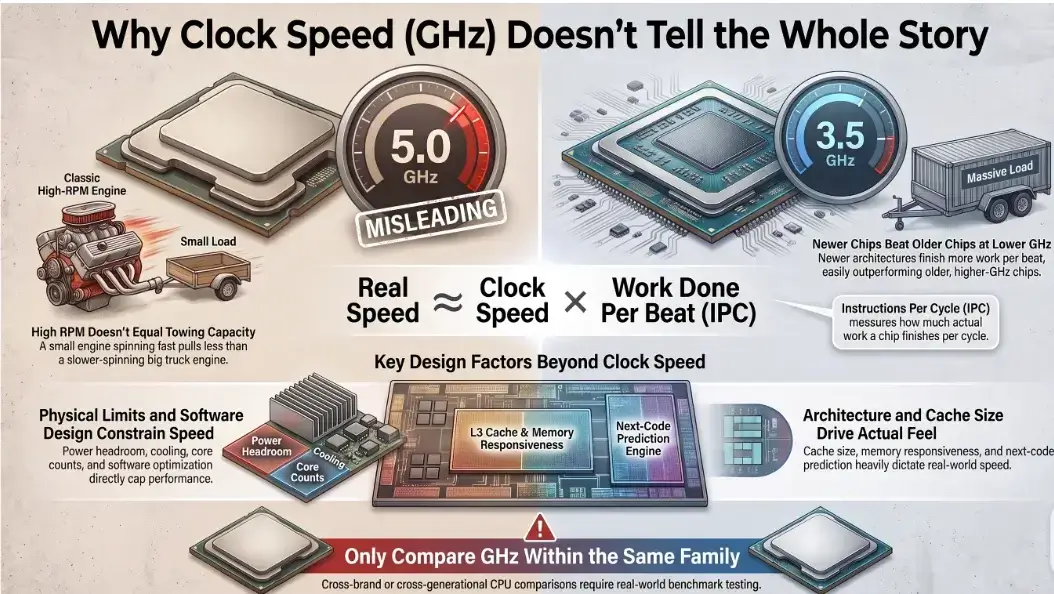
For a long time, ads told people that a bigger GHz number always meant a faster computer. That was mostly true in the 1990s. It is often false today.
Judging a chip only by its GHz is like judging a car engine only by how fast it spins. A small engine spinning very fast cannot pull a heavy truck. A big truck engine, spinning slower, can pull much more weight.
Here is a simple way to think about real speed: Real Speed ≈ Clock Speed × Work Done Per Beat
What Is IPC?
IPC stands for Instructions Per Cycle. It means how much real work a chip finishes on each beat.
This number changes based on the job, so it is not a perfect math formula. But the pattern is usually true:
- Older chip: faster clock, but less work per beat
- Newer chip: slower clock, but more work per beat
So a newer chip can beat an older chip, even with a smaller GHz number. This is why comparing two different chips by GHz alone can trick you.
Why the Chip’s Design Matters Most
Many things affect how fast a chip really feels:
- How new the design is
- How much work it does per beat (IPC)
- How big and fast its cache is
- How many cores it has
- How it talks to your computer’s memory
- How well it predicts what code runs next
- How much power and heat it can handle
- How well the software is built for that chip
Two chips can have almost the same GHz number and still feel very different to use.
Takeaway: Only compare GHz numbers between chips from the same family. For different brands or years, look up real test results instead of trusting the number on the box.
Why a Lower GHz Chip Can Win at Gaming
Gaming shows this idea very clearly. Some gaming chips, like AMD’s chips with 3D V-Cache (for example, the Ryzen 7 7800X3D and Ryzen 7 9800X3D), have a large, fast memory pocket built right into the chip. This is called cache.
Here is why that matters. A game always needs fresh data where a player is standing, what is happening in the world, what the game’s math is doing next. If the chip has to go find that data in your computer’s regular memory (RAM), it has to wait. While it waits, it is not doing any work. This waiting is sometimes called a stall.
But if that same data is already sitting in the chip’s own cache, the chip does not have to wait as long. It can keep working instead of sitting idle.
This is one reason a gaming chip with a smaller GHz number can still get more frames per second than a chip with a bigger GHz number. Some websites give exact numbers for how long RAM takes versus cache. Treat those numbers as rough examples, not hard facts the real number changes by chip and by task. The main idea stays true: cache helps the chip avoid waiting.
Takeaway: For gaming, cache size and chip design can matter just as much as clock speed, sometimes more. Always check real test results before you buy.
Modern Chips Use Different Speeds for Different Cores
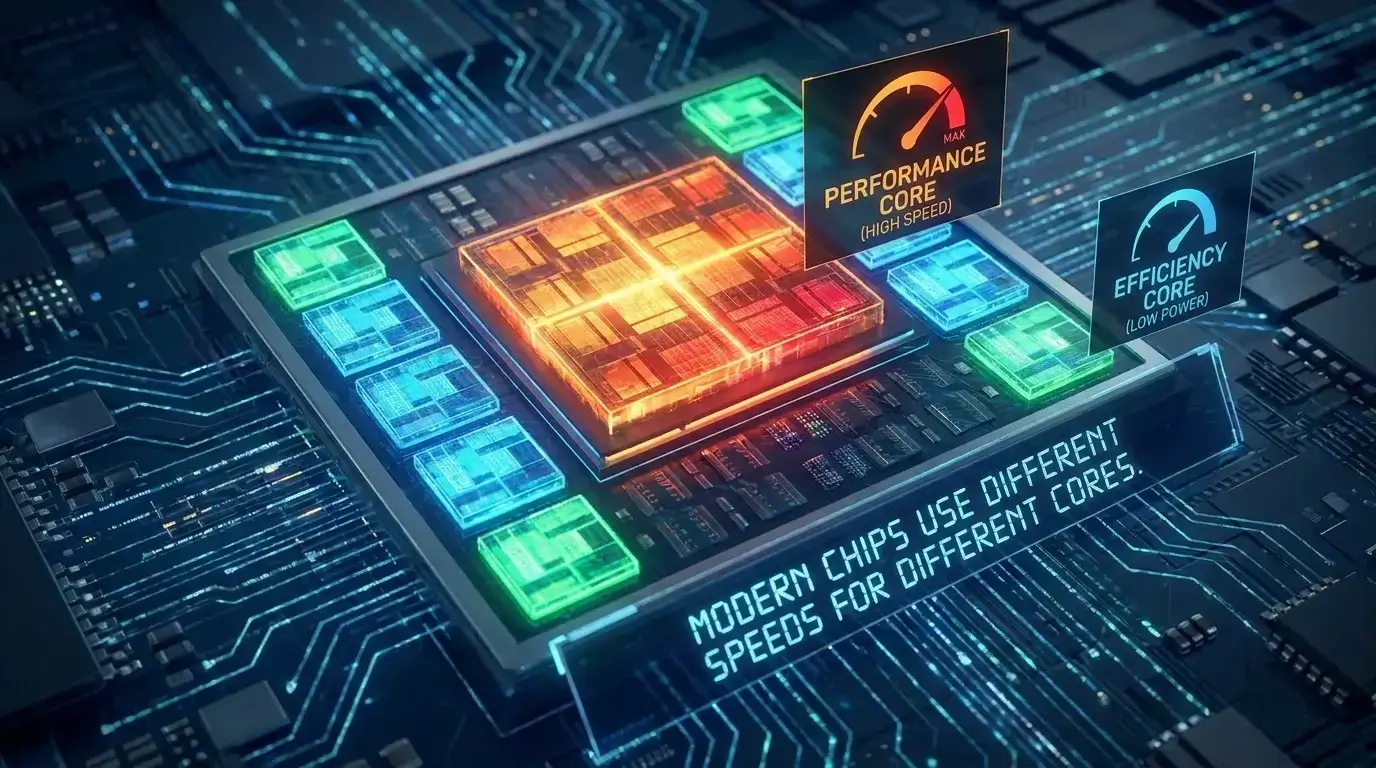
New chips do not use one type of core anymore. Chips like Intel Core Ultra, Apple’s M-series, and Qualcomm’s Snapdragon mix two kinds of cores on the same chip:
- Performance Cores (P-Cores): big, strong cores for hard jobs like gaming or writing code. These hit the fastest speeds.
- Efficiency Cores (E-Cores): small, low-power cores for easier jobs, like playing music or checking for updates in the background.
Your computer’s system sorts each job to the right core on its own. Hard jobs go to fast P-cores. Easy jobs go to slower E-cores. This means different parts of the same chip can run at different speeds at the exact same time.
Takeaway: A modern CPU does not run at just one speed. Different cores can run at different speeds all at once, depending on the job.
Base Clock vs Boost Clock
Look at the spec sheet for any new Intel or AMD chip. You will see two speed numbers, not one.
- Base Clock: the normal speed the chip is built to run at. This is not the lowest speed it can ever hit. The chip can drop below this number when it is doing light work, to save power.
- Boost Clock (Turbo): the top speed the chip can reach for short bursts, when it has enough power and is not too hot. Intel calls this Turbo Boost. AMD calls this Precision Boost.
The main idea is that boost speed changes all the time. Your chip is always adjusting, based on what you are doing and how hot it is.
- Light Work: Lower CPU speed
- You Open an App: Higher CPU speed
- Heavy, Long Work: Boost speed
- Too Hot or Power Limit Hit: Speed drops back down
- Important: Exact clock speeds depend on the specific CPU. There is no single rule that applies to every processor.
One Core vs All Cores
The big boost number on the box is almost always for one core only the fastest speed one core can reach while the rest of the chip rests. When a heavy task uses every core at once, like exporting a video, the chip runs a bit slower across all cores. This keeps the chip from using too much power or getting too hot. This is normal. It is not a problem.
| What You See | Base Clock | All-Core Boost | Max Turbo Boost |
|---|---|---|---|
| Cores Working | All cores | All cores | 1–2 cores |
| Heat Made | Low | High | Medium to high |
| When It Happens | Light tasks | Long, heavy tasks | Opening apps, quick gaming spikes |
Takeaway: Do not expect your CPU to sit at its top boost speed all day. That number is a ceiling for special moments, not the normal speed.
How Much Clock Speed Do You Really Need?
There is no single “best” GHz number for every computer. It depends on what you use your PC for. Instead of asking “how many GHz do I need,” ask “what will I use this computer for?”
Everyday Use and Office Work
Browsing the web, checking email, streaming shows, using office apps clock speed rarely slows you down here. A normal modern chip handles this easily. A fast SSD and enough RAM often matter more for how “snappy” your PC feels.
Gaming
How much clock speed you need depends on the game and the screen resolution.
- Fast competitive games (like Counter-Strike 2 or Valorant) can benefit from a fast single core, since these games try to push very high frame rates.
- Big, cinematic games at 1440p or 4K put more of the work on your graphics card (GPU), not your CPU. At higher resolutions, a mid-range CPU paired with a strong GPU can perform almost the same as a much faster CPU.
There is no fixed rule like “you need 4.8 GHz to game well.” The GPU, the game itself, and your settings all matter too.
Video Editing 3D Work & Coding
Programs like Premiere, DaVinci Resolve, Blender, and code compilers spread their work across many cores at once. For these jobs, a chip with more cores usually finishes faster than a chip with fewer cores but a higher top speed. Still, not every program uses extra cores equally well.
Quick Guide Matching Your Task to What Matters Most
| Your Main Task | What Matters Most |
|---|---|
| Web, school, office work | Modern chip design, fast SSD, enough RAM |
| Fast competitive gaming | Strong single-core speed, IPC, cache |
| Big AAA gaming | CPU and GPU balance, cache, strong GPU |
| 4K video and audio editing | Core count, steady clock speed, 32GB+ RAM |
| 3D modeling and rendering | Core count, steady all-core speed, good cooling |
| Coding and virtual machines | Core and thread count, memory, steady speed |
Takeaway: Do not shop for a random GHz number. Look up real test results for the exact job you plan to do.
How to Check Your CPU Clock Speed
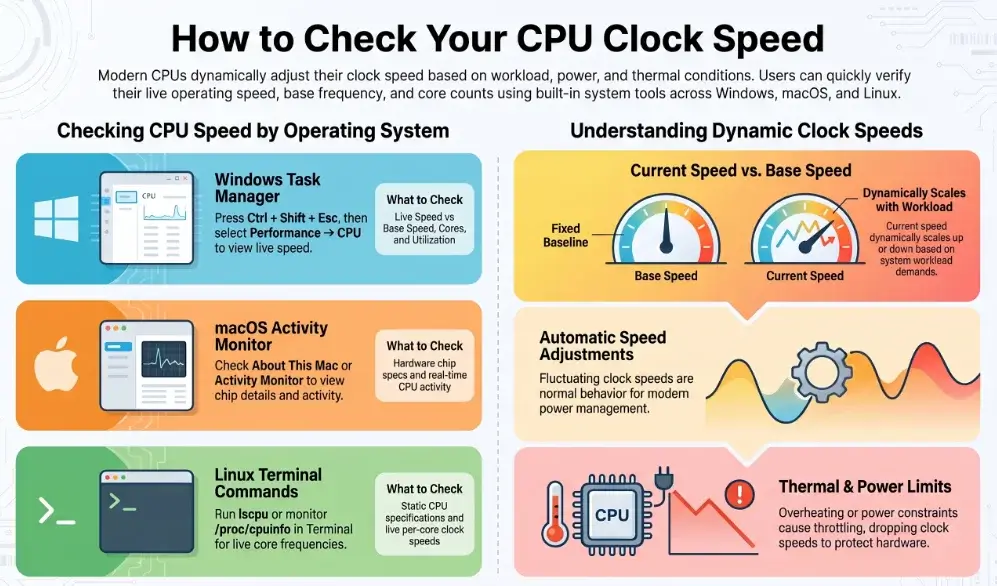
You can check your CPU clock speed using built-in tools on Windows, macOS, and Linux. You do not need special software for a basic check.
Check CPU Speed by Operating System
| Operating System | Steps | What to Check |
|---|---|---|
| Windows 10 / 11 | Open Task Manager → Performance → CPU | Speed = current clock speed Base speed = rated clock speed |
| macOS | Open About This Mac or Activity Monitor → CPU | Shows chip information and CPU activity. Apple Silicon Macs do not normally show a live GHz reading. |
| Linux | Open Terminal and run lscpu or watch grep "cpu MHz" /proc/cpuinfo |
Shows CPU speed information and live readings for individual cores. |
Windows Example
On Windows, press Ctrl + Shift + Esc to open Task Manager. Go to Performance → CPU. You will see the current speed, base speed, core count, and other CPU information.
Utilization: 18%
Speed: 4.62 GHz
Base speed: 3.40 GHz
Cores: 8
Logical processors: 16
In this example, 4.62 GHz is the CPU’s current operating speed, while 3.40 GHz is its rated base speed. The current speed can move up or down depending on workload, temperature, and power limits.
For more detailed monitoring: Free tools such as HWiNFO and CPU-Z can show clock speeds, temperatures, power usage, and other CPU details.
Why Is Your CPU Clock Dropping or Stuck?
A CPU that will not hit its top speed is usually following a safety rule. It is not broken.
Common reasons include:
- The chip is too hot
- The chip hit a power limit
- Your laptop is saving battery power
- The motherboard hit its own limit
- A BIOS or firmware setting
- A sensor or hardware problem
Thermal Throttling (Too Hot)
When a chip gets too hot, it slows itself down to stay safe. A chip that can hit 5.2 GHz might drop to 3.0 GHz or lower until it cools off. The exact “too hot” number is different for each chip, so check your chip’s own specs instead of guessing.
Check these together: temperature, speed, power use, how busy the CPU is, and fan speed. If speed drops right when heat goes up, cooling is likely the cause.
Ways to fix it: clean dust out of your fans and filters, make sure all fans spin, improve airflow inside your case, check that your cooler is mounted right, and put on fresh thermal paste if your PC is a few years old.
Power Limit Throttling
Chips are built to boost hard for a short time often 30 to 60 seconds then settle down to a lower, steady speed. This is normal. It is expected for your chip to run slower during a long task, like a video export, than during a quick task, like opening an app.
Stuck at a Very Low Speed on a Laptop
Some laptops get stuck at a very low speed, sometimes near 0.8 GHz. Everything feels slow. This is often linked to a safety feature (on some Intel laptops, called BD PROCHOT), but it is not always the cause. A bad charger, broken battery sensor, stuck fan, or old firmware can also cause this.
Try these steps first:
- Plug in the correct, official charger.
- Restart the laptop.
- Check the CPU temperature with a monitoring tool.
- Check your Windows power settings.
- Update your BIOS if a new version is out.
- Check if the problem only happens on battery power.
- Try a different charger if you can.
If the speed stays stuck after these steps, you may need a repair technician. Do not turn off safety features just to force a higher speed.
The Windows “99%” Mistake
Some guides tell you to lower “Maximum Processor State” from 100% to 99% in Windows to reduce heat. On many computers, this turns off Turbo Boost almost completely. You lose a lot more speed than the small amount of heat you save. This is not a real fix for overheating. Look for the real cause first your cooler, airflow, dust, or fan health.
Takeaway: If your speed drops under load, check heat, power, and the type of task first. Heat and power limits explain most slowdowns.
Pros and Cons of High Clock Speeds
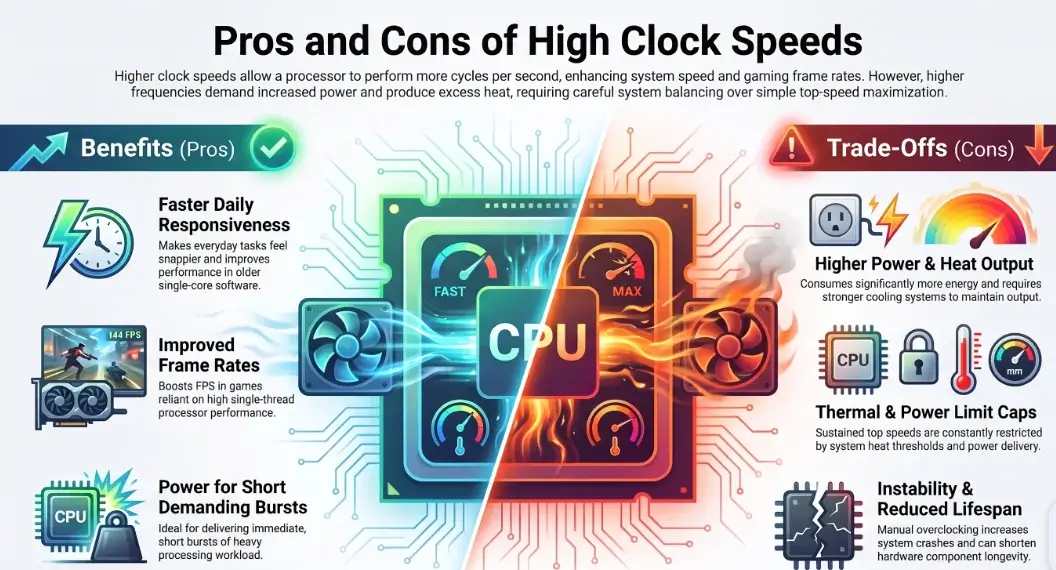
| Benefits | Trade-Offs |
|---|---|
| Feels faster and more responsive for everyday tasks | Uses more power at higher clock speeds |
| Can improve frame rates in some games | Creates more heat and may require stronger cooling |
| Helps older software that relies heavily on single-core performance | Sustained clock speeds still depend on power and temperature limits |
| Great for short, demanding bursts of work | Manual overclocking can cause instability or reduce component lifespan if done incorrectly |
A faster clock lets a chip finish more beats every second. That can help, as long as the rest of the chip’s design stays the same. But a faster clock usually needs more power, and more power makes more heat. That is why chips are always balancing speed against heat and power, instead of running at top speed all the time.
About overclocking: You can sometimes push a chip’s speed higher than normal, if your chip and motherboard allow it. But this also raises power use, heat, and the risk of crashes. For most people, small safe tweaks (see the tips below) help more than chasing the highest possible number.
Common Mistakes to Avoid
- Buying the chip with the biggest GHz number without checking anything else. A bigger number does not always mean faster. Check the chip’s design and real test results too.
- Comparing GHz across different years or brands. A newer 4.5 GHz chip can beat an older 5.0 GHz chip.
- Thinking base clock is the lowest speed ever. Chips can run slower than base clock during easy tasks. This saves power and is normal.
- Expecting top boost speed all the time. The top number only shows up in short bursts, not all day.
- Forgetting about the graphics card (GPU) for gaming. A fast CPU cannot fix a weak GPU, especially at high resolutions.
- Pairing a strong chip with a weak cooler. Even a great chip will slow down if it gets too hot.
- Thinking more cores always wins. Some programs work best with a fast single core, not many cores.
Do not start your next CPU choice with the GHz number. Start with what you actually plan to do with your computer. Then look at the chip’s design, real test results, core count, cache, boost behavior, power use, cooling needs, and total cost.
For gaming, check test results for the exact games and resolution you play. For work tasks, check test results for the exact programs you use. If your PC feels slow, check your CPU use, GPU use, RAM use, storage speed, and temperature together, along with clock speed, before buying new parts.
A CPU running at 4.5 GHz is not always slow. A CPU running at 5.5 GHz is not always fast. The real question was never “how many GHz does my CPU have?” It is “how much real work can this CPU do for what I actually need?” To compare real chips using real test results instead of just GHz, check our Desktop and Laptop CPU Hierarchy Guide.
Tips for Better Performance
Try small safe tuning before chasing top speed. Modern chips already adjust speed on their own. Tools like AMD’s Curve Optimizer can sometimes lower your chip’s voltage a small amount. This keeps it cooler, so it can hold a higher boost speed for longer. Safe settings change by chip model, so do not copy a setting from someone else’s computer. Always test your PC after any change to make sure it stays stable.
Turn on XMP or EXPO in your BIOS if you can. Your CPU talks to your RAM through its memory controller. If your RAM is running at a slow default speed, your CPU has to wait longer for data. Turning on Intel XMP or AMD EXPO in your BIOS lets your RAM run at its full rated speed. Check that your motherboard supports this first.
Keep your fans and filters clean. Dust blocks airflow and raises heat. Instead of promising an exact number of MHz you will gain, just check your temperature and speed before and after cleaning the result is different for every PC. A simple routine: clean your filters often, make sure your fans spin, keep cables out of the airflow path, and check your temperature while doing normal tasks, not just when the PC is sitting idle.
Tip: Do not judge your cooling only by idle temperature. A chip can look cool while doing nothing, then get very hot during a long task like rendering, coding, or gaming.
Frequently Asked Questions
Is a higher CPU clock speed always better?
No. A higher clock speed can help, especially between similar chips. But it does not tell you everything. Design, IPC, cache, core count, memory, power limits, and cooling all matter too.
What is a good CPU clock speed for gaming?
There is no single number that works for every game. Look up real test results for the games and resolution you play. A strong single-core speed and good cache often matter more than the GHz number alone.
Does clock speed matter more than the number of cores?
It depends on the task. Games and many everyday apps like a fast single core. Video editing, rendering, and coding often like more cores.
Can I make my CPU run faster?
Sometimes. If your chip, motherboard, and cooling all support it, you may be able to boost your speed. Intel chips with a “K” in the name, paired with the right motherboard, are built for this. Many AMD Ryzen chips also support tuning. Always check your exact chip and motherboard first.
Why does my clock speed drop while gaming?
This can be normal. The game may not be using your CPU very hard, or your chip may have hit a heat or power limit. Check your temperature, CPU use, power, and speed together to understand what is happening.
Does a higher clock speed use more electricity?
Usually, yes. A higher speed often needs more power, and power use grows as the chip gets closer to its limit. The exact amount depends on the chip and the task.
Why does my CPU speed keep changing in Task Manager?
This is completely normal. Your chip speeds up when it has work to do and slows down when it is idle, to save power and stay cool.
What is the difference between MHz and GHz?
Both measure speed. 1 GHz equals 1,000 MHz, or 1 billion beats per second. Most modern chips are measured in GHz.
Is clock speed the same thing as CPU performance?
No. Clock speed measures how fast the clock ticks. Performance measures how much real work gets done. Two chips can have the same clock speed and still perform very differently.
Why does my CPU run slower than the speed on the box?
This is usually normal. The chip may be idle, saving power, doing an easy task, limited by a laptop power setting, or managing heat. The number on the box is a top speed, not a constant one.
Conclusion
While a higher CPU clock speed (GHz/MHz) is important, it is not the sole indicator of overall processor performance. Real-world performance relies on a balance of clock speed alongside IPC (Instructions Per Cycle), core count, cache memory, power limits, and effective cooling. Single-core speed and cache memory primarily drive gaming and everyday applications, whereas multi-core power excels in heavy workloads like video editing, 3D rendering, and coding. Furthermore, dynamic fluctuations in clock speed during use are completely normal as the CPU constantly adjusts its speed to manage workload, temperature, and power consumption. Ultimately, clock speed merely measures how fast the clock ticks, while actual performance determines how much real work gets done.

Leave a Reply